
Step-by-step guide
How to import your TikTok LIVE creators from an Excel or CSV file
To import your TikTok LIVE creators from a spreadsheet, open Account, then Import figures, choose a CSV or XLSX file of up to 15 MB, check the summary the app shows and tap Add. At the end your creators are on the roster with that month's figures. Nothing is saved until you have checked the summary. The file works best as the Creator data export from Backstage.
On this page
Written for agency owners who keep their roster in a spreadsheet. Every screen name below is the one the app shows (see also what the app does, feature by feature), and everything on this page about the app was checked against the app itself on 2026-11-05. Where no screenshot of a screen exists, the page says in words what you should see.
Key facts
| Who can import | The owner imports for the whole agency. An agent can import too, but only for creators already on their own list, and an agent's import never adds a creator. |
|---|---|
| File | CSV or XLSX, up to 15 MB. Only the first sheet of an XLSX workbook is read. An old .xls file has to be saved again as .xlsx or .csv first. |
| Best file | Backstage's Creator data export for one calendar month, taken from the 1st. A file whose period starts mid-month or runs over two months, such as the last seven or thirty days, is refused. |
| What the file needs | A Creator ID column and a Diamonds column. A username column is needed for any creator who is new to your roster. |
| What it brings in | Creators (Creator ID and username) and one month's figures for each: diamonds, valid LIVE days, LIVE duration, LIVE streams, new followers, diamonds from matches, matches and graduation status, whichever the file holds. |
| When it saves | Only when you tap the Add button on the check screen. Before that the app only describes what it found. |
| Which month | The file's Data period column, or the month you pick from the last six. |
| What it is not | It does not read your Backstage account and does not update itself: you upload a new file each time. It does not set pay and it never moves money. To have figures read for you every day, connect your Backstage login instead. |
The steps
Seven steps, in order. The first five happen in the import screen; the last two show you the result and the one decision that stays with you.
-
Export the month's Creator data from Backstage
In Backstage open Creator data, choose the month from the 1st (This month, or a whole past month) and export it as CSV or XLSX. These are the three steps the import screen itself lists: open Backstage, go to Creator data, tap Export.
What you should see: A CSV or XLSX file on your phone, under 15 MB. A file that covers some other window, such as the last seven or thirty days, is refused in step 3.
-
Open Account, then Import figures
On the owner's Account screen, under Agency, tap Import figures. While your agency is new, the setup card on Home (the option “Import a spreadsheet”, with an Upload a file button) and the Backstage connect screen (“Prefer a spreadsheet? Import figures instead (manual)”) open the same screen.
What you should see: A screen titled Import an Excel file. Under “Where to get the file” are the three steps from step 1, and a Choose file button sits at the bottom. If your agency has not yet connected Backstage or imported a file, a note says that adding at least one creator opens invites, your agency code and announcements.
-
Choose your file
Tap Choose file and pick the CSV or XLSX from your phone's Files. The app reads it straight away but saves nothing yet.
What you should see: A short list while the app works: Reading the columns, Finding the month, Matching creators. If the file does not say which month it covers, the app asks “Which month is this file?” and shows the last six months: pick yours and tap Check with this month.
-
Check the summary before anything is saved
The next screen is headed Check your figures, with the month. It says how the columns were read, then gives four counts. Notes under it warn about anything the app will skip, replace or leave alone.
What you should see: Creators in file, Already on your roster, New to your roster and Total diamonds. If something looks wrong, tap Choose another file and start again. Nothing has been saved at this point.
-
Tap Add to save
Tap the button at the bottom. It reads Add and the number of creators, for example “Add 25 creators”. Only now are the creators and their figures saved.
What you should see: A confirmation such as “25 creators are in”, the line “October 2026 figures are ready.” with the month you imported, and how many of the creators were new to the roster. After your first import a note says “Invites are open”, with an Invite agents button.
-
Look at your Roster
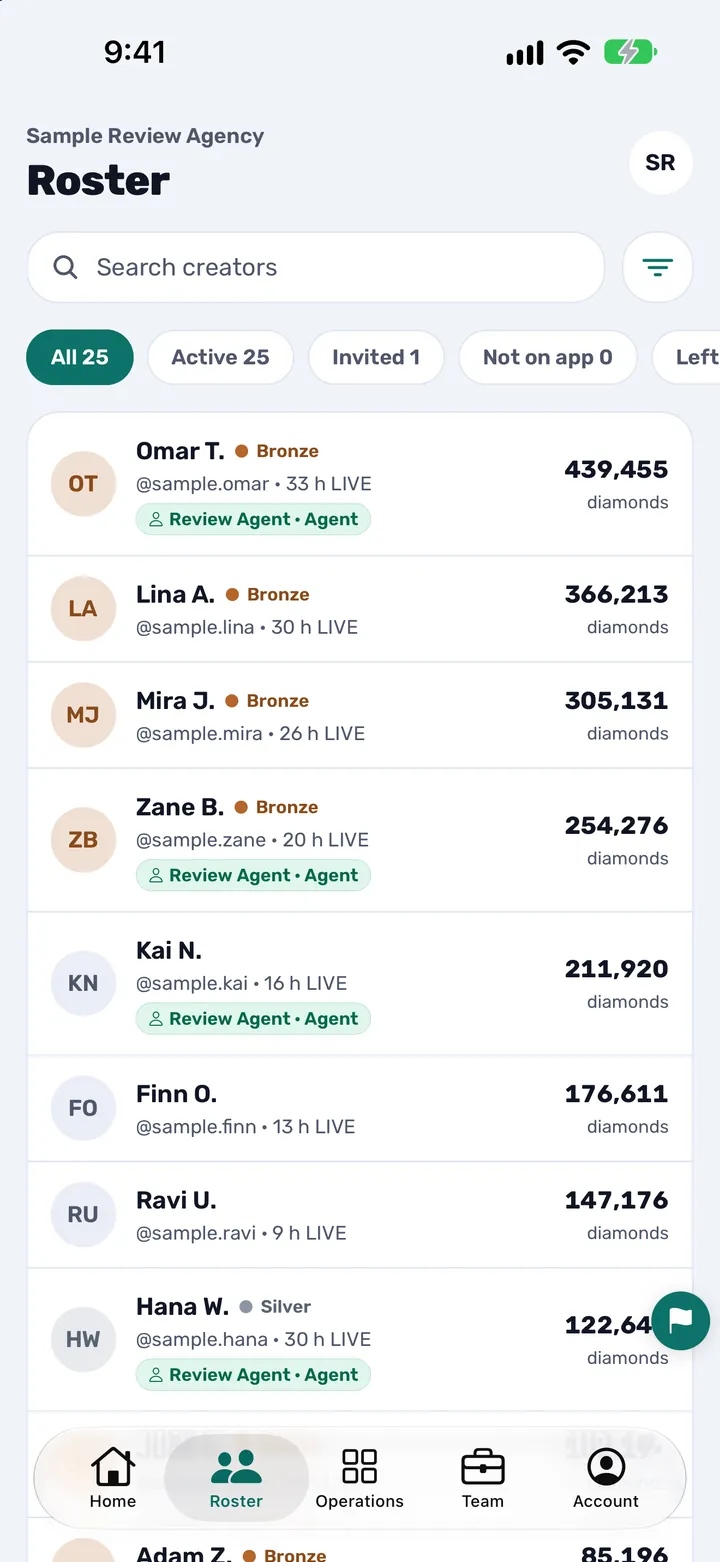
Open Roster. Every imported creator is listed with their username. If you imported the current month, each creator shows that month's LIVE hours and diamonds.
What you should see: Your creators in a list, each with their diamonds and LIVE hours for the month. The screenshot shows the Roster with sample creators.
-
Accept the creators who ask to join
Imported creators can now sign in with TikTok. Their first sign-in is matched to their row by username, and it waits in Join requests until you accept it, because a username alone does not prove who is signing in. Open Operations, then Join requests. The onboarding checklist covers what to do next with each new creator.
What you should see: Join requests under “Needs your review”, with the line “Accept creators asking to join”. Each request is marked On roster or Not on roster.
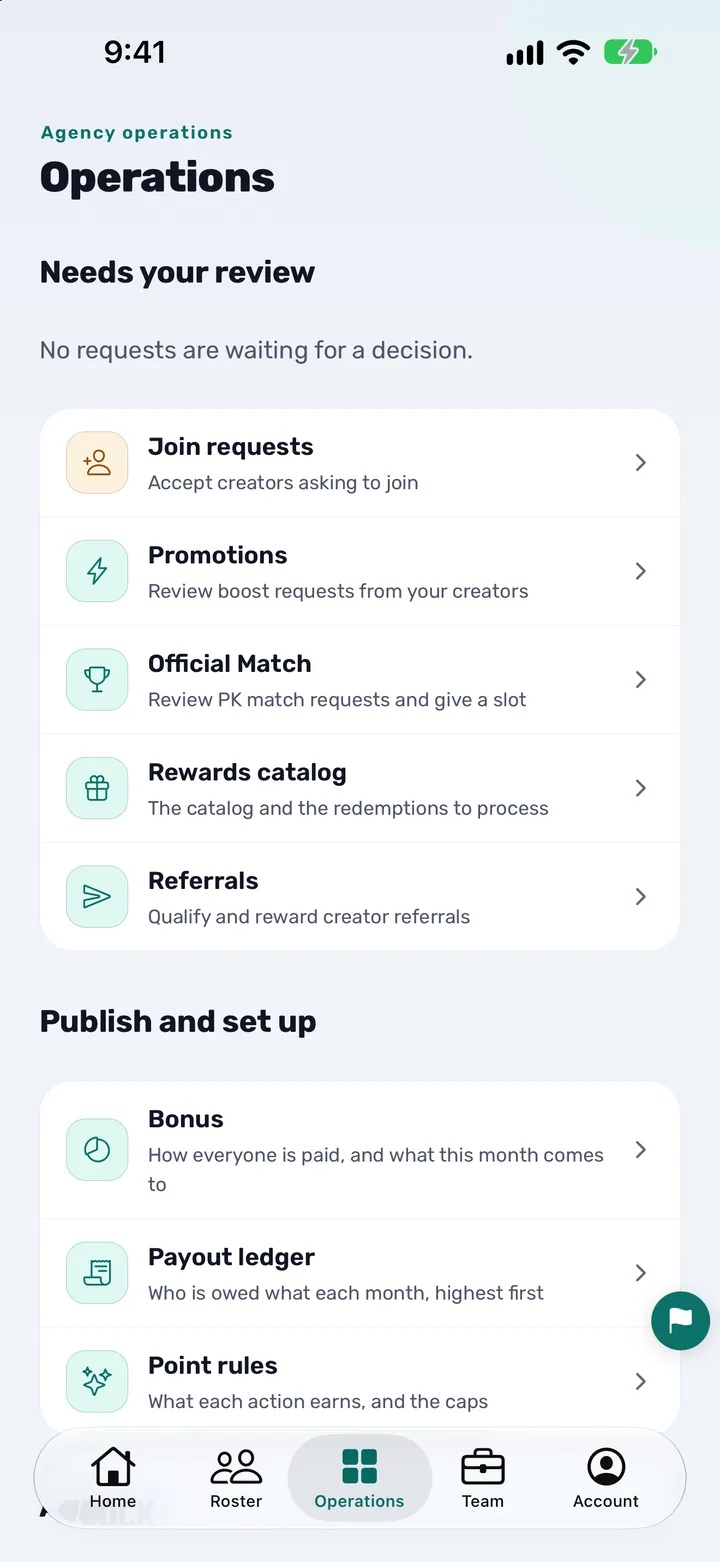
The screenshots use sample creators.
You are done when
You are done when the app has shown the confirmation “N creators are in”, your Roster lists those creators with the month's figures, and the creators who asked to join have been accepted or declined in Join requests.
What the app does with each row
The check screen counts these cases before you save, so none of them is a surprise.
| In your file | What the app does |
|---|---|
| A creator already on your roster | Matched by Creator ID. Their figures for that month are replaced by the file's. A column the file leaves empty keeps what was saved. |
| A creator whose figures for that month came straight from Backstage | Left as they are. The check screen counts them: “They are left as they are.” |
| A creator with fewer diamonds than already saved | Allowed, with a warning to check that it is the right month and file. Confirming replaces the saved figure. |
| A creator who is new to your roster, with a username | Added to your roster. Only an owner's import adds creators. |
| A creator who is new, with no username | Skipped, and counted in a note on the check screen. |
| The same Creator ID on more than one row | The last row for that creator is used, and the note says how many appeared more than once. |
| A row with no usable Creator ID, or no Diamonds figure | Skipped and counted: “1 row was skipped.” |
| An agent's import: a creator not on their list | Left out, with a note. Agents can only import figures for creators already on their own list. |
What happens by itself and what you confirm
The import does a few things for you, and leaves one decision with you.
- By itself: each creator is saved to your roster with their Creator ID and username, and listed so that a creator who signs in with TikTok can find your agency. The month's figures are stored with them. The first time an owner imports at least one creator, invites, the agency code and announcements open.
- You confirm: the month, by checking the summary before you tap Add. And each creator's first sign-in, in Join requests: a username can be reused by someone else on TikTok, so a match on the username alone always waits for a person on your team to accept it.
- Not touched: pay rules, levels and who looks after each creator. Set pay in Operations, then Bonus (see how creator pay rules work), and who looks after whom in Team and on each creator's page.
If something looks wrong
- “We could not recognise the columns”. The file does not use column names the app knows. The app offers Match the columns with AI. If you agree, only the column names and the kind of value in each column (a whole number, a duration, a date range or text) go to an AI model, Anthropic. The figures, creator IDs, usernames and names in the file are never sent. You review the match, field by field, before anything is imported. A file matched this way still imports, but it is not treated as a verified Backstage export. If the match is not clear enough, nothing is imported: export the Creator data again from Backstage and upload that file.
- “Which month is this file?” The file does not say which period it covers. Pick the month and tap Check with this month. The app refuses a month that has not started and a month more than a year old.
- “This export covers … not a calendar month from the 1st”. The file is for a window such as seven or thirty days. In Backstage choose This month, or a whole past month, and export again. The Manage creators export, which holds the last 30 days, is refused for the same reason: use Creator data.
- “That file is over 15 MB. Export one month at a time.” The file is too large. Export a single month.
- An old .xls file. Open it in Excel and save it as .xlsx or .csv, then choose it again.
- A warning that some creators have fewer diamonds than saved. Check that you chose the right month and the right file. Confirming replaces the saved figures with the file’s.
- “Invites are still locked. Connect Backstage to open them.” This import did not open them. Connecting Backstage does, and keeps your figures up to date every day. See how to connect Backstage.
- “No connection. Try again.” The app could not reach its server. Check your connection and tap Try again. Nothing was saved.
Still stuck? Contact support and say which message you saw.
Questions owners ask
How do I import creators from Excel into CN Creator App?
Open Account, then Import figures, tap Choose file and pick a CSV or XLSX file of up to 15 MB. The app reads it, shows a Check your figures summary and saves nothing until you tap Add. Afterwards your creators are on the Roster with that month's figures.
Which file types and how large can the file be?
CSV or XLSX, up to 15 MB. For an XLSX workbook only the first sheet is read. An old .xls file has to be saved again as .xlsx or .csv. If the file is too big, export one month at a time.
Does the import save anything before I confirm?
No. The app first reads the file and describes it: the columns it matched, how many creators are in the file, how many are already on your roster, how many are new and the total diamonds. The same file is read again and saved only when you tap the Add button.
What happens to creators who are already on my roster or appear twice?
A creator already on your roster is matched by Creator ID and gets the file's figures for that month, unless those figures came straight from Backstage, in which case they are left as they are. If the same Creator ID is on more than one row, the last row is used. Rows with no usable Creator ID or no Diamonds figure are skipped, and the check screen counts all of these.
Do I have to use the Backstage export, or can I use my own spreadsheet?
The Creator data export from Backstage works best. A spreadsheet of your own also works if it has at least a Creator ID column and a Diamonds column, and a username column for creators who are new to your roster. If the app does not recognise the column names, it can offer to match them with AI after you agree, and you review the match before anything is imported.
Which month do the figures go to?
The month named in the file's Data period column. If the file does not name one, the app asks and shows the last six months to pick from. The period has to be a calendar month from the 1st: a file for a window that starts mid-month, such as the last seven or thirty days, is refused.
Can my agents import a spreadsheet too?
Yes, but only for creators already on their own list. Under Account, an agent sees Import figures with the line “Upload a Backstage export for your creators”. Creators in the file who are not on their list are left out, and an agent's import never adds a creator or opens invites. What each agent may see and do is set in Team: see how to set staff permissions.
Do imported creators get an account automatically?
No. Imported creators sign in with TikTok. Their first sign-in is matched to their roster row by username and waits in Join requests until you or an agent with the Handle requests permission accepts it. A username alone does not prove who is signing in.
Does a spreadsheet import keep my figures up to date?
No. You upload a new file each time you want fresh figures. Connecting your Backstage login reads them for you every day (see TikTok Backstage data without spreadsheets). The two can be used together: an import never overwrites figures Backstage has already read for that month.
Is my spreadsheet sent to an AI service?
Only if the app does not recognise the columns, you tap Match the columns with AI and you agree to the line shown first. Then only the column names and the kind of value in each column are sent to an AI model (Anthropic). The figures, creator IDs, usernames and names are not, and the privacy policy says the file itself is not kept after the import.
More from CN Creator App
- How a TikTok LIVE agency runs on CN Creator App, day by day
- What CN Creator App does, feature by feature
- TikTok Backstage data without exports or spreadsheets
- Connect your Backstage account
- How to onboard TikTok LIVE creators
- How to set up your agency with the AI assistant
- How to set pay rules, step by step
- How to set staff permissions
- How to start a TikTok LIVE agency
- Video tutorials
- Privacy policy
- Support