
Step-by-step guide for agency owners
How to set staff permissions for your TikTok LIVE agency, step by step
To set staff permissions in CN Creator App, the owner opens the Team tab, adds the person by invitation or with the agency code, taps their name and sets three things: which creators they see, which of six actions they may take, and their Payout access (None, Their roster or Whole agency). Every switch is saved the moment you tap it. An owner can do everything, and an agent can do only what the owner switched on.
On this page
This guide shows the screens in the order you use them. It covers staff only: creators join and are approved in a different way, described under “How a person joins”. What Payout access opens, and how pay rules are set, is on the pay rules guide.
Before you start
- You are an owner. Only owners have the Team tab, and only an owner can add staff or change what a colleague may do.
- Backstage is connected. Invites reach real people, so “Add someone” and the agency code open once the agency’s Backstage login has been read. Connect Backstage to CN Creator App
- You know the role you want. The owner role can do everything you can. The agent role can do only what you switch on, and that is the right start for most people.
Owner and agent
There are two roles. The picker in the app calls the agent role “Staff”; the help text around it says agent.
- Owner. Can do everything you can: invite and remove colleagues, change your role, and replace the agency’s Backstage login. Choose it only for someone who should hold all of that.
- Agent (Staff). Sees the creators their own Backstage login reads, plus any you assign, and has no Team tab. Everything else is off until you switch it on, one permission at a time.
How a person joins
- By invitation. You type their name and work email and choose their role. They get a link, and until they accept their row shows “Invited”.
- With the agency code. The Team tab shows an eight-character “Agency code”. A person who installs the app, picks Agent when creating an account and enters the code joins at once as an agent, with every permission switched off. There is no approval step for staff, so every owner is told (“joined your team with the agency code”) and the person appears in the list.
- Creators use the same code differently. A creator enters it together with their TikTok username, and their request waits for staff to approve it. Only the staff route skips approval. How to start a TikTok LIVE agency
- By bringing in an existing account. For someone who already runs their own workspace in the app. You send a request, they accept it in their own account, and only then does their workspace move under yours.
The steps
Seven steps. Screens and buttons are written the way the app writes them. A step with a picture shows the app; a step without one describes the screen in words, because no screenshot of it is published yet. The pictures show the English app.
-
Step 1.Open the Team tab
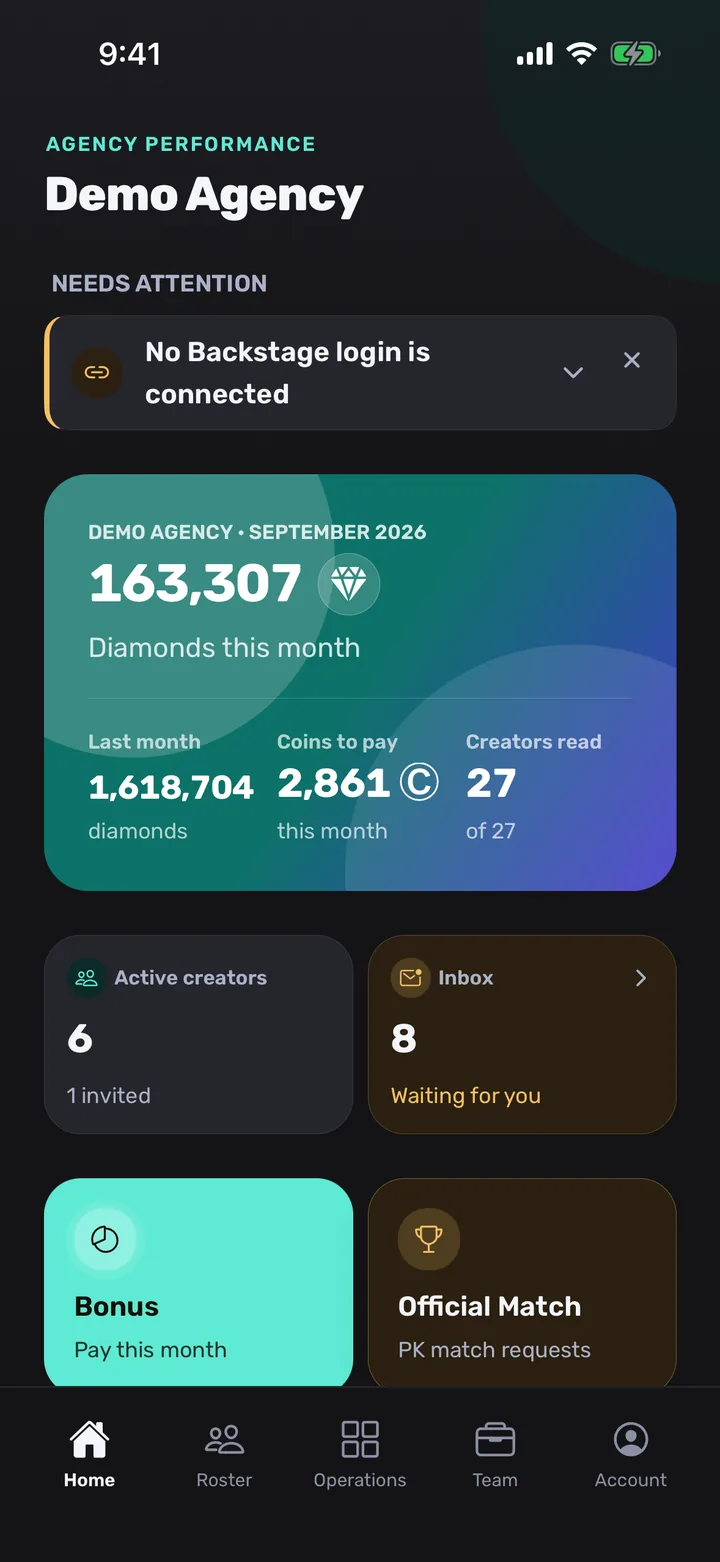
Tap Team in the bar at the bottom of the screen. Only owners have this tab.
What you should see: A screen headed “Team” (“People and access”) with an “Add someone” button, the “Agency code” card and the list “Everyone”. Your own row carries the pill “You”.
More on this: How a TikTok LIVE agency runs on CN Creator App, day by day
-
Step 2.Add the person
Tap “Add someone”, choose “Invite a colleague”, type their name and work email, pick their role and tap “Email the invitation”.
What you should see: A screen headed “Invite a colleague” with the fields “Name” and “Work email”. Under “What they will be able to do” you choose Staff or Owner, with Staff first, and a note below says what the chosen role means. Afterwards the screen says the person has been invited and offers the invitation link. If you would rather give the agency code from the Team tab, there is no form: the person appears in the list as soon as they enter it.
More on this: If “Add someone” is missing: connect Backstage
-
Step 3.Tap their name
When their row in “Everyone” shows the Staff pill instead of “Invited”, tap it.
What you should see: A card headed with their name and “Staff · since” and a date. It shows the state of their Backstage login and of their app when known, a row “Change what the person can do”, a row “Creators they can see”, and then the permission cards. While the row still says “Invited”, tapping it offers to open the invitation or remove it, not to set permissions.
-
Step 4.Choose which creators they see
On the card “Roster visibility”, choose “Their roster” or “Whole agency”.
What you should see: “Their roster” shows only the creators on their own book. “Whole agency” shows every creator, which is a separate decision from seeing pay. The row “Creators they can see” says in words which applies, and opens the list of creators assigned to them.
-
Step 5.Switch on only what they need
Set each of six cards to Off or On: “Edit creators”, “Handle requests”, “Manage programs”, “Manage roster”, “Post announcements” and “Deduct diamonds”.
What you should see: Each card has an Off/On choice, and a new agent starts with all of them Off. There is no Save button: each tap is saved at once, and if the server refuses, the switch goes back and an error is shown.
More on this: What each permission lets a person do
-
Step 6.Choose their payout access
On the card “Payout access”, choose “None”, “Their roster” or “Whole agency”.
What you should see: “None” keeps the Bonus and Payout ledger rows off their Operations tab. “Their roster” opens pay for their own creators only. “Whole agency” opens pay for every creator and the screens where the agency’s pay rules and level shares are changed, so give it only to someone you would trust with that.
More on this: How to set pay rules, step by step
-
Step 7.Check what they will see
Ask the person to open the app, or read the row “Creators they can see” again, and compare it with what you meant.
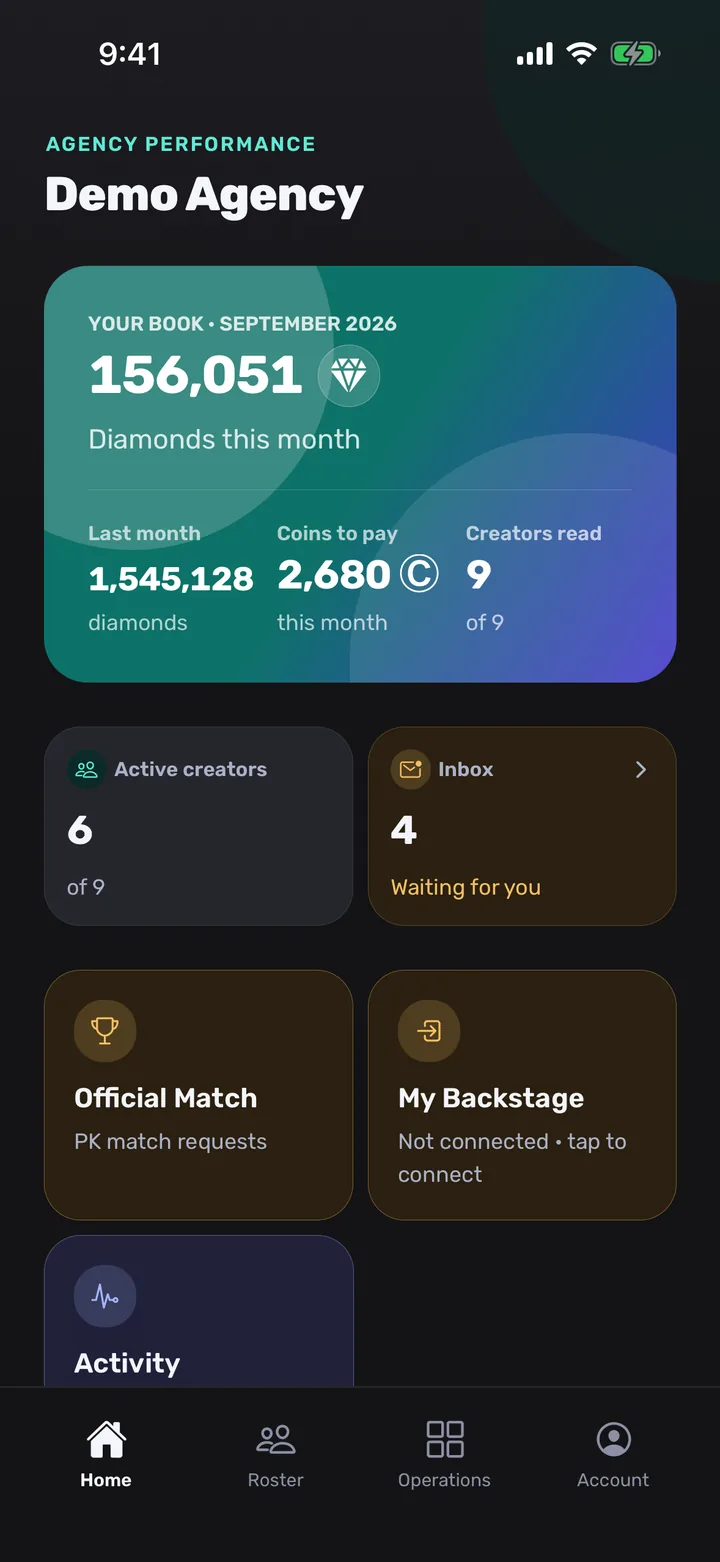
What you should see: An agent’s bottom bar has four tabs and no Team tab. On Operations the rows follow the switches: “Join requests” and “Rewards catalog” need “Handle requests”, and “Bonus” and “Payout ledger” need a payout access other than None. Without it the Payout ledger says “Payout access is not enabled”.
What each permission lets a person do
These are the settings on a person’s card, with the names the app gives them. An owner holds all of them by role.
| Setting | What it lets an agent do |
|---|---|
| Roster visibility | Their roster: see the creators on their own book. Whole agency: see every creator. It changes which creators they see, not whether they can edit them or see their pay. |
| Edit creators | Edit the creators they can already see. It never widens which creators they see. |
| Handle requests | Act on the queues on the Operations tab: join requests, boost requests, Official Match requests, referrals and reward redemptions. Every staff member can read a queue; this is the power to decide one. |
| Manage programs | Set up the agency’s programs, such as the point rules and the rewards catalog. |
| Manage roster | Enrol creators, invite them, and move creators on and off an agent’s book. It covers creators only: adding staff stays with owners. |
| Post announcements | Post, edit and pin the agency’s announcements. |
| Deduct diamonds | Take diamonds off a creator’s month. Only an owner can reverse a deduction. |
| Payout access | None: no pay screens. Their roster: pay for their own creators. Whole agency: pay for every creator, plus changing how the agency pays and the level shares. |
You are done when
- The person’s row in “Everyone” shows the Staff pill, not “Invited”.
- The row “Creators they can see” says what you meant.
- Each of the six cards and “Payout access” shows the setting you chose.
- The person’s own app shows the tabs and Operations rows described in step 7.
If something looks wrong
- There is no “Add someone” button. The Team tab shows a card to connect Backstage first. Invites and the agency code open once the agency’s Backstage login has been read. How to connect Backstage
- The row says “Invited” and nothing opens. The person has not accepted yet. Tap the row to open the invitation, where “Send a new invitation link” sends a fresh one, or to remove it, which stops its link working. You can invite them again at any time.
- Their card has no switches. The cards appear only for agents. An owner’s card offers only the role change, because an owner holds every permission.
- A switch jumped back. The app puts a switch back and shows an error when the server refuses the change. Tap it again once the error has cleared.
- Somebody you do not know is in the list. They entered the agency code. Open Team to check what they can see and tap “Remove from team” if you do not know them: they lose access on every device right away. Then tap “New code” on the Agency code card, which stops the old code at once and affects nobody who has already joined.
- An agent cannot see a creator they should. Check “Roster visibility” and the list of creators assigned to them. What they see also depends on their own Backstage login. TikTok Backstage data without exports
- The Payout ledger says “Payout access is not enabled”. Set their “Payout access” on their card (step 6) to something other than None. How to set pay rules, step by step
Questions agency owners ask
How do I add a staff member to my TikTok LIVE agency in the app?
Open the Team tab, tap “Add someone” and choose “Invite a colleague”, then type their name and work email, pick their role and tap “Email the invitation”. Or give them the eight-character agency code shown on the Team tab, and they join as an agent when they enter it. Both need the agency’s Backstage login to have been read first.
What can a person do right after joining with the agency code?
They join at once as an agent with every permission switched off and payout access set to None. They can see the creators their own Backstage login reads and any you assign, and they have no Team tab. There is no approval step for staff, so every owner is notified and can open Team to check what the person can see or remove them.
Can a person who enters the agency code become an owner?
No. The code only ever seats an agent. An owner can later change the person’s role from their card, which asks for confirmation and says what the owner role can do: invite and remove colleagues, change roles and replace the agency’s Backstage login.
What is the difference between an owner and an agent?
An owner can do everything: invite and remove colleagues, change roles and replace the agency’s Backstage login. An agent sees the creators their own Backstage login reads plus any the owner assigns, has no Team tab, and can do only what the owner switched on.
Which permissions can I give an agent?
Roster visibility (Their roster or Whole agency), six On/Off switches (Edit creators, Handle requests, Manage programs, Manage roster, Post announcements and Deduct diamonds) and Payout access (None, Their roster or Whole agency). A new agent starts with everything off.
Can I stop an agent from seeing what creators are paid?
Yes. Set their Payout access to None and the Bonus and Payout ledger rows do not appear on their Operations tab. With Their roster they see pay for their own creators only, and with Whole agency for every creator. Seeing every creator’s profile is a separate setting, Roster visibility.
What does Payout access set to Whole agency give someone?
Pay for every creator in the agency, and the screens where the agency’s pay rules and the level shares are changed. It is the widest pay setting, so give it only to someone you would trust with the whole agency’s pay.
How do I remove a staff member or change their role?
Tap their name on the Team tab. “Make an owner” (or back to staff) asks you to confirm and explains the consequence first, and “Remove from team” takes away their access on every device right away. Nobody can change their own role, and the last owner is refused outright.
What do I do if the agency code has spread too far?
On the Team tab, tap “New code” on the Agency code card and confirm. The old code stops working immediately, anyone you gave it to needs the new one, and nobody who has already joined is affected. Remove anyone you do not recognise from their card.
Is CN Creator App an official TikTok product?
No. It is made by an official TikTok LIVE agency partner, but CN Creator App is not a TikTok product. Staff permissions are set in CN Creator App by the agency owner and have nothing to do with TikTok’s own accounts. TikTok and TikTok LIVE are trademarks of ByteDance Ltd.
Related pages
- How to set pay rules for a TikTok LIVE agency, step by step
- TikTok LIVE agency pay rules, levels and payout ledger: what they mean
- How to import creators from Excel
- How to set up your TikTok LIVE agency with the AI assistant
- How to onboard TikTok LIVE creators
- How to start a TikTok LIVE agency
- How a TikTok LIVE agency runs on CN Creator App, day by day
- What CN Creator App does, feature by feature
- All tutorial videos
- Support