
Step-by-step guide
How to set up your TikTok LIVE agency with the AI assistant
To set up your agency with the AI assistant, open Home, tap Start with the assistant, agree on the consent screen, answer the questions and check the plan it shows. At the end you have a draft of your pay rules that you have read and that works out each example creator's pay for you. Nothing is saved until you tap Save my plan, and you can undo it for 7 days. The app says it takes about 5 minutes.
On this page
Written for the owner of a new agency. The assistant is optional: the same pay rules can always be set by hand, and the page says how. If you are still applying to TikTok, start with how to start a TikTok LIVE agency. Every screen name below is the one the app shows (see also what the app does, feature by feature), and everything on this page about the app was checked against the app itself on 2026-11-05. Where no screenshot of a screen exists, the page says in words what you should see.
Key facts
| Who can use it | The owner only. Agents and creators never see it. |
|---|---|
| Who is offered it | The owner of a new agency that has not set up pay yet: it is offered in roughly the first month, and it stops being offered once pay has been set up, by the assistant or by hand. It is not switched on for every account. |
| What it asks about | Where your creators are (only if the app does not know your market yet), how you pay them, which levels you pay, whether you pay the tier bonuses (Maintenance and Rank-Up) and whether any creators have a special deal. In typed answers you can also mention how many agents you have and whether the in-app Rewards (points) programme should be on. |
| What you get | A plan: your market, how you pay, which levels pay and what, the bonuses, and what example creators would receive, with the working shown. |
| What it saves | Nothing by itself. You tap Save my plan. |
| Undo | For 7 days after you save, from the Bonus screen. Pay goes back to exactly how it was. |
| What it leaves out | Anything the app cannot calculate yet. It is listed as not included instead of being forced into the wrong place. |
| What is not decided here | TikTok fixes the gates of the five Activeness Levels. You set what each level pays. The app never moves money: you pay outside the app. |
The steps
Seven steps, in order. The first six happen in the assistant; the last one is what to check afterwards.
-
Find the assistant on Home
If the assistant is offered on your account, Home shows a card, “Set up your agency with the assistant”. Tap Start with the assistant. The other button, “I'll set it up myself”, takes you to the manual setup instead.
What you should see: A card that says you answer a few questions in your own words and check everything before it is saved, with the line “About 5 minutes”. If you do not see it, read “If you do not see the assistant” below.
-
Read the consent screen and agree
A dark screen titled “Set up pay with AI” comes first. Read it, then tap Agree and start. Nothing is sent before you do.
What you should see: Three short blocks: What it gets (only what you type and a few agency facts, never passwords, logins or creators' names, emails or phones), Who gets it (Claude, an AI model by Anthropic) and You decide (you check the draft and nothing is saved until you tap Save). Under them: “Tapping an answer never calls the AI. Only typed words are sent.”
-
Answer the questions
Tap an answer, or type your own. The questions come in this order: where your creators are (skipped if the app already knows), how you pay, which levels you pay, which tier bonuses you pay, and whether any creators are on a different deal. A “Not sure” answer gives you the usual setup to start from.
What you should see: A chat with one question at a time, and a “Your rules so far” card that fills in as you answer. Tapped answers never call the AI; only words you type do. You can tap an earlier answer of yours to go back and change it.
-
Check the plan
When the questions are done the app says “Here's your plan.” and shows it. Read it, and tap Change something if any part is wrong.
What you should see: Your market, the default, what you pay, the bonuses and “What example creators get”, with a one-line explanation (diamonds this month × (Level % + bonus %) = pay). Tap an example creator to see their pay worked out.
-
Read what is not included
If you described something the app cannot calculate yet, it is listed rather than squeezed in. Pay those yourself outside the app, or set a special deal for those creators on their own page.
What you should see: A line headed “Not included: the app can't calculate this yet” naming what it left out, for example agent commissions, caps or maximums, weekly, daily or event periods, or special deals for named creators. A “Good to know” card may also note, for instance, that a fixed amount is paid even with 0 diamonds.
-
Tap Save my plan
When you are happy, tap Save my plan. This is the only moment the assistant changes anything.
What you should see: A confirmation, “Saved. You're all set.”, and a receipt, “Pay plan saved”, that says you can undo until a date 7 days away. If part of what you asked for was left out, the confirmation says so and points to the list.
-
Check Bonus and do the next things
Open Operations, then Bonus, to see how everyone is paid. Then work through the card “Next, when you're ready”. Connecting Backstage is explained in how to connect your Backstage account, and what your agents may see and do in how to set staff permissions.
What you should see: Bonus listed under Publish and set up, and on the Bonus screen the row “Undo assistant setup” with its date. The Next card can offer: picking the creators for your special deals, connecting Backstage, inviting your agents and a welcome announcement. The announcement opens as a draft and is never posted by itself.
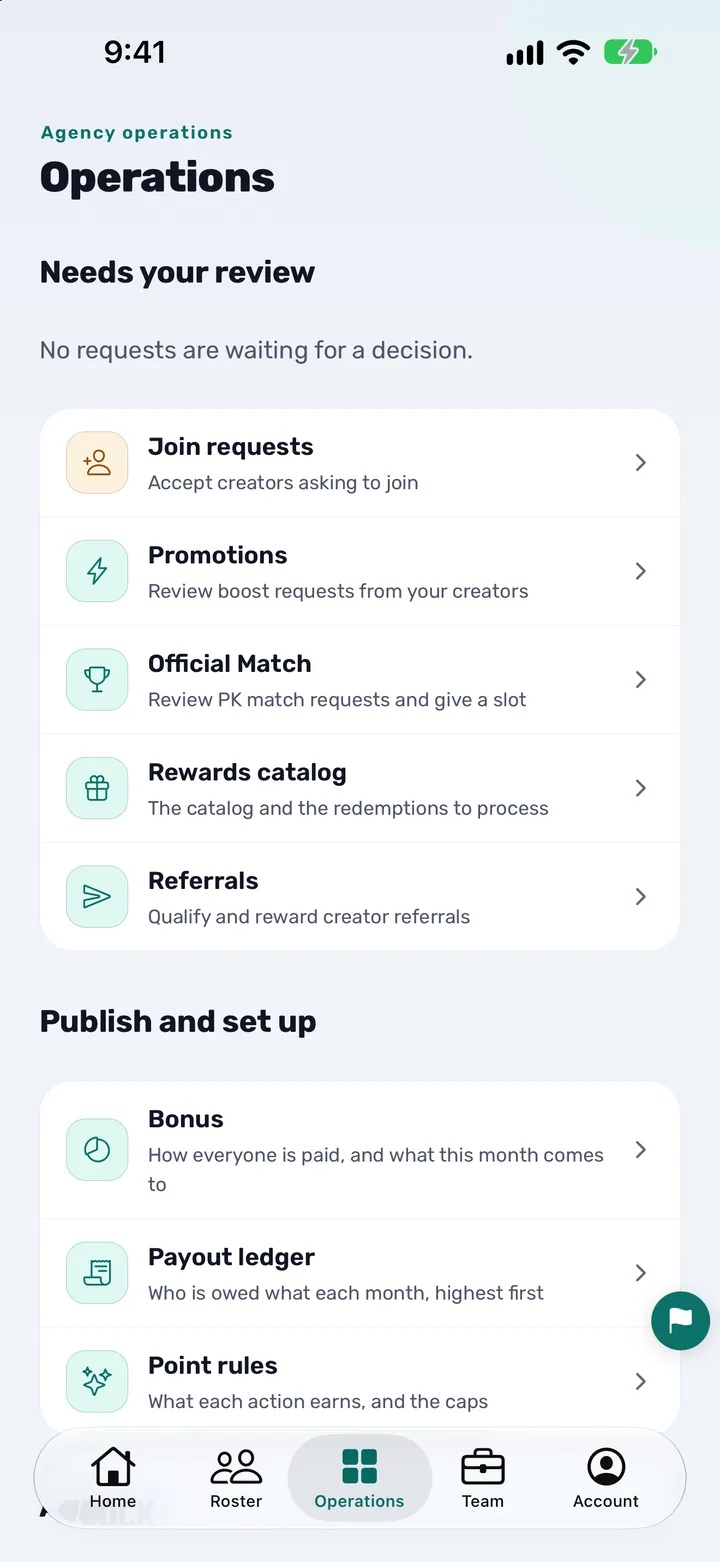
The screenshot uses sample data.
You are done when
You are done when the app has shown “Saved. You're all set.”, Operations, then Bonus, shows how everyone is paid, and you have seen the date until which you can undo the setup.
How to undo it
For 7 days after the assistant saved your pay, the Bonus screen shows “Undo assistant setup (until …)”. Tap it and confirm. Pay goes back to exactly how it was before the assistant saved it: levels, tier bonus, how you pay and Rewards. After 7 days the undo is gone, but every setting can still be changed by hand.
If you do not see the assistant
The assistant is not on for every account. It is for owners only, for new agencies that have not set up pay yet, and it can be used only a limited number of times for one agency. It also does nothing while the “Let AI help” switch under Account, then AI help, is off.
You lose nothing: the same levels and pay rules can be set by hand in Operations, then Bonus. How to set pay rules, step by step walks through it, and creator pay rules for a TikTok LIVE agency explains how the rules fit together.
What leaves the app, and when
Nothing is sent to the AI before you tap Agree and start. After that:
- Sent: the words you type, the conversation so far, and a few facts about the agency: its market and currency, its level targets and how many creators it has. Tapping a ready-made answer does not call the AI.
- Never sent: a creator's name, TikTok handle, email address, phone number or figures, or any password or Backstage sign-in. Your own typed words go as you type them, so do not type those into a message.
- Who receives it: Claude, an AI model by Anthropic. The privacy policy says Anthropic may not train its models on it.
- What you can turn off: Use “Turn off AI help” under the chat, or the “Let AI help” switch under Account, then AI help. Nothing is sent after that, and you can set things up by hand.
- What stays on our servers: The conversation is kept so you can carry on later or undo the setup, and a session is deleted 30 days after it was last used. Only values the app has checked are saved as settings: text the AI wrote is never saved as a setting.
The details are in the privacy policy, section 8A.
Questions owners ask
How do I set up my TikTok LIVE agency with the AI assistant in CN Creator App?
On Home, tap Start with the assistant, agree on the consent screen and answer the questions: how you pay, which levels you pay, the tier bonuses and any special deals. Check the plan it shows and tap Save my plan. You can undo the setup for 7 days.
What does the AI setup assistant do?
It interviews the owner of a new agency about how the agency pays its creators and drafts the pay rules from the answers, then shows how they work on example creators. It does not save anything itself, and it does not move money.
Does the assistant save anything on its own?
No. It only drafts. The owner checks the draft and taps Save my plan. The app saves the draft it checked itself, not text the AI wrote.
Can I undo what the assistant set up?
Yes, for 7 days after saving. On the Bonus screen tap “Undo assistant setup (until …)” and confirm. Pay goes back to exactly how it was before: levels, tier bonus, how you pay and Rewards.
Who can use the AI setup assistant?
Only the owner. It is offered to the owner of a new agency that has not set up pay yet, in roughly the first month, and it is not switched on for every account. Agents and creators never see it.
What if the assistant is not offered on my account?
Set the same levels and pay rules by hand under Operations, then Bonus. The assistant is only a faster way to fill in the same settings. The step-by-step guide to setting pay rules shows how.
What does the assistant not set up?
Anything the app cannot calculate yet: agent commissions, caps or maximums, weekly, daily or event periods, and special deals for named creators, which you set on each creator's page. These are listed as not included. TikTok's own incentive program is set up on its own screen, not by the assistant.
What does the assistant send to an AI service, and to whom?
Only after you agree: the words you type, the conversation so far and a few agency facts (market, currency, level targets, number of creators), to Claude, an AI model by Anthropic. It never sends creators' names, handles, emails, phones or figures, or passwords. See the privacy policy for the details.
Can I turn the AI off after I agreed?
Yes. Tap “Turn off AI help” under the chat, or switch off “Let AI help” under Account, then AI help. Nothing is sent after that. The tapped questions still work, and you can set pay up by hand.
Does the assistant decide what my creators are paid?
No. TikTok fixes the gates for the five Activeness Levels, and you set what each level pays. The assistant only drafts your answers into the app's rules, and the app works out what each creator is owed. It never moves money: you pay outside the app.
More from CN Creator App
- How to set pay rules, step by step
- Creator pay rules for a TikTok LIVE agency
- How to import creators from Excel or CSV
- How to set staff permissions
- How to onboard TikTok LIVE creators
- How a TikTok LIVE agency runs on CN Creator App, day by day
- How to start a TikTok LIVE agency
- A management app for a TikTok LIVE agency
- Video tutorials
- Privacy policy
- Support