
Step-by-step guide for agency owners
How to set pay rules for your TikTok LIVE agency, step by step
To set pay rules for a TikTok LIVE agency in CN Creator App, the owner opens Operations, taps Bonus under “Publish and set up”, sets what each of the five levels pays, builds the rules one by one, checks them on three creators from the roster and taps Save recipe. The payout ledger then lists who is owed what each month. It is a read-only record: the agency pays outside the app.
On this page
This guide only shows the screens, in the order you tap them. It quotes no rate, because every rate is the agency's own to choose. What the levels, rules and ledger mean is explained on the pay rules page, and the choices to make before you start are on the bonus design page.
Before you start
Check these four things first. Each one explains a screen that would otherwise look like it was missing.
- You are the owner, or staff whose Payout access is set to “Whole agency”. Staff with “Their roster” can open Bonus but cannot change how the agency pays. Payout access is set person by person. How to set staff permissions, step by step
- Backstage is connected. Until it is, the Operations tab says “Programs pay on what creators earn, so they open with Backstage.” and offers “Set up pay rules with the assistant” meanwhile. Connect Backstage to CN Creator App
- The first read has arrived. The preview of three creators needs figures from your roster. Before the first read the builder says “Prices show after the first import.” TikTok Backstage data without exports
- You have decided what to pay for. The screens ask for percentages and conditions, and this guide does not suggest any. How to design a TikTok LIVE agency bonus structure
The steps
Nine steps. Screens and buttons are written the way the app writes them. A step with a picture shows the app; a step without one describes the screen in words, because no screenshot of it is published yet.
-
Step 1.Open Bonus on the Operations tab
Tap Operations at the bottom of the screen, find the section “Publish and set up” and tap Bonus.
What you should see: A screen headed “Bonus”. Near the top is this month’s pool, with a count of creators “On your rules” and creators with an “Own deal”. Under that is a section called “How you pay” that lists the rules now in force, or says “No rules yet.”
More on this: What the Bonus screen, levels and ledger mean
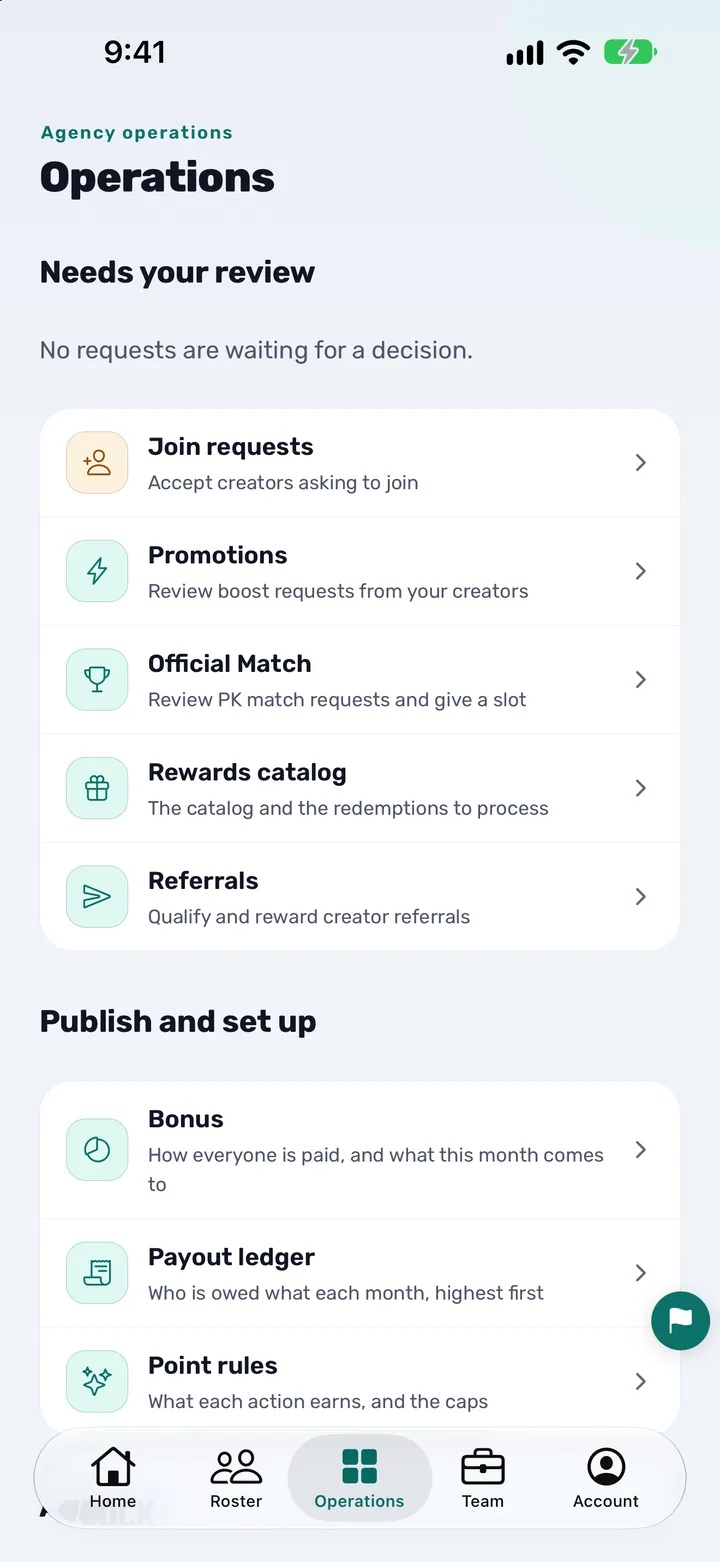
-
Step 2.Say which way you pay, if the app asks
If a card asks “Which way do you pay?”, tap “Paying by level” or “Paying by diamonds”.
What you should see: The card goes away once you have chosen. The app may suggest an answer from your existing rules, but it never saves a guess for you. If you choose diamonds, the “Edit level shares” button is not shown, so skip step 3.
-
Step 3.Set what each of the five levels pays
If you pay by level, tap “Edit level shares”, type the share percentage for each level, and tap “Save curve”.
What you should see: A screen headed “Activeness Levels”. Each of the five rows shows its valid days and LIVE hours, which TikTok fixes, and a box for your share %. Under the rows, “On top of the share” has two boxes, “Maintained” and “Ranked up”. A level with no share is flagged “No share set for this level”. Nothing is saved until you tap “Save curve”. Tap the back arrow to return to Bonus.
-
Step 4.Open “Change how you pay”
Back on the Bonus screen, tap “Change how you pay”.
What you should see: A screen headed “How you pay”. A strip across the top shows three moves: “Pick a start”, “Fine-tune” and “Save”. Under it, “In plain words” restates the rules as short sentences.
-
Step 5.Start from a preset, or keep your own arrangement
Tap “Start from a preset” to open the presets and pick one, or leave it closed and build on the rules already there.
What you should see: The bar names what you are on: “Your own arrangement”, or “Using” followed by the preset’s name. A preset is only a starting point; every rule it adds can be changed in the next step.
-
Step 6.Change the rules one by one
Under “The rules, one by one”, tap a rule to change it, switch one off to stop counting it, or tap “Add a component” for a new one.
What you should see: Each rule is a row. Opening one shows “Take a percent of” (the figure the rule reads, such as diamonds), “The percent comes from”, and “Only when” with the conditions “Diamonds from”, “Diamonds below”, “Valid days”, “LIVE hours”, “Level from (1–5)” and “Tier status”. If two rows would both pay the same creator, a warning headed “Two rows overlap” appears with a “Make them exclusive” button. Rules that apply to the same creator are added together.
More on this: Which conditions to use, as questions to answer first
-
Step 7.Try the rules on three creators
Scroll to “Try it on three creators” and check what each one would get under the rules as they stand now.
What you should see: Three creators from your own roster, labelled “Lowest month”, “Typical month” and “Top month”, each with the diamonds they made and what the rules give them. The figures change as you change a rule. A creator whose figures have not been read shows “Not priced yet”, which is not zero. If you see “Prices show after the first import.” instead, the first read of your roster has not arrived, so there is nothing to try yet.
-
Step 8.Save the recipe
Tap “Save recipe” at the bottom of the screen.
What you should see: The message “Saved. Everyone is paid this way now.” appears and the button reads “Saved” and turns inactive. Every creator is paid by these rules from the next read of the figures. Nothing was applied to anyone before you tapped Save recipe.
-
Step 9.Read the payout ledger each month
On the Operations tab, under “Publish and set up”, tap “Payout ledger”.
What you should see: A screen headed “Payout ledger” with a month selector, a total and one line per creator, highest first. It opens on last month. The current month says its figures are still moving until it closes, and a closed month says it settles around the 10th. A dash means a creator is not priced yet, which is different from owed nothing. The ledger says “Paid outside the app; nothing to record here”: it is read-only, and there is nothing to tick off there.
More on this: Video: how agencies set up creator bonus payouts
You are done when
- The Save recipe button reads “Saved” and the Bonus screen lists your rules under “How you pay”.
- If you pay by level, none of the five levels is flagged “No share set for this level”, unless you meant it.
- The three creators in “Try it on three creators” show what you meant to pay, or “Not priced yet” because their figures have not been read.
- The Payout ledger opens on last month and lists your creators.
If something looks wrong
- The Operations tab says programs open with Backstage. Connect the agency’s Backstage login first. Until then the tab may offer “Set up pay rules with the assistant”, which drafts the rules from a conversation. How to connect Backstage
- There is no Bonus row, or “Change how you pay” is missing. The Bonus row needs payout access. “Change how you pay” needs “Whole agency”, and without it the level shares open read-only. The owner sets this for each person on the Team tab. How to set staff permissions, step by step
- “Try it on three creators” is missing. The builder says “Prices show after the first import.” Wait for the first read of the roster, or import the creators. How to import creators from Excel
- A warning says “Two rows overlap”. A creator in the overlap gets both rows added together. Tap “Make them exclusive”, or change one of the rows, then look at the preview again.
- A level says “No share set for this level”. Type a share for it on the levels screen and tap “Save curve”, or leave it if the level should pay nothing.
- “Save recipe” is greyed out. It stays inactive while nothing has changed (the button then reads “Saved”) or while a rule has a problem. The row with the problem says what to fix.
- Another owner saved while you were editing. The app refuses your save instead of writing over theirs. Leave “How you pay”, open it again to see the rules as they are now, and redo your change.
- The setup assistant saved the rules and you want them back as they were. For 7 days after the assistant saves pay, the Bonus screen shows “Undo assistant setup (until the date)”, which puts levels, tier bonus, how you pay and Rewards back as they were before. After that, change the rules the way this guide does. How to set up your agency with the AI assistant
- A creator does not follow the rules. A creator with an own deal is paid by that deal instead. It is set on the creator’s own profile and counted under “Own deal” on the Bonus screen. Exceptions and own deals, explained
- Creators cannot see their Bonus. The switch “Show Bonus to creators” near the top of the Bonus screen decides it. Switching it off also stops the Bonus being added to the ledger.
Questions agency owners ask
How do I set pay rules for my TikTok LIVE agency in the app?
Open Operations, tap Bonus under “Publish and set up”, say whether you pay by level or by diamonds, set what each of the five levels pays, tap “Change how you pay” to build the rules one by one, check them in “Try it on three creators” and tap “Save recipe”. Pay is not changed for anyone until you save.
Where do I find the pay rules in the app?
On the Operations tab, in the section “Publish and set up”. The row Bonus opens the overview and the buttons that lead to the rules and the level shares, and the row Payout ledger opens the monthly record. If the tab says programs open with Backstage, connect the agency’s Backstage login first.
Can I pay by diamonds instead of by level?
Yes. The Bonus screen asks “Which way do you pay?” until you answer, with the choices “Paying by level” and “Paying by diamonds”. The app can suggest an answer from your existing rules but never saves one for you. An agency that pays by diamonds does not see the level shares button, because the levels do not decide its pay.
Who can change how the agency pays?
The owner, and any staff member whose Payout access is set to “Whole agency”. A staff member with “Their roster” can open the Bonus screen but not change how the agency pays or the level shares, and one with “None” does not get the Bonus and Payout ledger rows. The owner sets this per person on the Team tab.
Can I see what the rules pay before I save?
Yes. The screen “How you pay” has a section “Try it on three creators” that shows a lowest month, a typical month and a top month from your own roster and what the rules give each, updated as you change a rule. Before the first read of the roster it says “Prices show after the first import.” instead.
When do saved pay rules take effect?
Every creator is paid by the saved rules from the next read of the figures. Nothing is applied while you are still editing: the button “Save recipe” on “How you pay”, and “Save curve” on the levels screen, are what write a change.
Can I go back to my earlier rules?
The app has no way to restore an earlier version of the rules. Change the rules again and save, or tap “Reset to default” on “How you pay” and then “Save recipe”. The one exception is pay saved by the setup assistant, which the owner can undo from the Bonus screen for 7 days.
Does the payout ledger send money or record who has been paid?
No. The payout ledger is read-only: it lists who is owed what each month, highest first, and says “Paid outside the app; nothing to record here”. The agency pays by bank transfer, wallet or whatever it already uses, and the app never takes, sends, holds or processes money.
What do my creators see after I save?
Each creator opens My Bonus and sees their own level, their own share and how their month is worked out under your agency’s rules, and nothing about any other creator. The owner can switch “Show Bonus to creators” off, and creators then see no Bonus.
Is CN Creator App an official TikTok product?
No. It is made by an official TikTok LIVE agency partner, but CN Creator App is not a TikTok product. TikTok fixes the five level gates, and the owner decides what each level pays. TikTok and TikTok LIVE are trademarks of ByteDance Ltd.
Related pages
- TikTok LIVE agency pay rules, levels and payout ledger: what they mean
- How to design a TikTok LIVE agency bonus structure
- How to set staff permissions for a TikTok LIVE agency
- How to set up your TikTok LIVE agency with the AI assistant
- How to import creators from Excel
- Video: how agencies set up creator bonus payouts
- All tutorial videos
- How a TikTok LIVE agency runs on CN Creator App, day by day
- What CN Creator App does, feature by feature
- Support