
Step-by-step guide for agency owners
How to brand your TikTok LIVE agency app: logo, colour and home screen
To brand your TikTok LIVE agency app, the owner opens Account, then Branding, uploads the agency logo, picks an accent colour and saves; the full designer also offers a second colour, a look, a banner and a welcome message. The Home layout screen then lets the owner choose and order the cards that creators and the team see first.
On this page
Written for agency owners. Every screen and button name below is the one the app shows, and everything here was checked against the app itself on 2026-11-05. The pictures show the English app, with a sample agency. Where no picture of a screen exists, the page says in words what you should see. Looking for the full checklist for new creators? See how to onboard TikTok LIVE creators.
Key facts
| Question | Answer |
|---|---|
| Who can change it | Only the agency owner. An agent who opens Branding or Home layout is told that only the owner sets it. |
| Where to find it | Account tab, Agency section: the Branding row, and the Home layout row beside it. |
| What you can set | The agency logo and an accent colour. With the full designer also a second colour, a header colour, one of five looks, a banner and a welcome message in English, Arabic and Turkish. Home layout is a separate screen for the cards on the creator home and the team home. |
| Which Branding screen you have | Read the line under Branding in Account. “Logo, colours, banner, look and welcome” is the full designer. “Your logo and accent colour inside the app” is the logo and accent colour screen. |
| Plan | Branding and Home layout are part of the Elite plan. On another plan you can still design and save: the app says “Saved as a draft on your plan”, and everyone keeps the app’s own look until the agency is on Elite. |
| When changes show | On your own phone as soon as you save. For your team and creators the next time they open the app. The join page and the invitation emails use your saved look from the moment you save. |
| What never changes | The app icon on the phone, the store listing and the app’s name are the same for every agency. Branding starts once people are signed in to your agency. |
| Security and control | Your branding is kept separate from every other agency’s and only the owner can change it. You stay in control: you can undo, discard or reset at any time. |
| How to undo | Undo, Discard and Start over in the designer. Reset to the default look on the logo and accent screen. Reset to the default home in Home layout. |
Before you start
- You are the owner. Branding changes what every creator and every member of staff sees, so it is the owner’s decision. Staff permissions are covered in how to set staff permissions.
- Your agency is on Elite for others to see it. You can design and save on any plan. Your team and creators see the result once the agency is on the Elite plan.
- Your logo is ready on your phone. A square PNG or JPEG of at least 512 pixels. Without a logo the app shows your agency’s initial.
- You know what to say to a new creator. In the full designer you can write a short welcome message of up to 280 characters per language.
The steps
Sixteen steps. Steps 1 to 9 brand the app; steps 10 to 14 arrange the home screen; steps 15 and 16 check it and undo it. Steps marked “full designer” appear only if your Branding row says “Logo, colours, banner, look and welcome”.
-
Open Branding from Account
Tap Account in the bar at the bottom, find the Agency section and tap Branding. Only the owner can change branding: an agent who opens it is told that only the owner sets it.
What you should see: A screen headed Branding (or Brand, in the full designer) with your agency’s logo or initial. The line under the Branding row in Account tells you which version you have.
Tip: If you cannot find the Branding row, check that you are signed in as the owner.
-
Add your agency logo
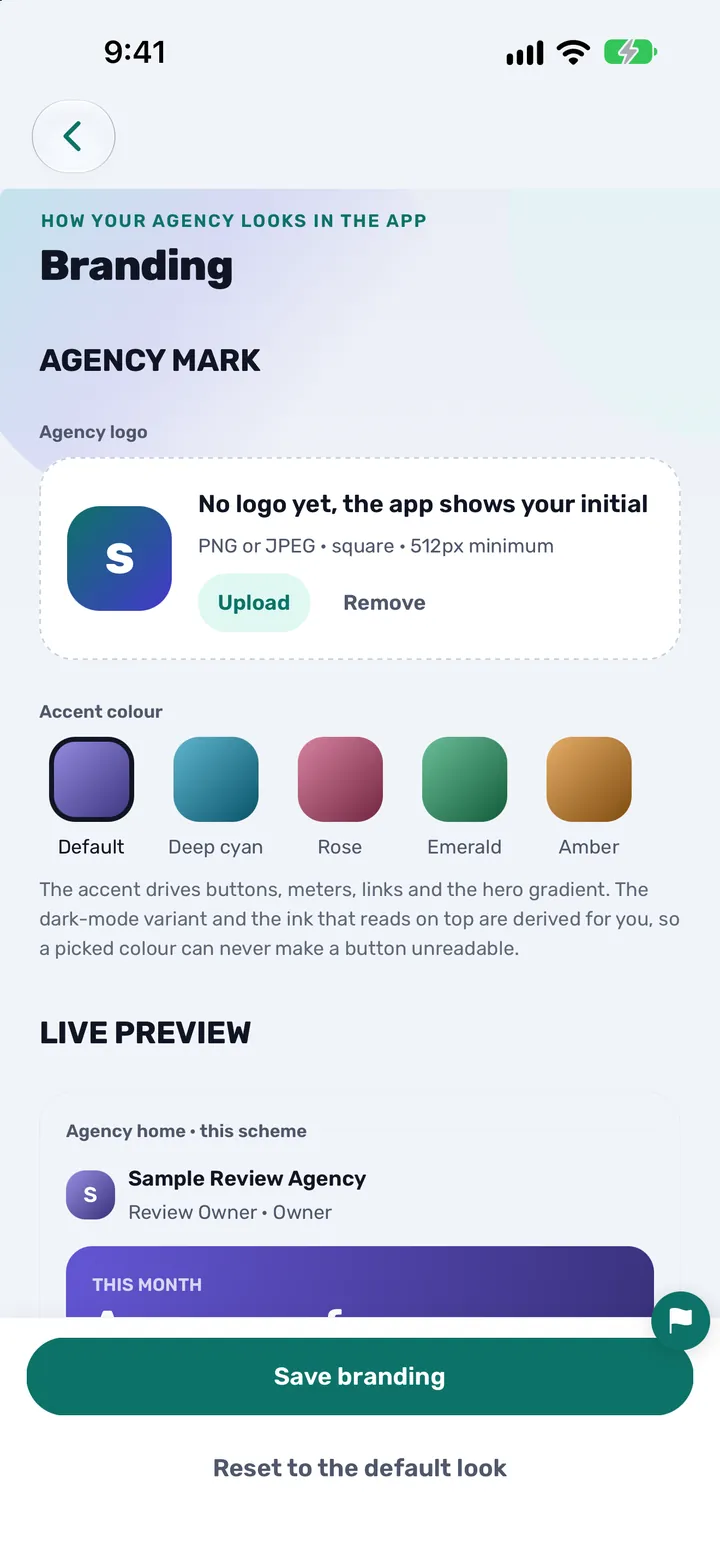
Tap Upload in the logo box and choose a square PNG or JPEG of at least 512 pixels from your photos. A WebP, HEIC or GIF is refused with “That image type is not supported”, so save your logo as a PNG or JPEG first.
What you should see: Your logo replaces the initial in the box and in the preview. On the logo and accent screen it is saved with the rest when you tap Save branding. In the full designer it is stored the moment you pick it, and the palettes under From your logo are made from it.
Tip: A simple mark on a clean background works best: it is shown small in the header and on Home. Tap Remove to go back to your initial.
-
Choose your accent colour
On the logo and accent screen, tap one of the five swatches: Default, Deep cyan, Rose, Emerald or Amber. In the full designer, tap a palette under From your logo or Ready-made, and tap More colours to see others.
What you should see: The preview changes at once: buttons, meters, links and the main card on Home take your colour, in light and dark mode. If a colour would make text hard to read, the app deepens it a little for you.
Tip: Choose a colour from your logo’s own palette so the app and the logo look like one brand.
-
Fine-tune the colours (full designer)
Open Pick your own colours to set the Main colour (buttons, meters and links), the Second colour (the banner’s shapes and the far end of the main card) and the Header colour (one solid colour, no gradient). Tap a swatch, or type a colour code such as #0E6E8C under Or type a colour code.
What you should see: Each colour has its own row with swatches. Use the app’s own and Remove put a colour back to the app’s own.
Tip: Change one colour at a time and look at the preview before you change the next.
-
Check the preview
Watch the preview as you choose. The logo and accent screen shows a Live preview of the agency Home and the creator Home. The full designer keeps your real screens pinned at the top, wearing your unsaved choices: Creator home, Join page, Weekly report and Team home.
What you should see: Swipe the strip to see each screen. Nothing is saved yet. In the full designer, Undo in the header takes back the last change.
Tip: Look at the Join page preview: it is the first screen a new creator sees.
-
Pick a look (full designer)
Under Look choose one of five: Classic, Spacious, Clean, Compact or Minimal. A look sets the header (a solid colour or a light one), whether the banner shows and how much space the cards have. Fonts and the order of the sections are not part of a look.
What you should see: Each tile says what it does: Classic is the standard home, Spacious has big, roomy cards, Clean has a light header and is calm, Compact shows more on screen, Minimal is light and tight.
Tip: Compact and Minimal switch the banner off. Choose one of them if you want creators to reach their figures sooner.
-
Set the banner (full designer)
Under Banner, either keep the banner made from your colours or tap Choose a picture and pick a wide image (1600 × 500 works best). You frame the picture before it is used. Turn banner off hides it, and Use my colours instead goes back to the colour banner.
What you should see: The banner sits under the header at the top of Home, ahead of the welcome message and the cards. With the banner off, Home starts with your header and then the cards.
Tip: Keep any words in the picture short and large: the banner is shown at phone size.
-
Write your welcome message (full designer)
Under Welcome to creators write a short plain-text message. Use the tabs English, العربية and Türkçe to write it in each language. It can be up to 280 characters per language, and web addresses are removed.
What you should see: A line appears on Home for each creator, in their own language. The same message is shown on your join page and in the invitation email a creator receives, in your agency’s main language. A dot on a tab marks a language you left empty: creators reading that language see your English message, or whichever one you wrote.
Tip: If the app says “Your welcome needs rewording”, some wording cannot be shown to creators. Change it in the language the app opens for you and save again.
-
Save your branding
Tap Save branding on the logo and accent screen, or Save in the bar that appears with “Unsaved changes” in the full designer. The bar names what changed, and Discard drops your changes.
What you should see: On Elite your own app changes at once, and your team and creators see the new look the next time they open the app. On another plan the app says “Saved as a draft on your plan”: your design is kept, and everyone sees the app’s own look until the agency is on Elite.
Tip: Open the app on a second phone, or ask a creator, to confirm that they see the new look.
-
Open Home layout
In Account, under Agency, tap Home layout. The full designer also has a Home layout row at the bottom. Only the owner can open it: everyone else is told that only the owner sets the home layout.
What you should see: A screen headed Home layout with three tabs (Creators, Owner and Agents), a row of ready-made layouts and the real home drawn smaller, with sample figures.
Tip: If you cannot see a Home layout row, it is not offered to your agency yet and everyone keeps the default home.
-
Choose whose home you are arranging
Tap Creators to arrange what every creator sees when they open the app. Tap Owner or Agents to arrange the team home: owners and agents share one team layout, and each sees their own figures.
What you should see: The sample home changes with the tab. The creator home can hold Announcements, Diamonds and level, Valid days, Your week, Boost credits, Shortcuts, Trends, Learn, Promotions, Events and Your managers. The team home holds Agency figures, Creators and inbox, Shortcuts and Waiting for review.
Tip: The note “Alerts and notices always come first” is a promise: setup steps, plan notices and alerts are not cards, so no layout can hide them.
-
Move, hide and add cards
Hold a card, then drag it to move it. Or tap a card and choose Move to the top, Move up, Move down or Move to the bottom, and tap − to hide it. Tap Add a section to bring a hidden card back.
What you should see: The card moves in the sample home and a short message says what happened, with Undo. The figures card (Diamonds and level on the creator home, Agency figures on the team home) is “Always shown. It can move but not be hidden.”
Tip: Put what creators should do first near the top, and hide cards you do not use yet, such as Trends or Promotions.
-
Start from a ready-made layout
Under Start from a ready-made layout tap a chip, or tap See all. Creator layouts are Grow LIVE days, New creators, Rewards first and Simple. Team layouts are Daily check-in and Numbers first. One carries a star and “Recommended”, chosen from your agency’s own month.
What you should see: A sheet shows what would move. Tap Use this layout to take it, or Keep mine to leave your order alone, and Undo brings your own order back. You can then drag cards as usual.
Tip: Suggest layout with AI is optional: you describe what you want in a few words. AI help can be off for your agency, and the Privacy Policy explains what it involves. Dragging cards by hand always works.
-
Save the layout
Tap Save in the bar that appears. The bar says whether you changed the creator home, the team home or both.
What you should see: The app confirms: “Saved. Everyone sees the new home now.” On another plan it says “Saved as a draft” and offers to show you Elite: your team and creators keep the default home until the agency is on Elite.
Tip: To go back, tap the three dots, choose Reset to the default home and tap Save. Nothing changes for anyone until you save.
-
Check your join page
Open your join link in a browser to see what a new creator sees. You copy the link in Operations, then Join requests, with Copy link: how to invite creators and staff shows how. The page is headed “Join” followed by your agency’s name.
What you should see: On Elite the page wears your logo, a band in your header colour, buttons in your accent colour and your welcome message. Without them it shows the app’s own look.
Tip: Send the link to yourself first and open it on a phone and on a computer.
-
Change it or reset it later
Come back to Branding whenever you like. Reset to the default look (logo and accent screen) puts the accent colour and logo back to the app’s own. In the full designer, Start over with the app’s own look resets the colours, look, banner and welcome and keeps your logo. In Home layout, Reset to the default home does the same for the cards.
What you should see: The designer asks you to confirm before it starts over, and Undo brings everything back. Nothing changes for your team and creators until you save.
Tip: To drop only the logo, tap Remove: creators see your initial instead, and the colours you chose stay.
Where your branding shows
This is the list of places that change, so you know what to check after you save.
| Place | What changes |
|---|---|
| The app header and Home | Your logo (or initial) and accent colour. With the full designer also the header colour, the banner, the look and the welcome line. |
| Buttons, meters and links | They take your accent colour, in light and dark mode. |
| The join page | Your agency’s name, logo, header band, accent buttons and welcome message. |
| Invitation emails | Your logo and colours. Creator invitations also carry your welcome message; invitations to colleagues do not. |
| The creator home and the team home | The cards you chose, in the order you chose, once the agency is on Elite. |
| What stays the same | The app icon, the store listing, the app’s name and the screens before someone signs in. |
You are done when
- The preview shows your logo and colours the way you want your team and creators to see them.
- The app has confirmed your save. If it says “Saved as a draft on your plan”, your design is waiting for Elite.
- Your join page shows your agency’s name, logo and welcome message.
- The creator home and the team home show the cards in the order you chose.
Tips
- Brand first, then invite: a new creator sees your logo and welcome on the join page. How to invite creators and staff shows the order.
- Choose one accent colour from your logo and keep the rest of the design simple. The app keeps text readable on top of your colours.
- Write the welcome message in all three languages if your creators read English, Arabic and Turkish.
- Put Announcements near the top of the creator home when you have news. How to send announcements to your creators shows how.
- Keep Diamonds and level and Valid days high on the creator home: they are the figures creators open the app for. How creators check diamonds, hours and level.
- Use a ready-made layout as a starting point, then drag one or two cards instead of rebuilding the whole home.
Questions agency owners ask
How do I add my agency logo to my TikTok LIVE agency app?
Open Account, then Branding, and tap Upload in the logo box. Choose a square PNG or JPEG of at least 512 pixels, check it in the preview and save. Without a logo the app shows your agency’s initial.
Who can change the branding of the app?
Only the agency owner. Agents who open Branding or Home layout are told that only the owner sets it, because it changes what every creator and member of staff sees.
What logo format and size should I use?
A square PNG or JPEG of at least 512 pixels. A WebP, HEIC or GIF is refused with “That image type is not supported”. Save the logo as a PNG or JPEG and upload it again.
How do I change the accent colour of the app?
On the logo and accent screen tap one of five swatches: Default, Deep cyan, Rose, Emerald or Amber. In the full designer you can also choose a palette made from your logo, a ready-made palette or your own colours by code. The app keeps text readable on top of the colour you choose.
What is the welcome message and where does it show?
A short plain-text message from your agency, written in the full designer under Welcome to creators. It appears on Home for each creator in their own language, on your join page and in the invitation email a creator receives.
How long can the welcome message be, and in which languages?
Up to 280 characters per language, in English, Arabic and Turkish. It is plain text: web addresses are removed. If you leave a language empty, creators reading it see your English message or whichever one you wrote.
How do I rearrange the home screen for my creators?
Open Account, then Home layout, and tap Creators. Hold a card and drag it, tap a card to move or hide it, or start from a ready-made layout such as Grow LIVE days or Rewards first. Tap Save when you are happy with it.
Can I hide cards on the creator home?
Yes, except the figures card, Diamonds and level, which can move but never be hidden. Alerts, setup steps and plan notices are not cards and always come first, so no layout can hide them.
What happens if my agency is not on the Elite plan?
You can still design and save. The app says “Saved as a draft on your plan”, and everyone, including your team and creators, keeps the app’s own look and the default home until the agency is on Elite. See what each plan includes.
When do my team and creators see the change?
Your own phone changes as soon as you save. Your team and creators see it the next time they open the app. The join page and invitation emails use your saved look from the moment you save.
Can I change the app icon or the name of the app?
No. The app icon on the phone, the store listing and the name people search for are the same for every agency, because one app serves them all. Branding starts after people sign in to your agency.
How do I go back to the default look?
On the logo and accent screen tap Reset to the default look and save. In the full designer tap Start over with the app’s own look and save, and your logo stays. In Home layout use Reset to the default home and save.
Is the AI colour and layout help required?
No. It is optional, it can be off for your agency, and you can always choose colours and arrange cards by hand. The Privacy Policy explains what AI help involves.
Is CN Creator App a TikTok product?
No. It is made by an official TikTok LIVE agency partner, but CN Creator App is not a TikTok product and TikTok has not endorsed it. Each agency’s branding is kept separate from every other agency’s. TikTok and TikTok LIVE are trademarks of ByteDance Ltd.
Related guides
- How to invite creators and staff to your TikTok LIVE agency app
- How to set staff permissions for a TikTok LIVE agency
- How to send announcements to your TikTok LIVE creators
- How to see all your TikTok LIVE creators in one roster
- How a TikTok LIVE creator signs in to CN Creator App
- How TikTok LIVE creators check diamonds, hours and level
- How to set up your TikTok LIVE agency with the AI assistant
- How to onboard TikTok LIVE creators: an owner’s checklist
- What CN Creator App does, feature by feature
- A management app for a TikTok LIVE agency
- Tutorials
- Support