
Step-by-step guide
How to see all your TikTok LIVE creators in one roster
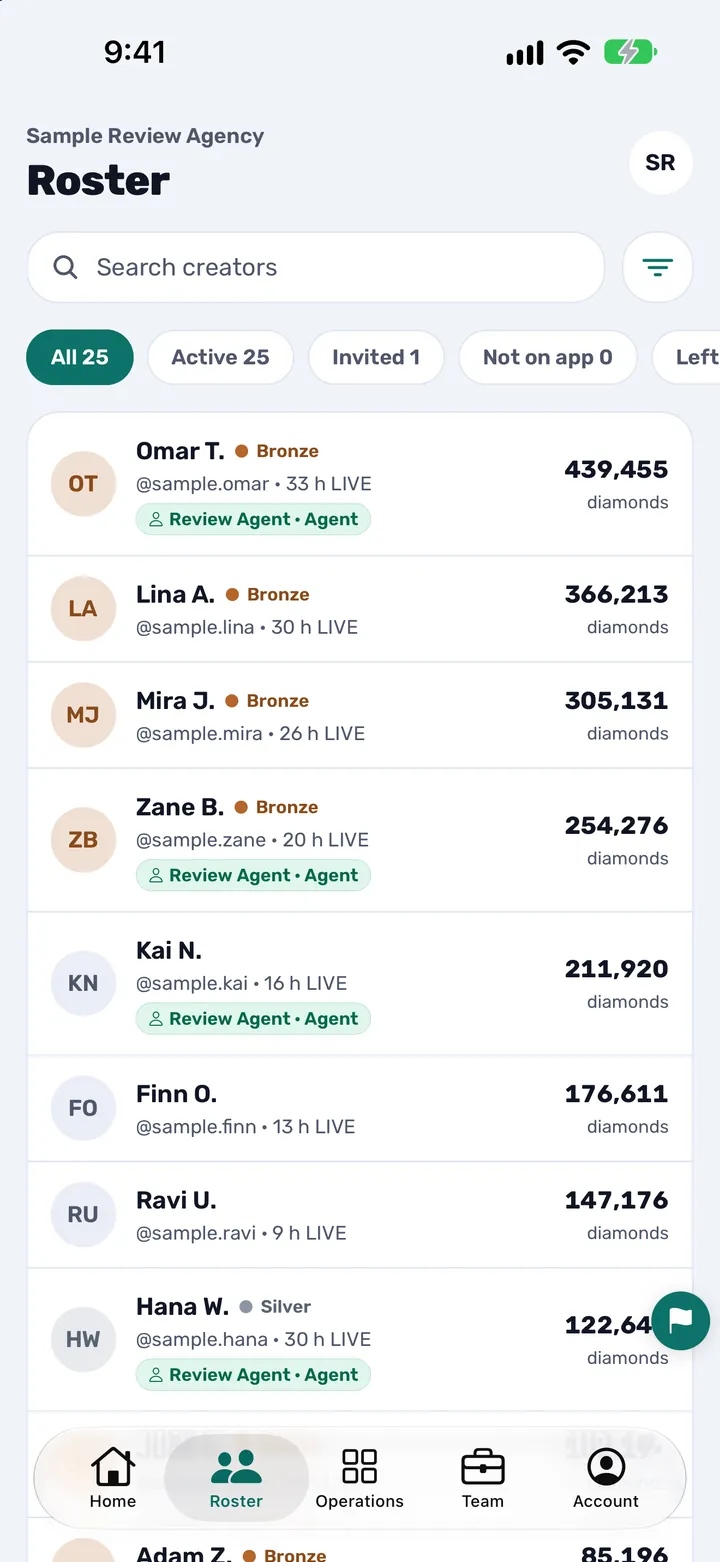
To see all your TikTok LIVE creators in one roster, open the Roster tab in CN Creator App: every creator of your agency is listed with their level, this month's LIVE hours and diamonds. Search, filter and sort to find anyone, open a creator for their month, and select creators to assign to an agent.
On this page
Written for TikTok LIVE agency owners, with a section for agents. Every screen and button name below is the one the app shows, in English, Arabic or Turkish (see also what the app does, feature by feature). The Roster is where an agency owner does creator management day to day, and it stays up to date automatically and securely, with no exports and no copying.
Key facts
| Where it is | The Roster tab in the bottom bar of the app. An agent whose owner has not opened the whole agency to them sees the same tab titled My book. |
|---|---|
| What each creator shows | A face tinted with their level colour, their name and level, their @handle with this month's LIVE hours, and this month's diamonds. |
| Find someone | Search creators: type part of a name, a @handle or a creator ID. |
| Tabs | All, Active, Invited, Not on app, Left and Deactivated. Each tab shows how many creators it holds once the whole list has loaded. |
| Sort and narrow | The square filter button: sort by Diamonds, Recent or Name, and keep only a level and up or a diamond tier and up. The roster opens sorted by Diamonds. |
| Assign to an agent | Filter button, then Select and assign: tick creators, tap Assign N selected to… and pick the agent. Owners can always do this; an agent needs the Manage roster permission. |
| Open a creator | Tap a row for the month's diamonds, valid days, LIVE hours and new followers, their agents, more figures and their profile. |
| Who sees what | Each agency's roster is kept separate from every other agency's. Inside your agency, what a person sees follows the role you gave them. |
| What it is not | It does not set pay and it never moves money. Pay rules are set in Operations. |
The steps
Thirteen short steps. The first seven are for anyone who uses the Roster. Steps 8 to 12 are for owners and for agents who have been given the Manage roster permission, and step 13 is open to any staff member. Each step stands on its own, so jump to the one you need.
-
Open the Roster tab
Open CN Creator App and tap Roster in the bottom bar. Owners see the whole agency here. An agent sees their own list, titled My book, unless the owner chose Whole agency for them under Roster visibility. The agency name sits above the title, and the round button with your initials opens Account.
What you should see: A screen titled Roster (or My book) with a search box, a square filter button and a row of tabs above your creators. A new agency with no creators yet sees a short note and a way to bring creators in, for example Invite a creator.
-
Read a creator row
Each creator is one row. On the left is a round face tinted with their level colour, then their name with the level beside it, such as Bronze or Silver. Under the name are their @handle and this month's LIVE hours, for example 33 h LIVE, or LIVE now while they are on LIVE. This month's diamonds are on the right, and a small chip under a creator names the agent who looks after them.
What you should see: Creators in a list, each with a level, LIVE hours and diamonds. A grey face and dot mean the creator is not on the app yet. An amber dot and the word Invited mean an invitation has not been accepted yet.
-
Find a creator with search
Tap Search creators and type part of a name, a @handle or a creator ID. The list narrows as you type, and the small x clears the search. Search works together with the tab you are on, so if you cannot find someone, switch the tab to All first. In a large agency, tap Load more at the bottom of the list and search again.
What you should see: Only the creators that match stay in the list. If nobody does, the screen says Nobody matches that.
-
Choose a tab: All, Active, Invited and more
Tap a tab above the list. All shows the creators currently with your agency, both those on the app and those not on it yet. Active is creators who are on the app, Invited is people who have been invited and have not accepted, and Not on app is creators on your agency list who have not joined. Left is creators who are no longer with your agency, and Deactivated is accounts TikTok has deactivated, shown with the name they had and their ID. Invited, Left and Deactivated have their own tabs, so they are not counted under All.
What you should see: The list changes to that group. Once the whole list has loaded, each tab shows its count, for example All 25, and a tab with nobody in it is hidden. All and Active always stay.
-
Sort your creators by diamonds
Tap the square filter button beside the search box. Under Sort by, choose Diamonds, Recent or Name. The roster opens sorted by Diamonds, so your top earners are first, and Recent puts the newest creators first. For agencies where the app shows each creator's recent LIVE activity, Avg / day and Last LIVE are offered as well.
What you should see: A panel with Sort by, Level and Diamond tier. The list re-orders as soon as you choose. Tap Done to close the panel.
-
Narrow by level and diamond tier
In the same panel, under Level, tap a level such as Gold and up to keep only creators at that level or above. Under Diamond tier, choose Tier 2+, 4+, 6+ or 8+. TikTok sets each creator's tier from this month's diamonds, and a higher tier means more diamonds. While either filter is on, a creator who has no level or tier yet is left out. A number on the filter button tells you how many filters are on.
What you should see: A button that reads Show N creators, and a shorter list. If nobody qualifies, the screen says Nobody matches those filters and offers Clear filters, which takes you back to everyone.
-
Open a creator
Tap any row. At the top you see the month, the creator's diamonds this month and, under it, Valid days, LIVE hours and New followers. Below are chips for their app state (On app, or Invite if they are not on the app yet) and for the agents who look after them, then a Figures section; tap All 11 figures for the whole month. Further down, the Profile section shows their app account, status, display name, TikTok handle and your private notes.
What you should see: The creator's own page. The notes are for staff only: the creator never sees them. Use the back arrow to return to the roster.
-
Select creators to assign
Tap the filter button, then Select and assign. This is offered to owners and to agents who have the Manage roster permission, and only when you have creators. The panel that opens lets you sort by Diamonds, LIVE hours or Name, and set a Minimum diamonds (Any, 100K+, 500K+ or 1M+) and a Minimum LIVE hours (Any, 5h+, 20h+ or 50h+). Tap Show N creators to see the list, then tick the box at the end of each creator, or tap Select all N to tick everyone who matches.
What you should see: Each row now has a tick box. The panel says how many match your filters out of the whole roster, and the number you have ticked is at its top right.
-
Assign the selected creators to an agent
With at least one creator ticked, tap Assign N selected to… in the bar at the bottom. Under Staff, tap the agent who should look after them. The creators are assigned at once. Owners are not listed because they already see every creator. If nobody on your team is an agent yet, the list says so, and you can invite staff first.
What you should see: You are back on the roster, and the chosen agent's name now appears as a chip under each of those creators. The creators are in that agent's My book.
-
Take creators off every agent's book
Select the creators the same way and tap Assign N selected to…. Under Unassign, tap Off every agent's book. The creators stay on the roster and stay visible to you; they are simply no longer on any agent's list. Tap Cancel in the bar at the bottom at any time to leave selection without changing anything.
What you should see: The roster returns and the agent chips are gone from those creators.
-
Add or remove an agent on one creator
For a single creator, open them and tap Add an agent (or the chip that names their current agent). Tap a person in the list to add them. To take someone off, tap the x beside their name under Agents. Naming an owner is offered to owners only. The app can also fill in the agents on a creator for you automatically, so you only step in to change it.
What you should see: Under Agents, one row per person with their role (Owner or Agent). The roster shows the same names as chips on that creator's row.
-
Invite a creator from the roster
At the bottom of the list, owners and agents with the Manage roster permission see Invite a creator. Tap it to send an invitation. The invite guide covers the join link and the agency code, and the onboarding playbook covers what to do when a new creator arrives.
What you should see: The invitation screen. The invited creator appears on the roster under the Invited tab until they accept.
-
Clear creators who have gone from view
Open the Left or Deactivated tab. At the end of each row a small crossed-out eye removes that creator from the list. The app asks whether to remove that creator from the list and, when you confirm, the creator disappears from Left and Deactivated for everyone in your agency. Their past months, rewards and history are kept, and they come back to the list if they return.
What you should see: A confirmation question, then a shorter Left or Deactivated tab. The creators you removed no longer clutter it.
The screenshot uses sample creators.
You are done when
You are done when you can find any creator from the Roster in a few seconds, you have opened one to see their month, and (for owners) the creators who should be on an agent's book show that agent's chip and appear in that agent's My book.
What each figure on the roster means
These are the words the roster uses, in plain terms. For the full definitions see what diamonds are on TikTok LIVE, activeness levels explained and the TikTok LIVE terms for agencies.
- Diamonds. The creator's diamonds for the current month, shown on the right of the row and at the top of their page.
- Valid days. The days this month that count as valid LIVE days under TikTok's rules. It is on the creator's page.
- LIVE hours. The hours the creator has been LIVE this month. On the row it reads, for example, 33 h LIVE.
- New followers. The followers the creator gained this month, on their page.
- Level. The activeness level, shown next to the name with a colour. By default the five levels are Bronze, Silver, Gold, Platinum and Diamond, and an agency can rename them. TikTok fixes the five level gates and you set what each level pays in pay rules.
- Diamond tier. TikTok's tier for the creator, set from this month's diamonds. A higher tier means more diamonds. You can filter by it.
What a dash means
A dash (a short line where a number should be) means that figure is not available yet for that month. It does not mean zero: a creator who really has no diamonds shows 0, and a creator whose figures are not there yet shows a dash. It is common for a creator who has just joined, or at the very start of a month.
On a creator's page the app adds a short note under a dash to say the figure is not available yet. Nothing is wrong and there is nothing for you to fix: the figure fills in on its own, and your figures update automatically and securely.
What an agent sees
An agent opens the same Roster tab. If the owner left Roster visibility on Their roster, the screen is titled My book and lists only the creators assigned to that agent. An agent with Whole agency sees every creator under the title Roster. These two settings, and the Manage roster permission, are the owner's to set in Team: see how to set staff permissions.
A new agent with nobody assigned yet sees Your book is empty, with the line Your owner assigns creators to you. The owner then follows steps 8 and 9 above. An agent without the Manage roster permission can search, filter, sort and open creators, but does not see Select and assign or Invite a creator.
On the web console
Teams that use the web console also have a Roster page there: a table with one row per creator and the columns Creator, Handle, Status, App, Managers, Diamonds, Tier, Activeness and Joined, plus a Target column where the agency uses targets. It lists creators twenty at a time, shows Showing N of M, and has a Load more button; View opens a creator. Searching, filtering by tab and selecting creators to assign are done in the app.
Tips
- Start with Diamonds. The roster opens sorted by diamonds on purpose: the creators carrying the month are at the top, and the ones who need a message are at the bottom.
- Combine a tab with a level. For example, Active with Gold and up shows your strongest creators who are on the app. Clear filters resets the level and tier.
- Use Not on app as a to-do list. It lists the creators on your agency list who have not joined the app yet. Open a creator from this tab to invite them.
- Keep the roster tidy. Remove gone creators from Left and Deactivated, and give every creator an agent so that nobody is left without someone looking after them.
- Tell everyone at once. When you spot a quiet month, send an announcement: see how to send announcements to your creators.
- Owners also get Give boosts. With creators ticked, owners see Give boosts to N selected…, and agents with the Deduct diamonds permission see Deduct diamonds from N selected…. Both are optional.
Questions owners ask
How do I see all my TikTok LIVE creators in one list?
Open the Roster tab in CN Creator App. Every creator of your agency is listed with their level, this month's LIVE hours and diamonds. Use Search creators, the tabs and the filter button to find anyone, and tap a row to open that creator.
How do I find one creator quickly?
Tap Search creators and type part of their name, their @handle or their creator ID. The list narrows as you type. If you do not find them, switch to the All tab first, and in a large agency tap Load more and search again.
How do I sort my creators by diamonds?
The roster already opens sorted by Diamonds, highest first. To change the order, tap the square filter button beside the search box and choose Diamonds, Recent or Name under Sort by.
What do the Active, Invited, Not on app, Left and Deactivated tabs mean?
Active is creators who are on the app. Invited is people you invited who have not accepted yet. Not on app is creators on your agency list who have not joined. Left is creators who are no longer with your agency, and Deactivated is accounts TikTok deactivated. All shows the creators currently with your agency, on the app or not yet, and leaves out Invited and Left.
How do I see only my best creators?
Tap the filter button and, under Level, choose a level and up such as Gold and up, or under Diamond tier choose Tier 2+, 4+, 6+ or 8+. You can use both together and combine them with a tab. Tap Clear filters to see everyone again.
How do I assign creators to an agent?
Tap the filter button, then Select and assign. Tick the creators, or tap Select all N, then tap Assign N selected to… and choose the agent under Staff. The creators go onto that agent's book, which the agent sees as My book. For one creator, open them and tap Add an agent instead.
How do I take creators off an agent's book?
Select the creators, tap Assign N selected to… and choose Off every agent's book under Unassign. They stay on the roster and you still see them, but they are on no agent's list. To remove one agent from one creator, open the creator and tap the x beside that agent.
What does an agent see on the Roster?
An agent sees My book, the creators assigned to them, unless the owner gave them Whole agency under Roster visibility, in which case they see every creator under Roster. What an agent may do on the roster follows the permissions the owner set in Team.
Where do I see a creator's monthly diamonds, valid days and LIVE hours?
Diamonds and LIVE hours are on every roster row. Open the creator for their diamonds this month with Valid days, LIVE hours and New followers underneath, and tap All 11 figures for the rest of the month, such as LIVE count, PK matches and diamonds from matches.
What does a dash next to a creator's figures mean?
A dash means that figure is not available yet, for example for a creator who has just joined or at the start of a month. It is not a zero. There is nothing to fix: the figure appears by itself, and your figures update automatically and securely.
Why do I not see Select and assign or Invite a creator?
Both need the Manage roster permission, which owners always have. If you are an agent, ask your owner to switch Manage roster on for you in Team: see how to set staff permissions. Invite a creator also appears only once your agency is set up.
What is the padlock on a creator?
A creator marked Locked by the plan is over the creator limit of your plan, so only their name shows. An owner who taps the creator is taken to the plans, and an agent is told to ask the owner to change the plan.
Can I set a diamond target for a creator from the roster?
Yes, where your agency has targets turned on and you have access to pay. Tap the small flag on a creator's row, or swipe the row, then enter a target in diamonds and a reward and tap Set target. The row then shows the target and how close the creator is to it.
Is the roster available in Arabic and Turkish, and is it secure?
Yes. The app comes in English, Arabic and Turkish, and the screens and buttons in this guide appear in your language. Each agency's roster is kept separate from every other agency's, and what each person sees follows the role the owner gave them.
More from CN Creator App
- How to send announcements to your TikTok LIVE creators
- How to run events and challenges for TikTok LIVE creators
- How to invite creators and staff to your agency app
- How a TikTok LIVE creator signs in to CN Creator App
- How TikTok LIVE creators check diamonds, hours and level
- How to use weekly and monthly creator reports
- How to refer a TikTok LIVE creator to your agency
- How to set up a TikTok LIVE PK match
- How to request a LIVE or video boost
- How to brand your agency app: logo, colour and home
- How to import creators from Excel or CSV
- How to set up your agency with the AI assistant
- How to set pay rules, step by step
- How to set staff permissions
- How to onboard TikTok LIVE creators
- How to design a TikTok LIVE agency bonus structure
- How to run a TikTok LIVE agency in several markets
- What are diamonds on TikTok LIVE?
- TikTok LIVE activeness levels explained
- TikTok LIVE terms for agencies
- TikTok Backstage explained for agencies
- The TikTok LIVE agency management app
- How to start a TikTok LIVE agency
- Step-by-step guides
- Support