
Step-by-step guide for TikTok LIVE creators
How a TikTok LIVE creator joins and signs in to CN Creator App
To join CN Creator App, a TikTok LIVE creator opens the app, taps I’m new here, keeps Creator selected and either taps Continue with TikTok or types a TikTok @handle with the agency code the owner shared. The agency then approves the request, and from the next visit the creator signs in again with the same method.
On this page
Agency owners: send this page to your creators together with your agency code (the section “Send this to your creators” has a message you can paste). Creators: follow the steps in order and stop when you reach your Home screen. Every screen name below is the one the app shows, in English; the Arabic and Turkish pages use the app’s Arabic and Turkish names. See also what the app does, feature by feature. CN Creator App is a TikTok LIVE agency management app: the owners, agents and creators of a creator network all use the same app.
Key facts
| Question | Answer |
|---|---|
| Who it is for | TikTok LIVE creators who want to join an agency that runs on CN Creator App, and the agency owners who send them here. |
| Ways to join | Continue with TikTok (where the button is offered), your TikTok @handle with the agency code, your agency’s join link, or an invitation your agency emails you. |
| What you need | Your TikTok @handle, the way your agency knows you, and the 8-character agency code your owner gives you, for example ABCD-EFGH. |
| Who approves you | The agency owner and the agent who manages your @handle. You wait on the Waiting for approval screen and are notified when they decide. |
| Languages | English, Arabic (the app turns right to left) and Turkish. Change it with the globe button on the sign-in screens or in Account, then Language. |
| Age and terms | You confirm you are 18 or older and accept the Terms and the Privacy Policy when you create your account. |
| Coming back | Tap I already have an account, then use the way you used before. No agency code and no name are asked again. |
| Account security | Email addresses are confirmed with a six-digit code. In Account you can list every device you are signed in on and end any of them. |
Send this to your creators
Owners can paste this message into WhatsApp, Telegram or any chat. Replace the part in square brackets with the agency code from your Team tab, and add the address of this page so each creator can see every step.
Hi! Please join our agency in CN Creator App.
1. Install the app and tap I’m new here.
2. Keep Creator selected.
3. Tap Continue with TikTok, or type your TikTok @handle and our agency code: [your agency code].
4. Wait for us to approve you. The app tells you when it is done, then tap Continue.
The full guide, with every screen, is on this page.
Address of this page: https://creatorapp.devignlb.com/how-a-tiktok-live-creator-signs-in-to-cn-creator-app
The agency code is for creators and for your own team. People on your team who use it join as agents with every permission switched off until you grant them, as described in how to set staff permissions.
Before you start
- Owner: have your agency code or join link ready. Both are in the app: the code on the Team tab, the link under Operations, then Join requests. The steps for owners are further down this page.
- Creator: know your @handle. Use the TikTok @handle your agency already has for you, without the @ sign if you like. If you are not sure, ask your owner or agent.
- Creator: have the code. Ask your owner or agent for the agency code. It is eight letters and numbers, written in two groups of four, such as ABCD-EFGH.
- Creator: use a phone. You sign in on the phone app. Install CN Creator App from the App Store or Google Play.
The steps for a creator
Eleven steps, in order. Steps 4 to 7 are the ways to ask to join: Continue with TikTok (step 4), your @handle and the agency code with Apple, Google or email (steps 5 and 6), or your agency’s join link (step 7). Use the one that suits you. A step with a picture shows the app; the others describe the screen in words.
-
Step 1.Install the app and open it
Install CN Creator App from the App Store or Google Play and open it. The first screen says “Welcome to CN Creator App” and offers two doors: “I’m new here” and “I already have an account”.
What you should see: The Welcome screen. At the bottom a link, “Look around first, no account needed”, opens a sample agency.
Tip: Look around first lets you see the app before you decide to join.
-
Step 2.Choose English, Arabic or Turkish
Tap the globe button in the top bar. It shows EN, ع or TR, whichever language is on. Pick English, العربية or Türkçe.
What you should see: The words on the screen change at once. Arabic reads right to left, and the app may ask you to close it completely and open it again so the whole layout flips.
Tip: The language follows you, not the agency, so an Arabic-speaking creator and a Turkish-speaking agent can share one agency.
-
Step 3.Tap I’m new here and keep Creator selected
Tap “I’m new here” (“Create an account or join your agency”). On “Create your account” you see three choices: Creator, Agent and Owner. Creator is selected first.
What you should see: The screen titled “Create your account” with Creator highlighted, and for a creator a TikTok button, a box for your @handle and a box for the agency code.
Tip: Leave Agent for people who work in the agency, not for creators.
-
Step 4.Tap Continue with TikTok
If you see “Continue with TikTok”, tap it and confirm in TikTok when TikTok asks. You do not have to type a code first.
What you should see: If your agency has you on its creator list, a screen “Which agency is yours?” with your agency’s name: tap it. If not, “You’re not on an agency’s creator list yet” with four choices (I own an agency, I work at an agency, I’m a creator, I already have an account): choose “I’m a creator” and carry on with step 5.
Tip: Depending on how your agency has set you up, you may be let in at once or your request may wait for the agency to confirm you.
-
Step 5.Or type your @handle and the agency code
Under “or without TikTok”, type “Your TikTok @handle”, then the “Agency code” from your owner. When the eight characters are complete, the agency’s name appears with the line “You will ask to join as a creator”.
What you should see: A card with your agency’s name. A note below says that, without TikTok, the agency owner and the agent who manages your handle approve you. If the name is wrong, stop and check the code with your owner.
Tip: Use the @handle your agency already knows you by; a different one will not match your place on the agency’s list.
-
Step 6.Continue with Apple, Google or email
Tap “Continue with Apple”, “Continue with Google” or “Continue with email”. With email you give your name, your email and a password, tick the box that says you are 18 or older and accept the Terms and the Privacy Policy, and tap “Create account”.
What you should see: For email, a six-digit code arrives in your inbox. Enter it to confirm the address: you can sign in with that email only after you have.
Tip: Remember which of the four you chose: next time you use the same one.
-
Step 7.Or open your agency’s join link
If your owner sent a join link, open it on your phone. The page “Join with your agency code” names the agency at the top. Fill in the agency code, your TikTok username, your name, your email and a password, tick the age and Terms box and tap “Send my request”.
What you should see: The button changes to “Request sent” and the Waiting for approval screen opens. The link only names the agency; you still type the code yourself.
Tip: If you already have an account, use the sign-in link on that page instead of making a new one.
-
Step 8.Wait for your agency to approve you
After your request is sent, the app shows “Waiting for approval” with your agency’s name and your @handle. The owner and the agent who manages your handle both receive the request, and you are notified when it is decided. You can leave the screen.
What you should see: Three stages: Request sent, Your agency decides, You’re in. Buttons: “Check now”, “Look around while you wait” and “Withdraw request”. On Android a button “Notify me when I’m approved” asks for notifications.
Tip: If the request is declined you see “Request declined” with “Try again with another handle” and “Use a different agency code”. Check the handle and the code with your owner first.
-
Step 9.Tap Continue when you are approved
When the agency approves you, the screen says “You’re approved” and “Your agency confirmed you.” Tap “Continue”. You may first see a short “Before you carry on” screen where you confirm you are 18 or older and accept the Terms and the Privacy Policy.
What you should see: Once per account, an optional AI help screen can follow. It is off until you turn it on, nothing is sent before you choose, and “Not now” is always there. The Privacy Policy explains it.
Tip: Saying no to AI help never limits the rest of the app.
-
Step 10.See your Home screen
Your Home opens with your agency’s name above your own name and a bell for notifications. Below are your diamonds for the month, your level, your valid days and your LIVE hours.
What you should see: Tabs along the bottom: Home, Tools (or Updates), Bonus and Account. Some agencies add Rewards or Coach. Your agency’s announcements show at the top of Home.
Tip: To read every figure on Home, see how creators check diamonds, hours and level.
-
Step 11.Sign in again next time, and change the language any time
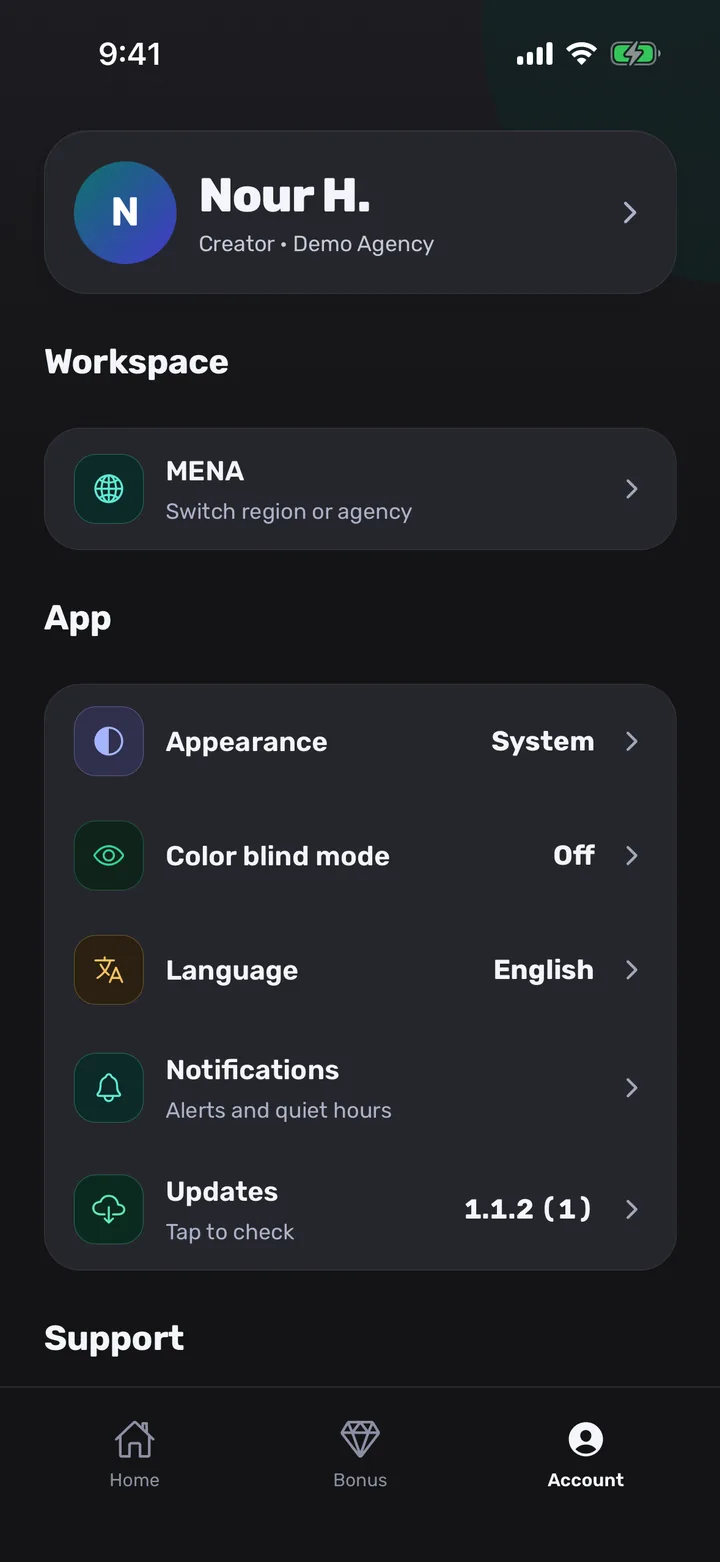
Next time, tap “I already have an account”. The Sign in screen says “Use the way you signed in before. No agency code, no name.” Tap Continue with TikTok, Apple, Google or email; the way you used last carries a “Last used” tag. To change the language later, open Account, then Language under App.
What you should see: The Language screen lists English, العربية and Türkçe, each in its own script, with “Current” on the one in use. With email, “Reset my password” is on the sign-in screen if you forget it.
Tip: Account also has “Where you are signed in” (tap your name at the top), where you can end a session on any other device.
The steps for the agency owner
Five steps for the owner, so that creators can join and you can approve them. Tabs are named as the owner’s bottom bar shows them: Home, Roster, Operations, Team and Account.
-
Step 1.Open Team and copy your agency code
Tap Team, find the card “Agency code” and tap Copy. The card says creators sign up with this code and that staff who use it join as agents.
What you should see: An eight-character code such as ABCD-EFGH. The code opens once your agency is set up with its creators; if you cannot see it yet, finish setup first with the AI assistant or by importing your creators.
Tip: If the code spreads too far, tap “New code” on the same card: the old one stops working at once and nobody who has already joined is affected.
-
Step 2.Or copy the join link
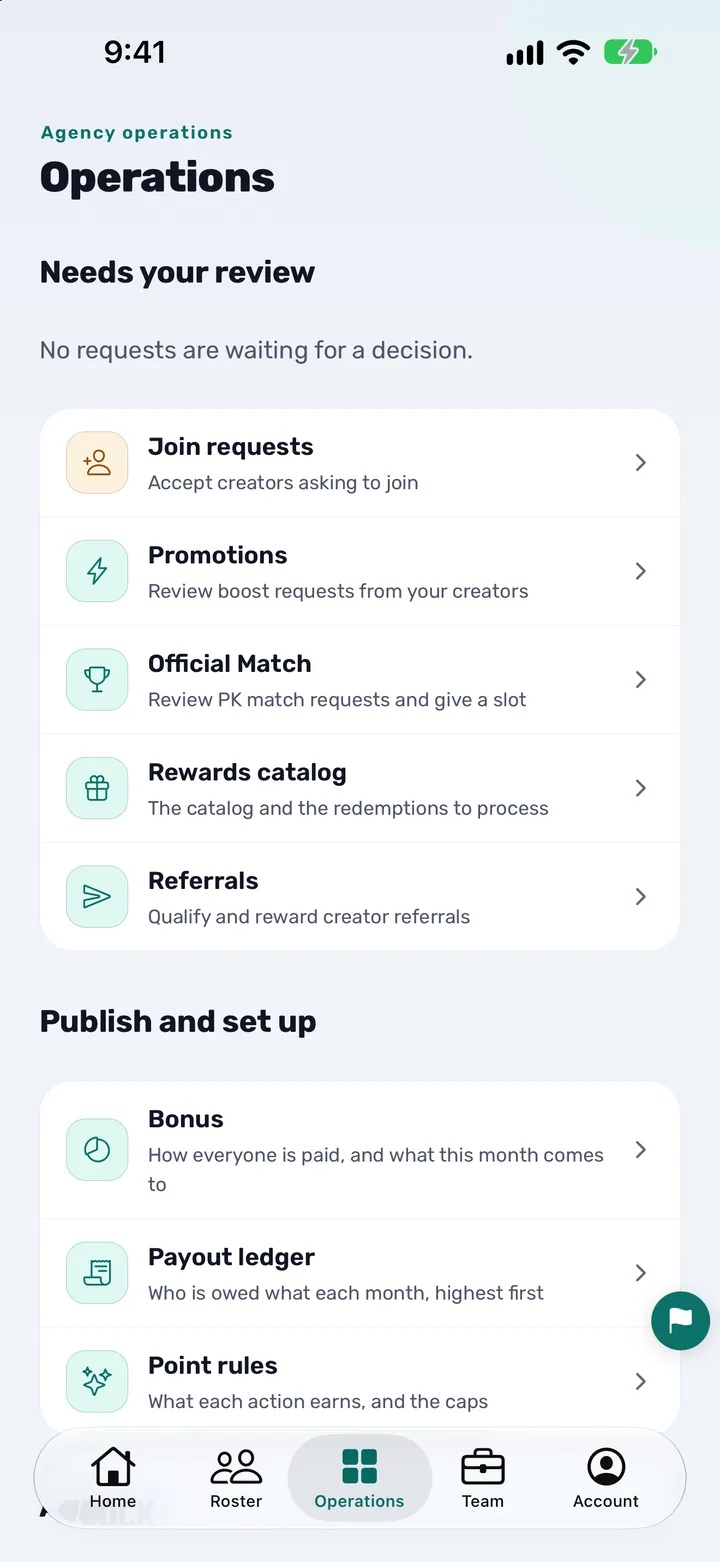
Open Operations, then Join requests. At the top, “Share the agency join link” says creators type their own TikTok handle and your roster stays private. Tap “Copy link”.
What you should see: A note “Link copied”: “Paste it anywhere to invite creators.” Anyone who opens it lands on a screen that names your agency and asks for the code.
Tip: The link never adds anyone by itself: the creator still enters the agency code and waits for you.
-
Step 3.Send this page and the code to your creators
Paste the message from “Send this to your creators” into your creators’ chat, with your code and the address of this page. Creators who need help with the language or the steps can read them here in English, Arabic or Turkish.
What you should see: Creators start to appear under Requested in Join requests as they send their requests.
Tip: Send the page and the code in one message, so nobody has to ask you twice.
-
Step 4.Accept the creators who ask to join
In Join requests, the tabs are Requested, Accepted and Declined. Each card shows the creator’s name and @handle, a badge On roster or Not on roster, and Accept and Decline. When several are clear, “Accept N clear” accepts them together.
What you should see: Your decision moves the request to Accepted or Declined and the creator is notified either way. A “Handle clash” badge warns when the same handle is claimed more than once: look at those one by one.
Tip: Accept only people you recognise. A username on its own does not prove who someone is, which is why a request waits for a person on your team.
-
Step 5.Check your Roster
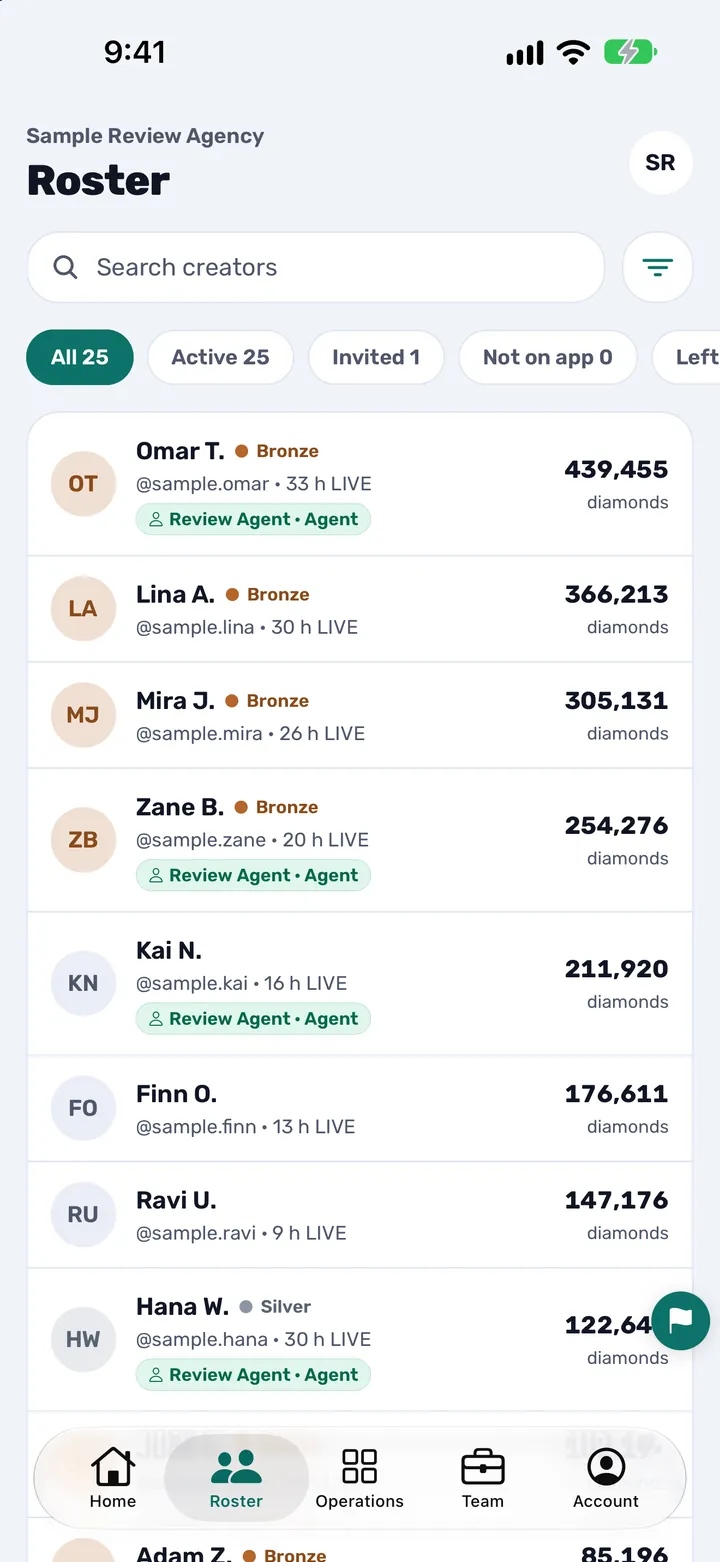
Open Roster. The filters All, Active, Invited and Not on app show who has joined and who has not yet. Every creator is listed with their level, their LIVE hours and their diamonds.
What you should see: The roster with sample creators. A creator who has not joined yet appears under Invited or Not on app until they do.
Tip: Use Search creators to find one person quickly.
You are done when
- A creator: the screen says “You’re approved”, you tapped Continue and your Home shows your agency’s name above your own.
- An owner: the creators you invited appear under Accepted in Join requests and are listed as active on your Roster.
- You can sign in again with the way you chose, and the app shows the language you picked.
Tips
- Type the agency code once, carefully: eight letters and numbers, shown as two groups of four.
- Use the same TikTok @handle your agency has on its list; a creator who changes the handle may need a new request.
- Turn on notifications when the app asks, so you hear the moment your agency approves you.
- Owners: keep an eye on Join requests for a few days after you send the code, and answer quickly. A creator who waits tends to write to you.
- Owners: if a creator asks for help in Arabic or Turkish, send them this page’s Arabic or Turkish edition.
Questions creators and owners ask
How does a TikTok LIVE creator sign in to CN Creator App for the first time?
Open the app, tap “I’m new here”, keep Creator selected and either tap “Continue with TikTok” or type your TikTok @handle and the agency code your owner gave you. Then continue with Apple, Google or email, and wait on the “Waiting for approval” screen until your agency approves you.
Where does a creator get the agency code?
From the agency owner or an agent. The owner finds it in the app on the Team tab, on the card “Agency code”, and copies it from there. It is eight letters and numbers, such as ABCD-EFGH.
What is the join link, and do I still need the code?
The join link is an address your owner copies from Operations, then Join requests. It names the agency and opens the screen where you give your details. You still type the agency code yourself, and your request still waits for approval.
Do I have to use Continue with TikTok?
No. If the button is offered on your phone it is the quickest way, but you can always type your TikTok @handle and the agency code instead and continue with Apple, Google or email. Without TikTok, the agency owner and the agent who manages your handle approve you.
Why am I waiting for approval, and how long does it take?
A username on its own does not prove who is asking, so a person at your agency confirms every request. The app does not say how long that takes because it depends on your agency. You are notified when it is decided, and “Check now” looks again whenever you like.
What do I do if my request is declined?
The screen shows “Request declined” with two buttons: “Try again with another handle” and “Use a different agency code”. Check the handle and the code with your owner first, because a typing mistake is the most common reason.
Can I withdraw a request I sent by mistake?
Yes. On the Waiting for approval screen tap “Withdraw request” and confirm. Your agency no longer sees it, and you can send a new one afterwards.
Which languages does CN Creator App speak, and can I change them later?
English, Arabic and Turkish. Pick one with the globe button on the sign-in screens, or later in Account, then Language. Arabic turns the whole app right to left, and the language belongs to you, not to the agency.
What do I see first after I am approved?
You may first confirm you are 18 or older and accept the Terms and the Privacy Policy. Then your Home opens with your agency’s name, your diamonds for the month, your level, your valid days and your LIVE hours, plus your agency’s announcements.
I signed up with email. Why does the app ask for a code?
Email addresses are confirmed with a six-digit code sent to your inbox. You can sign in with that email only after you enter it. If the code does not arrive, use the resend button on the same screen.
How do I sign in on my next visit?
Tap “I already have an account” and use the same way as before: TikTok, Apple, Google or email. No agency code and no name are asked again. The way you used last carries a “Last used” tag.
Can I see which devices I am signed in on?
Yes. Open Account, tap your name at the top, then “Where you are signed in”. Each device is listed and you can end any session except this one.
Is CN Creator App a TikTok product?
CN Creator App is not a TikTok product and TikTok has not endorsed it. It is made by an official TikTok LIVE agency partner. TikTok and TikTok LIVE are trademarks of ByteDance Ltd.
Related guides and pages
- How TikTok LIVE creators check diamonds, hours and level
- How to use weekly and monthly creator reports
- How to invite creators and staff to your agency app
- How to see all your TikTok LIVE creators in one roster
- How to send announcements to your creators
- How to run events and challenges
- How to refer a TikTok LIVE creator to your agency
- How to set staff permissions
- How to import your creators from Excel or CSV
- How to set up your agency with the AI assistant
- How to onboard TikTok LIVE creators
- How to start a TikTok LIVE agency
- Step-by-step guides
- Support