
Step-by-step guide for agency owners
How to invite creators and staff to your TikTok LIVE agency app
To invite people to your TikTok LIVE agency app, give creators the join link together with the agency code and accept them in Join requests, and give staff the agency code or an email invitation so they join as agents. You can also email a private invitation to one creator from the Roster, and replace the agency code from Team whenever you need to.
On this page
Written for agency owners. Every screen and button name below is the one the app shows, and everything here was checked against the app itself on 2026-11-05. This guide is about the doors: how each person gets in and what they do. For the whole sequence from written terms to a creator’s first LIVE, see how to onboard TikTok LIVE creators. Where no picture of a screen exists, the page says in words what you should see.
Key facts
| Question | Answer |
|---|---|
| Who can invite | Owners always. An agent can email a creator an invitation with the Manage roster permission, and copy the join link with the Handle requests permission. Only owners add staff and replace the agency code. |
| What opens invitations | Invitations, the agency code and announcements open once your agency’s roster is in the app. Until then the app tells you what is missing. |
| The agency code | Eight letters and numbers, shown as ABCD-EFGH. Owners find it on the Team tab under Agency code, with Copy and New code. Agents can read and copy it in Account. |
| The join link | Operations, then Join requests, then Copy link. It opens a page headed “Join” and your agency’s name. The creator still has to enter the agency code. |
| How a creator gets in | With the join link and the code, or with the code alone, then waits for your decision. Or you email one creator a private invitation. A creator already on your roster can also choose Continue with TikTok when creating an account. |
| How staff get in | By an email invitation (Team, Add someone, Invite a colleague) or by the agency code. A person who uses the code joins at once as an agent and you are told. |
| Who approves | Creators who use the code wait in Join requests for the owner, or an agent with Handle requests. Staff who use the code need no approval: you check Team and remove anyone you do not know. |
| Email invitations | One private email per person. The app shows the date the invitation expires, and sending it again replaces the earlier link. |
| Replacing the code | Team, Agency code, New code. The old code stops working immediately, people who already joined are not affected and requests already filed stay. |
| Security and control | You decide who comes in: creators wait for a person’s decision, new agents start with every permission off, and each agency’s code and data are kept separate from every other agency’s. You can replace the code at any time. |
Before you start
- Your roster is in the app. The Agency code card and Add someone open once your creators are in the app. If you keep them in a spreadsheet, see how to import creators from Excel; to connect your TikTok Backstage account, see connect Backstage.
- You are the owner, or an agent with the right permission. Owners can do everything in this guide. For agents, see how to set staff permissions.
- You have branded the app, if you want to. A new creator’s first sight of your agency is the join page. A logo and a welcome message make it feel like yours: how to brand your agency app.
Every way a person gets in
Creators and staff use different doors, and only the creators’ door has a queue.
| Way in | Who it is for | What they do | What you do |
|---|---|---|---|
| The join link and the agency code | Creators | Open the link, then create an account as a creator with the code and their own TikTok username. | Accept or decline in Join requests. |
| The agency code alone | Creators and staff | Create an account, choose Creator or Agent and enter the code. | Creators: accept in Join requests. Staff: nothing to approve; set what they can do in Team. |
| An email invitation to a creator | One creator | Open the email, accept the invitation and set a password or sign in. | Roster, then Invite a creator, or Invite on a creator who is already listed. |
| An email invitation to a colleague | Staff | Open the email, accept the invitation and set a password or sign in. | Team, then Add someone, then Invite a colleague, and choose the role. |
| Continue with TikTok | A creator already on your roster | Choose Continue with TikTok when creating an account. | Nothing, unless their request waits in Join requests. |
The steps
Fifteen steps. Steps 1 to 7 bring creators in with the link and the code; steps 8 to 10 invite a creator by email; steps 11 to 13 bring staff in; steps 14 and 15 manage invitations and the code. Use the steps you need.
-
Check that invitations are open
Owners: tap Team in the bar at the bottom and look for the Agency code card and the Add someone button. Agents: open Account and look for Agency code under Agency.
What you should see: The Agency code card with eight characters, a Copy button and a New code button. Until your roster is in the app, the code and invitations stay locked, with a line saying what to do.
Tip: If you keep your creators in a spreadsheet, import them first: how to import creators from Excel.
-
Find and copy your agency code
Owners: on the Team tab, find the Agency code card and tap Copy. Agents: in Account, under Agency, tap Agency code to copy it. Only owners can replace it.
What you should see: Eight letters and numbers in two groups of four, like ABCD-EFGH, and the word Copied once it is on your clipboard. The card says creators sign up with this code and staff who use it join as agents.
Tip: If you give the code over the phone, read it out in the two groups of four.
-
Copy the join link
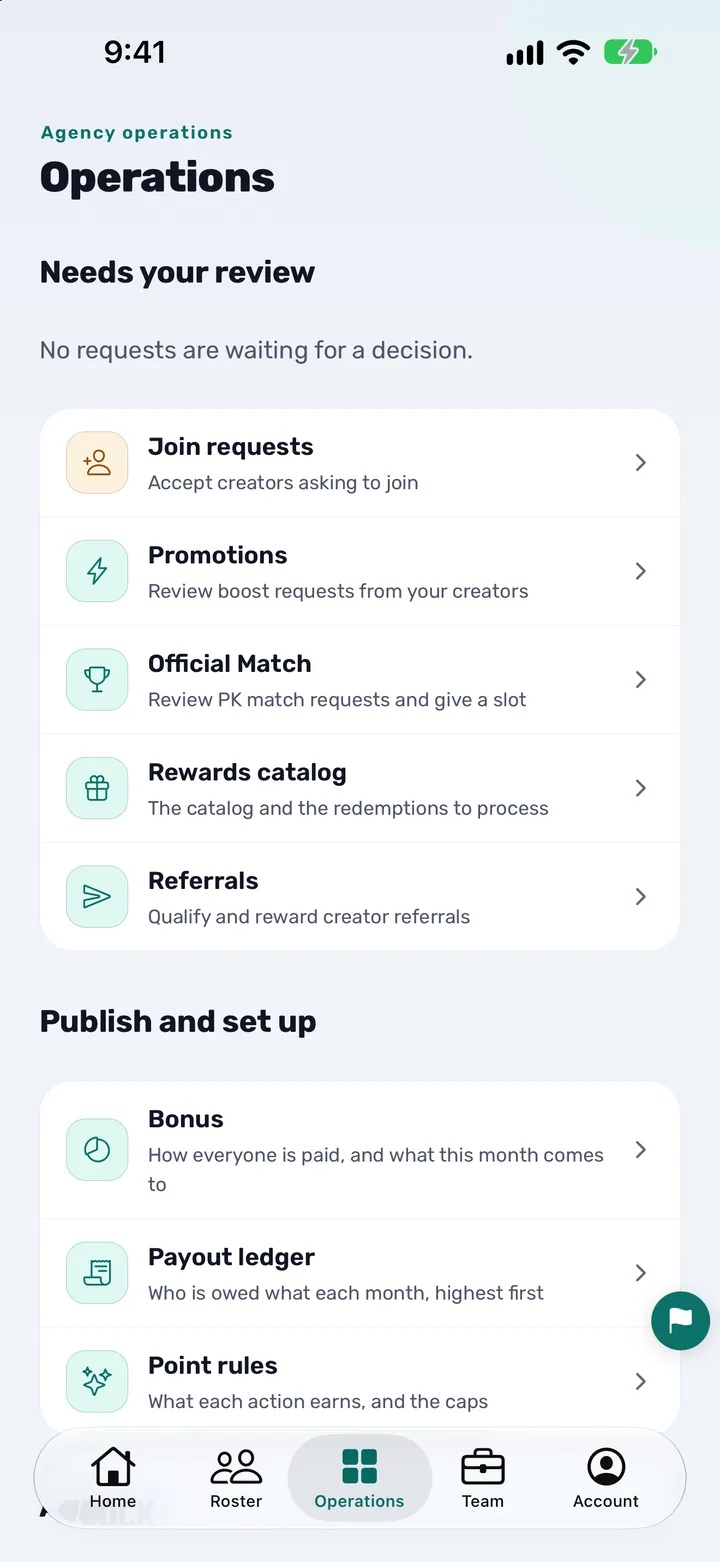
Tap Operations, then Join requests under Needs your review. In the card Share the agency join link, tap Copy link.
What you should see: The app says “Link copied” and “Paste it anywhere to invite creators.” The card also says that creators type their own TikTok handle and that your roster stays private.
Tip: You only see Join requests if you are the owner or an agent with the Handle requests permission.
-
Send the link and the code together
Paste the link into a message to the creator, in a chat or an email, and add the agency code in the same message. The link on its own is not enough: the creator still has to enter the code.
What you should see: Nothing changes in the app yet. The creator now holds a link that names your agency and the code your agency gave them.
Tip: Send the code only to people you mean to onboard: anyone who holds it can ask to join.
-
Know what the join page shows
When a creator taps your link, a page opens headed “Join” followed by your agency’s name. It asks them to open the link in the app, then enter their own TikTok handle and the agency code, and says your agency will decide their request.
What you should see: If your agency is on Elite and has saved a look, the page shows your logo, a band in your header colour, buttons in your accent colour and your welcome message. With the app installed, the link opens the app on the code screen with your agency’s name filled in.
Tip: Write the welcome message with a new creator in mind: how to brand your agency app shows how.
-
See what the creator does in the app
The creator opens the app, taps Create your account and chooses Creator. They type their TikTok @handle and the agency code, and sign up with their email, Apple or Google. A creator already on your roster can choose Continue with TikTok instead.
What you should see: The screen shows “You will ask to join as a creator”. Afterwards the creator sees Waiting for approval, with a Withdraw request button, until you decide.
Tip: Ask creators to type the TikTok username you know them by: you will compare it with your roster in step 7. How a creator signs in shows their side.
-
Accept or decline in Join requests
Open Operations, then Join requests. The tabs are Requested, Accepted and Declined. Each request shows the creator’s name and TikTok handle with a badge, On roster or Not on roster, and a Handle clash warning if more than one person asked for the same handle. Tap Accept or Decline.
What you should see: The request moves to Accepted or Declined and the creator sees the answer in the app. When several clear requests are waiting, a button such as “Accept 3 clear” takes them in one tap. A creator you decline is told to contact their agent.
Tip: Check that the handle really belongs to the person asking before you accept. Anyone who holds the code can type any handle, so this check is yours, above all when you see Handle clash.
-
Invite one creator by email
Open Roster and tap Invite a creator at the bottom. Type the creator’s email, add their TikTok handle without the @ and their name if you like, choose an agent under Assign to if you want, and tap Email the invitation.
What you should see: The email address is the only required field, and Assign to starts on Nobody in particular. Afterwards the screen says the creator is on the roster and the invitation was emailed, with the date it expires.
Tip: Most creators do not need an invitation, and the screen says so. Use it for one person you want attached to a particular agent. If the app says they are already on your roster, open them from the Roster instead.
-
Invite a creator who is already on your roster
On the Roster tap the creator, then tap the Invite chip, which appears for a creator who is not on the app yet. Type their email and tap Email the invitation. If they were invited before, the chip reads New link.
What you should see: A screen headed Invite and the creator’s name, saying one private invitation is sent to this creator and no bulk email. Afterwards it says the creator has been invited and shows the date the invitation expires.
Tip: Use this instead of Invite a creator for anyone already listed, so their app account stays with their existing roster entry and not a duplicate.
-
See what an invited creator does
The creator opens the email, “You have been invited to” followed by your agency’s name, on the phone they want to use, and taps Open the invitation. If the app is installed it opens straight to the invitation; if not, the link explains what to do.
What you should see: Accepting is where the creator sets a password for the first time, or signs in if that address already has an account. The invitation stops working once it is used or after it expires, and an invitation nobody opens simply lapses.
Tip: If the email did not arrive, send a new one from the creator’s page: it replaces the earlier link.
-
Invite a colleague by email
Owners only. Tap Team, then Add someone, then Invite a colleague. Type their name and work email, choose Staff or Owner under What they will be able to do, and tap Email the invitation.
What you should see: A note under the role says what the chosen role means. Afterwards the screen says the colleague has been invited, and their row under Everyone shows Invited until they accept. In an agency with several markets the screen says they will work only the market you are in. If your plan has no room for another agent, the app offers to add a seat.
Tip: Choose Owner only for someone who should be able to do everything you can, including inviting and removing colleagues.
-
Or give a colleague the agency code
Give them the code from step 2. They open the app, tap Create your account, choose Agent, enter the code and sign up.
What you should see: The app shows your agency’s name and “You will join as an agent”. There is no approval step for staff: they appear in Team at once and you are told that they joined with the agency code.
Tip: If you do not recognise someone in the list, open Team, check what they can see and tap Remove from team: they lose access on every device right away.
-
Set what your new agent can do
Tap the person’s name in Team. A new agent starts with every permission switched off and Payout access set to None. Switch on only what they need and choose which creators they see.
What you should see: The permission cards, each saved the moment you tap it. Handle requests is the permission that lets an agent accept creators in Join requests.
Tip: How to set staff permissions walks through each card.
-
Resend or cancel an invitation
In Team, a person who has not accepted shows Invited. Tap the row and choose Open invitation, where Send a new invitation link sends a fresh one, or choose Remove from list to stop the link working. For a creator, open them from the Roster and use New link.
What you should see: Sending again replaces the earlier link. Removing from the list stops the old link at once and deletes nothing else, and you can invite the person again whenever you like.
Tip: Check the expiry date the app showed after you sent the invitation.
-
Replace the agency code
Owners: in Team, tap New code on the Agency code card, read the question Give the agency a new code? and confirm with New code. Choose Keep this one to stop.
What you should see: The new code appears on the card. The old code stops working immediately, anyone you gave it to needs the new one, and nobody who has already joined is affected. Requests already filed stay in Join requests.
Tip: Replace the code after it has spread further than you meant, then send the new one only to the people who need it.
What a new agent starts with
Whichever door an agent used, the owner decides everything else.
| Setting | Where a new agent starts |
|---|---|
| Permissions | Every permission is switched off: Edit creators, Handle requests, Manage programs, Manage roster, Post announcements and Deduct diamonds. |
| Payout access | None. The Bonus and Payout ledger rows stay off their Operations tab until you change it. |
| Team tab | Not shown. Only owners have it. |
| Your notice | You are told when someone joins with the agency code, and the invitation row shows Invited until an emailed colleague accepts. |
| Where you change it | Team, then the person’s name. See how to set staff permissions. |
You are done when
- Your agency code and join link are copied and sent, together, to the people you meant.
- New creators appear under Join requests and you have accepted or declined each one.
- People you invited by email show as invited, with an expiry date, and then as active.
- Every new agent has only the permissions you chose.
- If the code spread too far, you replaced it and told the people who still need it.
Tips
- Send the join link and the agency code in the same message, so nobody has to ask for the second half.
- Keep the code to people you mean to onboard, and replace it when it has spread further than you intended.
- Compare the TikTok handle in a request with the creator you expect before you accept. How to see all your creators in one roster helps you check.
- Give an agent the Handle requests permission if you want them to accept creators for you, and nothing more.
- Open Team after you share the agency code and check who joined.
- Add a logo and a welcome message before you send the link: how to brand your agency app.
- Once creators are in, send them an announcement and show them where to check their diamonds, hours and level.
Questions agency owners ask
How do I invite creators to my TikTok LIVE agency app?
Copy the join link from Operations, then Join requests, copy the agency code from Team, and send both in one message. The creator creates an account, enters the code and their TikTok username, and waits for you to accept them in Join requests. Or email one creator a private invitation from the Roster.
What is the agency code and where do I find it?
It is eight letters and numbers, shown as ABCD-EFGH. Owners find it on the Team tab under Agency code and can copy or replace it. Agents can read and copy it in Account, under Agency. Creators and staff use it when they create an account.
What is the join link and where do I copy it?
It is a link that names your agency and opens a page headed “Join” with your agency’s name. Copy it from Operations, then Join requests, with Copy link. You only see Join requests if you are the owner or an agent with the Handle requests permission.
Do creators need the agency code if they have the join link?
Yes. The link names your agency, but the creator still enters the agency code and their own TikTok username. Send the two together.
How do I approve a creator who asked to join?
Open Operations, then Join requests. Check the name, the handle and the On roster badge, and watch for Handle clash. Tap Accept or Decline. Several clear requests can be accepted together with a button such as “Accept 3 clear”.
Do staff need approval to join with the agency code?
No. A person who creates an account as an agent with the code joins at once, with every permission switched off, and you are told. Open Team to check what they can see, or tap Remove from team if you do not know them.
How do I invite a member of staff, an agent, to my agency?
Tap Team, then Add someone, then Invite a colleague. Type their name and work email, choose Staff or Owner and tap Email the invitation. Or give them the agency code and they join as an agent when they enter it.
What can a new agent do right after joining?
Very little: a new agent starts with every permission off and Payout access set to None, and has no Team tab. Tap their name in Team to switch on only what they need.
What is the difference between an email invitation and the agency code?
An email invitation is private to one person and can attach a creator to a roster entry or an agent. The agency code is shared by many people: creators who use it wait for your approval, and staff who use it join as agents at once.
How do I change or reset the agency code?
On the Team tab tap New code on the Agency code card and confirm. The old code stops working immediately, anyone you gave it to needs the new one, and nobody who has already joined is affected. Requests already filed stay in Join requests.
What does a creator see on the join page?
A page headed “Join” with your agency’s name, asking them to open the link in the app and enter their own TikTok handle and the agency code. If your agency is on Elite and has saved a look, it also shows your logo, your colours and your welcome message.
Who can invite people to the agency?
Owners can do everything. An agent with Manage roster can email creators an invitation, and an agent with Handle requests can copy the join link and accept requests. Only owners add staff and replace the agency code.
What if an invitation email does not arrive or has expired?
Send a new one. For a creator, open them from the Roster and use New link; for a colleague, tap their Invited row in Team and choose Open invitation, then Send a new invitation link. Sending again replaces the earlier link.
Is CN Creator App a TikTok product?
No. It is made by an official TikTok LIVE agency partner, but CN Creator App is not a TikTok product and TikTok has not endorsed it. You decide who comes into your agency, and each agency’s data is kept separate from every other agency’s. TikTok and TikTok LIVE are trademarks of ByteDance Ltd.
Related guides
- How to brand your TikTok LIVE agency app: logo, colour and home screen
- How to set staff permissions for a TikTok LIVE agency
- How to onboard TikTok LIVE creators: an owner’s checklist
- How a TikTok LIVE creator signs in to CN Creator App
- How to see all your TikTok LIVE creators in one roster
- How to send announcements to your TikTok LIVE creators
- How to refer a TikTok LIVE creator to your agency
- How to import creators from Excel
- How to set up your TikTok LIVE agency with the AI assistant
- How to start a TikTok LIVE agency
- What CN Creator App does, feature by feature
- Support