
Step-by-step guide for TikTok LIVE creators
How TikTok LIVE creators check their diamonds, LIVE hours and level
A TikTok LIVE creator checks diamonds, valid days, LIVE hours and level on the Home tab of CN Creator App, which shows the month’s diamonds, the bars to the next level and the valid days so far. The Bonus tab shows the month’s Bonus estimate and the Levels screen explains every step, while level-ups play as celebrations and are kept in Moments.
On this page
Written for creators, and for agency owners who want to tell creators where to look: send this page together with how a creator signs in. Every screen name below is the one the app shows, in English. The page quotes no figures of its own: your own screens show your own numbers. CN Creator App is a TikTok LIVE agency management app: the owners, agents and creators of a creator network all use the same app.
Key facts
| Question | Answer |
|---|---|
| Where do I look? | Home for the month’s diamonds, level and valid days. Bonus for the month’s Bonus estimate. Levels (a tile on Home, and in Tools) for what is left to reach the next level. Moments for every celebration you have had. |
| What does it show? | Diamonds, valid days, LIVE hours, LIVE sessions, new followers and your activeness level for the month, and the diamonds and LIVE hours of each of the last seven days. |
| Is a figure ever wrong or zero? | A figure that is not there yet shows as a dash or says “Not yet”. A dash is never a zero. See “What “not available yet” means”. |
| Who decides my level? | Your level comes from your valid days and your LIVE hours together. TikTok fixes the gates for the five levels, and your agency owner sets what each level pays. |
| Is the Bonus money in the app? | No. It is an estimate set and paid by your agency, not by the app. CN Creator App never moves money and the payout ledger is read-only. |
| Do I have to update anything? | No. Your figures update by themselves. There is nothing to export, copy or send. Pull down on a screen to refresh it. |
| Which languages? | English, Arabic and Turkish: change it in Account, then Language. |
| Who sees the same figures? | Your agency owner and the agents who look after you see them on the roster. |
The figures in plain words
These are the names the app uses, and what each one means for you.
| Name in the app | What it means |
|---|---|
| Diamonds | The diamonds your LIVE earned this month. Home shows the month’s total as the big number. |
| Valid days | The days this month that TikTok counts as valid LIVE days. Home shows how many you have and how many the next level asks for. |
| LIVE hours / LIVE duration | The time you spent on LIVE this month. Home compares it with what the next level asks for; the Bonus tab lists it as LIVE duration. |
| Level | Your activeness level, one of five steps above Unranked. It is graded on valid days and LIVE hours together, and it starts again from 0 each month. See activeness levels explained. |
| Diamond tier | A separate ladder, graded on diamonds. The app always says “Activeness level” for the first ladder and “Diamond tier” for this one, because you hold a place on both at once. |
| Est. Bonus and Your share | Shown where your agency pays a Bonus: an estimate for the month under your agency’s own pay rules. See how pay rules are set. |
The steps
Eleven steps, in the order most creators use them. A step with a picture shows the app; the others describe the screen in words, so that a short video can be added to any one of them later.
-
Step 1.Open the Home tab
Open the app and stay on Home, the first tab in the bar at the bottom. Your agency’s name sits in small letters above your own name, and a bell in the corner opens your notifications.
What you should see: Your agency’s announcements in one line at the top, then a large card with the month’s diamonds. If you cannot sign in yet, see how a creator signs in.
Tip: Pull the screen down to refresh it.
-
Step 2.Read your diamonds for the month
The big number on the card is your diamonds for the month, labelled with the month’s name. In the corner a pill shows either the day of the month, for example “Day 13 / 30”, or your current level.
What you should see: A small line under the number says how recently your figures were updated, for example “Updated 5 hours ago”.
Tip: Each new month starts a new count. Earlier months are on the Bonus tab, under Earlier months.
-
Step 3.See how far you are from the next level
Under the diamonds are bars. The first reads “To” and the next level’s name, with the step that is furthest away, valid days or LIVE hours, and how many are left. The other bars show your valid days and your LIVE hours against what the next level asks for.
What you should see: For example “To Bronze · LIVE hours” with a count, and a bar that fills as the month goes on. A sentence such as “2 valid days from Bronze” says what is left in plain words. At the top level it says you are on the top level.
Tip: Both gates have to be met, valid days and LIVE hours, so work on the bar that is further from full.
-
Step 4.Read the three small figures
At the bottom of the card are three short figures. Where your agency pays a Bonus they are Est. Bonus, Your share and your Level “of 5”. Otherwise they are your Diamonds and your Level.
What you should see: Est. Bonus and Your share say “Not yet” until your month has been worked out. The Bonus is an estimate set and paid by your agency, not by the app.
Tip: Your Level starts again from 0 on the first of each month, so a low number in the first days is normal. Home says “A new month has started”.
-
Step 5.Watch your valid days fill in
Scroll down to the row of small tiles, one for each day of the month. Each valid day fills a tile, and the outlined tile is today.
What you should see: A line such as “3 more valid days for Silver”, or “Valid days done for Silver” when you have enough. The strip is drawn for the running month only.
Tip: A day only fills a tile when TikTok counts it as a valid LIVE day, so a short LIVE may not fill one.
-
Step 6.Open Your week
Below the tiles, “Your week” shows the last seven days as bars, under the heading “Daily”. Use the switch to choose Diamonds or LIVE hours, and tap a bar to see that day.
What you should see: Your best day named in a sentence, for example “Your best day was Friday”, and a list of the days with their diamonds and LIVE time. A day that is not available yet shows a dash.
Tip: The best day is a good clue for when to go LIVE again.
-
Step 7.Open Levels
Tap the Levels tile on Home, or open Tools and tap Levels. The screen opens with the month and how many days are left in it.
What you should see: Two tracks: your activeness level (valid days and LIVE hours toward the next level) and your diamond tier, each with what is left. Below them, “What you could earn” gives estimates, and the agency’s own rules show your row marked. If your agency has the AI coach on, “Ask the Coach” explains it in your own words.
Tip: Levels is the one screen that explains every step. If you only open one, open this.
-
Step 8.Open the Bonus tab
Tap Bonus in the bar. “My Bonus” shows the month’s Bonus estimate, then a grid of figures: Diamonds, Valid days, LIVE duration, LIVE count, New followers and Avg. watch.
What you should see: A line under the figure says “An estimate set and paid by your agency, not by this app or Apple.” Below, “Your bonus by month” and “Earlier months” list the months; tap a month to see how it was worked out.
Tip: A dash in a month that is still running means not yet. See “What “not available yet” means”.
-
Step 9.Enjoy a level-up celebration
When you reach a new activeness level, a diamond tier, a target or your best month, a full-screen celebration plays the next time Home opens. Tap Continue (Done on the last one) to move on, or Close to leave.
What you should see: A scene that names what you reached, for example “Activeness level 4” or “Diamond tier 3”, with the numbers behind it. If you reached several things, an “Also this time” page lists the rest.
Tip: Tired of celebrations? Tap “Turn off celebrations” on a scene.
-
Step 10.Find every celebration again in Moments
Once you have a moment, a “Moments” pill appears on Home. Tap it to open Moments. Tiles are grouped by month, newest first, and a tap replays that moment.
What you should see: On a replayed moment, “Share” opens your phone’s share sheet with the card, and “Open image” and “Copy link” sit under it, so you can post it to your Story. Before your first moment the screen says “No moments yet”.
Tip: The month’s recap comes first in each month, then your biggest moment, then the newest.
-
Step 11.Turn celebrations on or off
Open Account, then Notifications, and find the row “Celebrations”. Its line says “A full-screen moment on Home when you reach something”.
What you should see: The switch for the full-screen scene. Moments keeps working whichever way it is set, so you lose nothing by turning celebrations off.
Tip: This is also where to turn them back on after tapping “Turn off celebrations”.
What “not available yet” means
Sometimes a figure shows a dash (—), the words “Not yet”, or Home says “Your figures will appear here”. In plain words that means the figure is not available yet. It does not mean zero, and it does not mean you lost anything.
Figures come to your Home by themselves and securely: there is nothing for you to press, export or send. They appear as soon as they are available, and pulling the screen down checks again.
- A dash on one figure. That figure is not available yet. The others can already be there.
- “Your figures will appear here”. No month of figures is available for you yet. Your agency can see whether your account is on its list.
- “A new month has started”. In the first days of a month your level starts again from 0 and climbs with that month’s valid days and LIVE hours. Last month’s level is named in the same note.
- “Numbers are late”. Your figures are on their way and fill in by themselves. Nothing is wrong with your account.
- Still a dash after several days. Ask your agency owner or agent. They can see your place on the roster.
For agency owners: what to tell your creators
Creators ask the same questions all day: how many diamonds do I have, did my LIVE hours count, how close am I to the next level. Two short steps stop most of them.
-
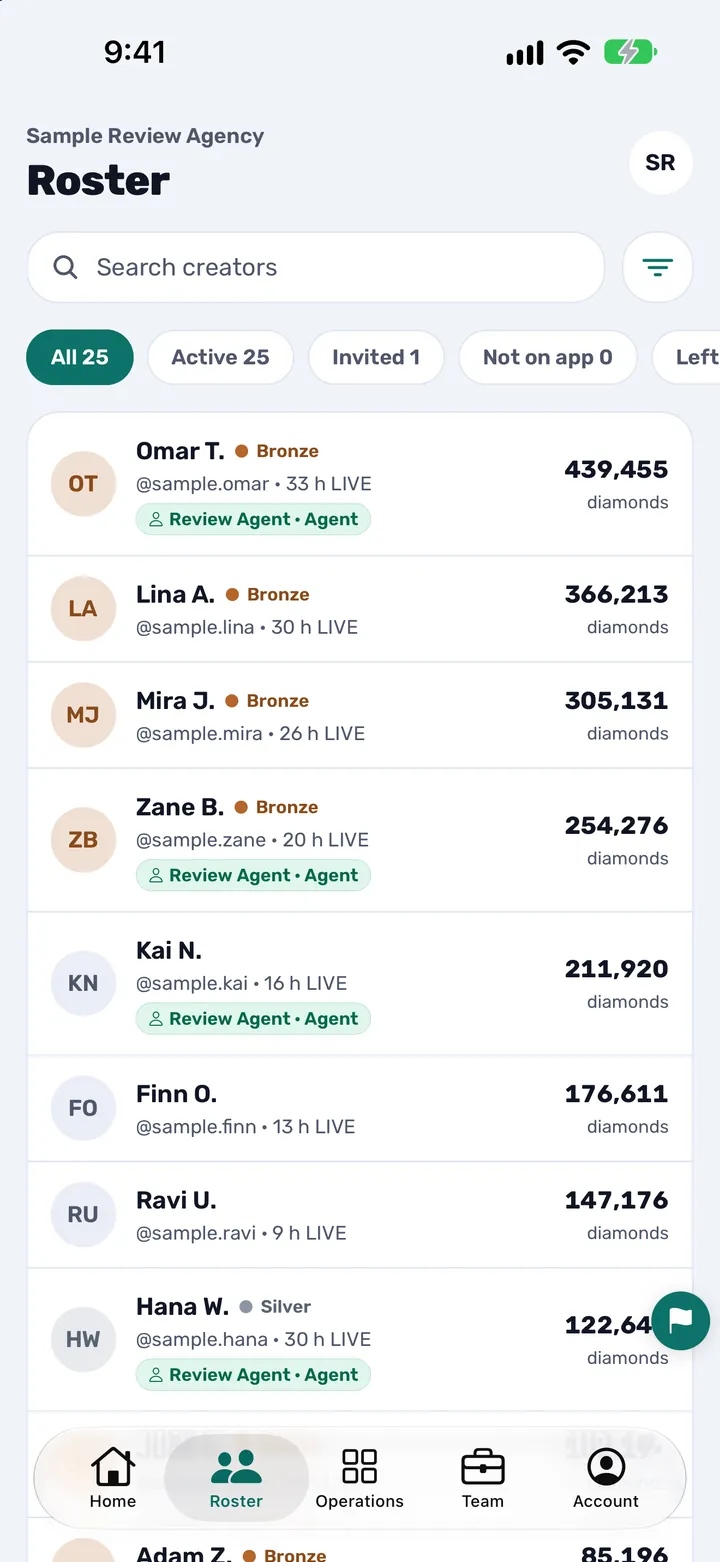
Step 1.Open Roster to see what creators see
Tap Roster. Every creator is listed with their level, their LIVE hours this month and their diamonds, and you can search by name or filter by All, Active, Invited and Not on app.
What you should see: The same figures a creator sees on their own Home, in one list.
Tip: See how to see all your TikTok LIVE creators in one roster for every filter.
-
Step 2.Send creators this page
Send this page’s address to your creators, with the sign-in guide. They can read it in English, Arabic or Turkish.
What you should see: Fewer messages asking for numbers, and creators who know where to look.
Tip: Post it as an announcement so you can see who has opened it: how to send announcements.
You are done when
- You can say how many diamonds, valid days and LIVE hours you have this month, and what your level is.
- You know how many valid days and LIVE hours are left for the next level.
- You have opened Levels and Bonus at least once, and you know where Moments lives.
Tips
- Check Home after every LIVE rather than at the end of the month, so you can see which bar needs you.
- Use Your week to learn which days and times work best for you.
- Do not worry about a dash: it means not yet, not zero.
- Open Levels at the start of a month, when your level starts again from 0, to plan the month.
- Share a Moment as a card when you reach a new level: it is made for your Story.
Questions creators ask
How does a TikTok LIVE creator check diamonds in CN Creator App?
Open the Home tab. The big number on the card is your diamonds for the month. Under it, bars show your valid days and LIVE hours against the next level, and a line says how recently your figures were updated.
Where do I see my valid days and LIVE hours?
On Home, in the bars under the diamonds and in the row of day tiles. On the Bonus tab, the grid lists Valid days, LIVE duration and LIVE count, and “Your week” shows the last seven days as bars.
How do I find out my level and what I need for the next one?
Your level is on the Home card, as “Level” out of 5 and as the name in the pill. Tap the Levels tile (or Tools, then Levels) to see how many valid days and LIVE hours are left for the next level, and your diamond tier.
Why does my level say 0 at the start of the month?
Your level is graded on the month’s own valid days and LIVE hours, so it starts again from 0 on the first and climbs as you go LIVE. For the first days Home shows “A new month has started”, with the level you reached last month.
What is the difference between my level and my diamond tier?
Your activeness level is graded on valid days and LIVE hours. Your diamond tier is graded on diamonds. You hold a place on both ladders at once, which is why the app writes “Activeness level 4” and “Diamond tier 3” in full.
What does a dash or “not available yet” mean?
It means that figure is not available yet. It is never a zero and you have not lost anything. Figures update by themselves, so there is nothing to do. If it stays a dash for several days, ask your agency owner or agent.
Is the Bonus on the screen what I will be paid?
It is an estimate under your agency’s own pay rules, set and paid by your agency, not by the app. CN Creator App never moves money, and payouts happen outside the app. Ask your owner how and when your agency pays.
Who decides what each level pays?
TikTok fixes the gates for the five levels, and your agency owner sets what each level pays. The Levels screen shows your agency’s own rules with your row marked.
What are Moments?
Moments keeps every celebration you have had, grouped by month with the newest first. Tap one to watch it again or to share it as a card. A “Moments” pill on Home opens it once you have a moment.
Can I turn the celebrations off?
Yes. Tap “Turn off celebrations” on a scene, or open Account, then Notifications, then the row “Celebrations”. Moments keeps working either way, and you can turn the scenes back on in the same row.
Can my owner and agent see the same figures?
Yes. Your agency owner, and the agents who look after you, see your level, LIVE hours and diamonds on the roster. Each agency’s data is kept separate from every other agency’s, and access follows roles.
Do I need to export or send my figures to anyone?
No. Your figures update by themselves and securely, so there is no export, no copying and no manual work for you or for your agency.
Related guides and pages
- How a TikTok LIVE creator signs in to CN Creator App
- How to use weekly and monthly creator reports
- How to see all your TikTok LIVE creators in one roster
- How to run events and challenges for creators
- How to send announcements to your creators
- How to refer a TikTok LIVE creator to your agency
- How to set up a TikTok LIVE PK match
- How to request a LIVE or video boost
- TikTok LIVE activeness levels explained
- What diamonds are on TikTok LIVE
- How to set pay rules, step by step
- How to design a TikTok LIVE agency bonus structure
- Step-by-step guides
- Support