
Step-by-step guide
How to send announcements to your TikTok LIVE creators
To send an announcement to your TikTok LIVE creators, open Operations, then Announcements, tap Write, type a title and a message and tap Publish. Your creators see it in the app, the ones who allowed notifications also get a push, and you can open it later to see who has opened it and who has not.
On this page
Written for agency owners who run a creator network and want one reliable way to tell everybody the same thing. Every screen name below is the one the app shows (see also what the app does, feature by feature), and each step was checked against the app on 2026-11-05. The same page also exists in the web console. Agents can publish too, once you switch on their permission.
Key facts
| Where | Operations tab, under Agency, row Announcements. The page is also in the web console. |
|---|---|
| Who can publish | The agency owner always. An agent only when the owner has switched on “Post announcements” for that person (see how to set staff permissions). |
| Who receives it | An owner’s announcement reaches every creator in the agency. An agent’s reaches the creators on their own roster. You do not pick the audience per post: it follows who is writing. |
| What you write | A title (required, up to 160 characters) and a message (optional, up to 10,000 characters). You can add the same text in English, Arabic and Turkish. |
| Pin to the top | A pinned announcement stays above newer ones until you unpin it. |
| Notification | Creators who allowed announcement notifications get a push when you publish. Everyone else still finds it in the app. |
| Who opened it | Opening an announcement is the read. You see how many creators opened it, who, and who has not. Receiving the notification or scrolling past it does not count. |
| Edit and delete | The person who wrote it can edit or delete it, and so can the owner. Saving a change does not send a second notification. |
Before you start
- You can publish. Owners always can. An agent needs the “Post announcements” permission from the owner. Without it the agent can read every announcement but there is no Write button.
- Your agency has its creators in. Announcements reach real creators, so publishing opens once your creators are on the roster, for example after you import them from a spreadsheet or finish setting up your agency. Until then the Announcements screen shows a card that tells you so.
- You know who it is for. Whatever you publish as owner goes to the whole agency. If you only want to speak to one group, an agent with the permission can publish to their own roster.
The steps
Eleven steps, in order: open the screen, write and publish, see who opened it, then change or remove it. Each step stands on its own, so you can jump to the one you need.
-
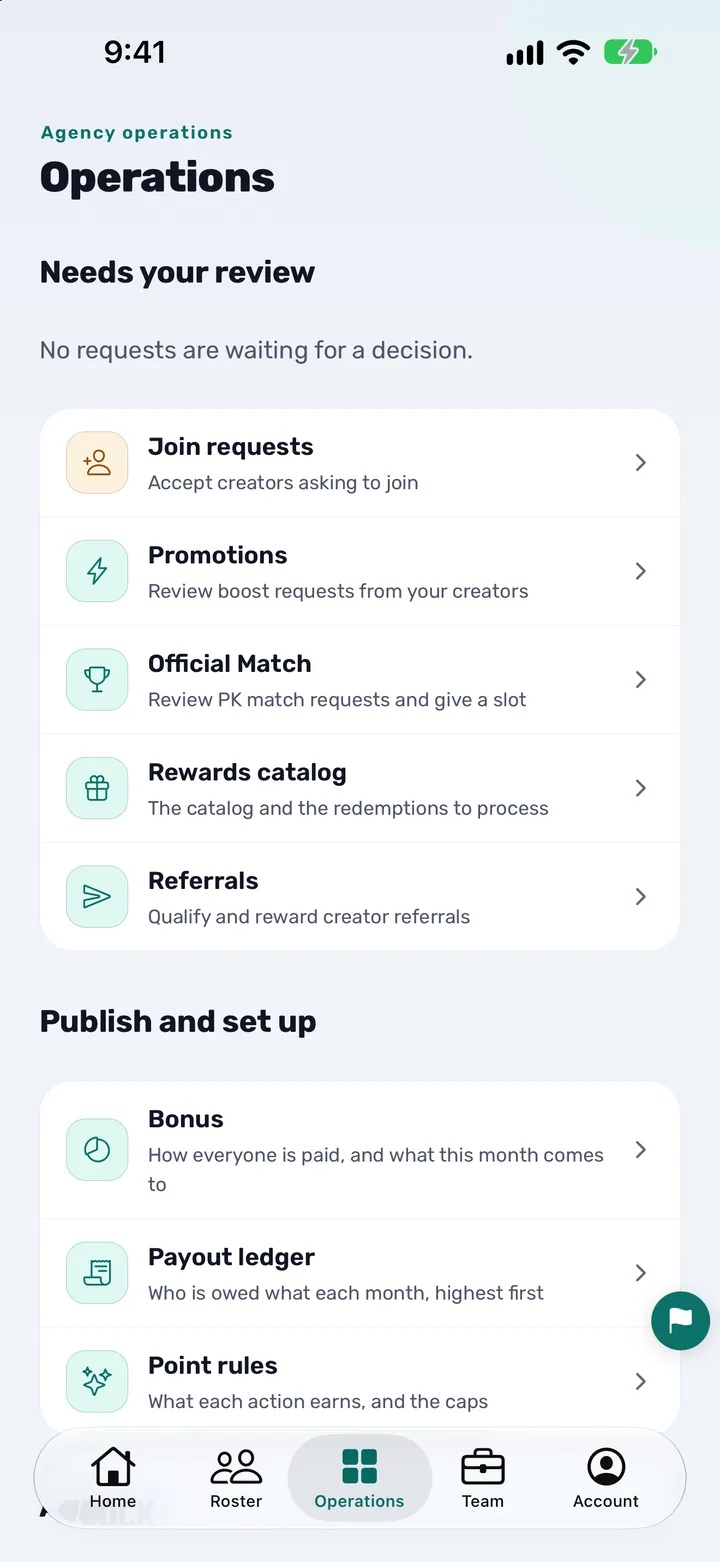
Open Operations and find Announcements
Tap the Operations tab at the bottom of the app. Scroll to the section called Agency and tap Announcements. If you can publish, the row says “Post and pin updates for the whole agency”.
What you should see: The Operations screen with the groups Needs your review and Publish and set up, then Agency further down, with Events, Activity and Announcements. Tapping Announcements opens the list.
-
Read the list of announcements
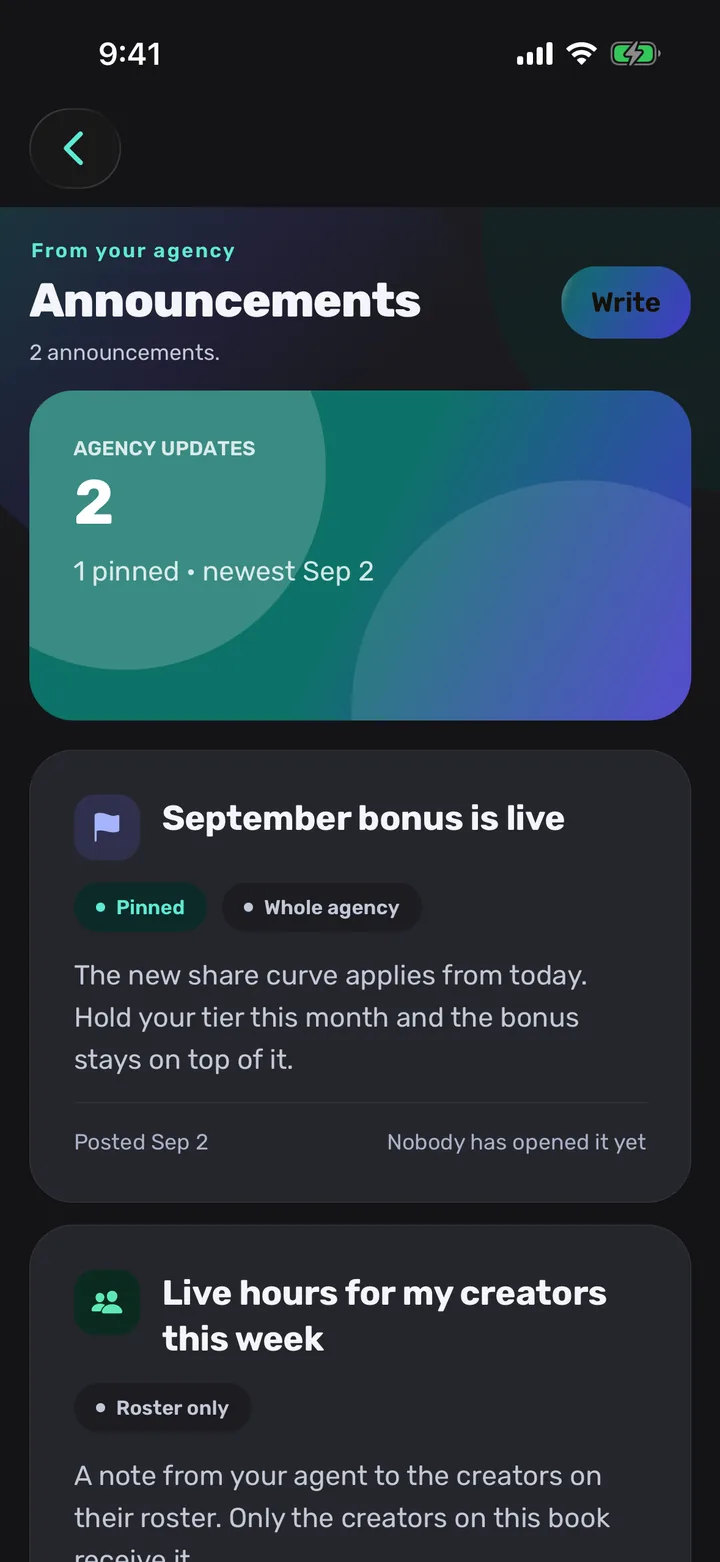
The top of the list says how many announcements there are, with a panel showing how many are pinned and the date of the newest. Each announcement is a card with its title, the start of its message, the date it was posted and how many creators opened it. Tap Load more at the bottom for older ones.
What you should see: Cards marked Pinned, and a second marker that says Whole agency or Roster only. Under each card, either “Nobody has opened it yet” or “Opened by” and a number. If there is none yet, the screen says “No announcements yet”.
-
Tap Write
Tap the Write button at the top right of the list. On an empty list the button reads “Write an announcement” and sits in the middle of the screen. A new screen called New announcement opens.
What you should see: A form with Title and Body, an Other languages row, and rows for Pin to the top, Audience and Also sends a push. Publish is at the bottom. If instead you see a card asking you to finish setting up your agency, publishing is not open yet: see Before you start.
-
Type the title
Type the title in the first box, which asks “What should people know?”. Make it the one thing a creator must take away, because the title is also what appears in the notification and on the strip at the top of their Home. It can be up to 160 characters.
What you should see: The text you type. If you tap Publish with the title empty, the box shows “A title is needed.” and nothing is sent.
-
Add the message
Type the details in the second box, which says “Add the useful details”. It is optional and can be up to 10,000 characters, so an announcement can be a single line or a full explanation. The line under the box reminds you to keep private creator information out of a message sent to the whole agency.
What you should see: Your text in a larger box. Leave it empty and creators see only the title.
-
Add other languages if your creators need them
Tap the Other languages row. It opens a switch between English, العربية and Türkçe. Type the title and message again in the language you want to add. Anything you leave blank falls back to what you wrote in the first boxes.
What you should see: The row says None until you add one, then “1 added”, “2 added” and so on. A creator reading the app in Arabic or Turkish sees that version if you wrote one, and the original otherwise.
-
Pin it if it must stay on top
Tap the Pin to the top row to turn it On. A pinned announcement stays above newer ones until you turn it Off, so use it for the rule or date people must not miss. You can change this later by editing the announcement.
What you should see: The row value changes from Off to On. On the list the card carries a Pinned marker and the panel counts it.
-
Check who it reaches
Look at the Audience row. For an owner it says “Everyone in the agency sees this”; for an agent it says “Only the creators on your roster see this”. The row under it, Also sends a push, says creators who allowed announcement notifications get one. Both rows are information, not switches.
What you should see: The two rows with no On/Off value. If the audience is not the one you want, stop here: the audience follows who is writing and cannot be changed per post.
-
Tap Publish
Tap Publish at the bottom. The button changes to “Publishing…” and the screen closes when it is done. Tap it once and wait for the screen to close. If the text is refused you will see “That wording is not allowed here. Please rewrite it.” next to the box.
What you should see: You are back on the list with your announcement at the top (or just under the pinned ones), saying “Nobody has opened it yet”. Creators who allowed notifications get a push with your title and the start of your message.
-
See who opened it and who has not
Tap the announcement’s card. Under the full text you will find Who opened it, a bar “Opened it” with a count such as 6/40 and a percentage, and the names of the latest creators who opened it. Tap See everyone, or the button Who has not opened it, for the full list.
What you should see: A list with two tabs, Opened and Not yet, each with its count, under a note “What counts as opened”: a creator appears once they open the announcement itself. A creator who has since left the agency is shown but not counted.
-
Edit or delete an announcement
To change it, open the announcement and tap Edit announcement, correct the text, the languages or the pin, and tap Save changes. To remove it, scroll to the bottom of the edit screen, tap Delete announcement and then Delete permanently. Saving a change does not send a second notification, and a deleted announcement disappears from everyone’s feed.
What you should see: After Save changes you are back on the list with the new text. After Delete permanently the card is gone. If you tap Delete announcement by mistake, tap Cancel.
The screenshots use sample content.
You are done when
You are done when your announcement sits on the Announcements list with the right marker (Pinned, Whole agency or Roster only), and, a little later, the “Opened by” count has started to go up.
What your creators see
It helps to know exactly what lands on the other side, because that decides how you write it.
- On Home: a strip at the top shows the title of the newest announcements. With more than one, a counter such as 1/3 appears and they can swipe through them. Tapping the strip opens the announcement in full.
- As a notification: a creator who allowed announcement notifications gets a push with your title and the start of your message. Tapping it opens that announcement. Notifications can also be paused by the creator’s quiet hours, in which case announcements wait until the window ends.
- In the list: an announcement they have not opened carries a New marker, and the bell on Home shows a dot or a count while something is unread. Pinned announcements come first.
- Inside an announcement: the title, the date it was posted, your full message and a section called More from your agency with the other announcements. If you wrote a version in their language they see that one.
- What they do not see: who else opened it, how many did, and which audience it was sent to. A creator can report or block an announcement they object to.
Tips
- Lead with the action. Put what the creator must do, and by when, in the title. The message is for the detail.
- Pin sparingly. Two or three pinned announcements are a list; ten are noise. Unpin an announcement once it is out of date.
- Write once per language. If your agency works in Arabic, Turkish and English, fill in Other languages so each creator reads their own.
- Follow up on the “Not yet” tab. A day after an important announcement, open it, choose Not yet and message those few creators directly instead of posting again.
- Fix, do not repost. A typo is an edit, not a new announcement: editing does not send a second notification, so nobody gets the same push twice.
- Keep it general. An announcement to the whole agency is read by everyone, so leave out one creator’s figures or private details.
Questions owners ask
How do I send an announcement to my TikTok LIVE creators in CN Creator App?
Open the Operations tab, scroll to Agency, tap Announcements and then Write. Type a title, add a message if you want one, and tap Publish. Your creators see it in the app, and the ones who allowed notifications also get a push.
Who can send announcements, the owner only or agents too?
The owner always can. An agent can only if the owner has switched on the “Post announcements” permission for that person on the Team tab. An agent without it can read every announcement but cannot write one.
Can I choose which creators receive an announcement?
Not per post. An announcement you publish as owner goes to every creator in the agency. An announcement an agent publishes goes to the creators on that agent’s own roster. If you want to speak to one group, the agent who looks after that group publishes it.
Do creators get a notification on their phone?
Yes, if they allowed announcement notifications on their phone and in the app. The push shows your title and the start of your message. Everyone in the audience can read the announcement inside the app whether or not they get the push.
Can I see which creators have read an announcement?
Yes. Open the announcement and look at Who opened it: you see how many creators opened it out of everyone it was sent to, the latest names, and a full list with two tabs, Opened and Not yet. An owner sees this for every announcement, an agent for their own.
What counts as “opened”?
A creator counts as having opened an announcement when they open the announcement itself. Receiving the notification, or scrolling past the card in the list, does not count. Staff opening it are never counted.
Can I edit an announcement after I have published it?
Yes. Open it, tap Edit announcement, change the title, message, languages or pin, and tap Save changes. The person who wrote it and the owner can edit it. A saved change does not send a new notification.
How do I delete an announcement?
Open it, tap Edit announcement, scroll down and tap Delete announcement, then Delete permanently. It disappears from the feed of everyone in the agency. Tap Cancel if you changed your mind.
What does pinning an announcement do?
A pinned announcement stays above newer ones in everyone’s list until you unpin it. Turn on Pin to the top when you write it, or edit the announcement later to pin or unpin it.
Can I write an announcement in Arabic and Turkish as well as English?
Yes. In the editor, tap Other languages, choose English, العربية or Türkçe and type the title and message again. Each creator sees the version in the language their app is set to, and the original for any part you left blank.
How long can an announcement be?
The title can be up to 160 characters and is required. The message is optional and can be up to 10,000 characters.
Why is there no Write button, or why does it say announcements are locked?
Either you are an agent without the “Post announcements” permission, which only the owner can give, or your agency does not have its creators in yet. Publishing opens once your creators are on the roster, for example after you import them from a spreadsheet or finish setting up your agency.
Some creators never open my announcements. What can I do?
First open the announcement and check the Not yet tab. If Home shows a line such as “3 people cannot get your notifications”, tap it: you will see who has notifications switched off and a Send them the steps button that shares a short message telling them how to turn them on.
More from CN Creator App
- How to see all your TikTok LIVE creators in one roster
- How to run events and challenges for TikTok LIVE creators
- How to invite creators and staff to your agency app
- How to set staff permissions
- How to import creators from Excel or CSV
- How to use weekly and monthly creator reports
- How to set up a TikTok LIVE PK match
- How to request a LIVE or video boost
- How creators check diamonds, hours and level
- How a TikTok LIVE creator signs in to the app
- How to brand your agency app with your logo and colours
- How to onboard TikTok LIVE creators
- What CN Creator App does, feature by feature
- The TikTok LIVE agency management app
- Support