
Step-by-step guide
How to refer a TikTok LIVE creator to your agency
To refer a TikTok LIVE creator, open Refer a creator on your Home screen, type the person’s TikTok handle and tap Send referral. The agency owner, or an agent allowed to handle requests, then finds it under Operations, Referrals, invites the person and marks the referral joined once they are in.
On this page
This guide is for creators who want to bring a friend into their TikTok LIVE agency, and for the owners and agents who answer those referrals. Every screen name below is the one the app shows (see also what the app does, feature by feature), and everything on this page about the app was checked against the app itself on 2026-11-05. The app is available in English, Arabic and Turkish, and the three editions of this guide use the labels of the matching language.
Key facts
| Who can refer | A creator on your agency, from their own app. Owners and agents do not send referrals; to add someone yourself, use Invite a creator on the Roster. |
|---|---|
| What the creator enters | The person’s TikTok handle, with or without the @ (a pasted TikTok profile link works too), and an optional name. |
| Where the creator starts | Home, tile Refer a creator. If your app shows a Tools tab, the same tile is there under Ask your agency. |
| Where the agency answers | Operations, row Referrals, under Needs your review. The web console shows the same list under Referrals. |
| Who can decide | The owner always, and an agent who has been given the Handle requests permission. Other agents can read the list but have no buttons. |
| The statuses | Pending review, then Invited, then Joined. A referral can also end as Not eligible or Rejected. |
| What staff can add | An optional note with the decision. The referrer reads it, under the heading Note from your agency. |
| What it does not do | It does not invite or add the person for you: Invite and Mark joined record your decision. It never moves money, and it never decides eligibility: that is your agency’s own rule. |
For creators: refer someone
Six steps. They take about a minute, and after step 4 your agency takes over.
-
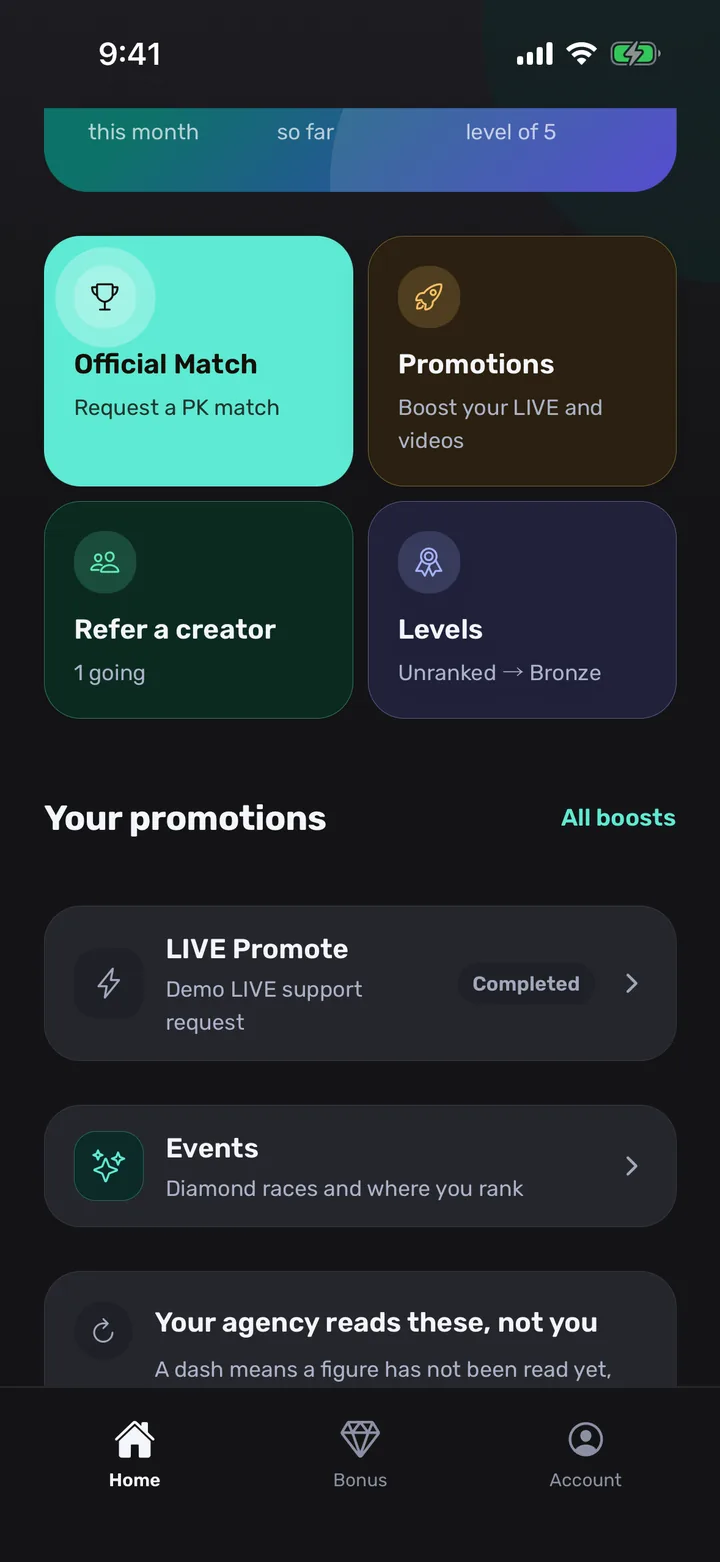
Open Refer a creator on Home
On your Home screen, among the tiles, tap Refer a creator. Its line says Bring someone you know, or how many referrals are going. If your agency’s app has a Tools tab, you find the same tile there, under Ask your agency.
What you should see: The Creator referrals screen. Your earlier referrals are listed here, and if you have none it says No referrals yet.
Tip: Once you have referrals going, the line on the tile says how many.
-
Tap Refer
At the top of the Creator referrals screen tap Refer. On an empty list the button Refer a creator does the same.
What you should see: A form headed Refer a creator, with the line “Your agency checks eligibility before it invites a referred creator.”
-
Enter the TikTok handle and a name
Type the person’s TikTok handle in the TikTok handle field. You can leave out the @, and you can paste their TikTok profile link instead. The Name field is optional: add what you call them, so your agency knows who it is.
What you should see: The handle field accepts a valid handle only. If it does not, it says “Enter a valid TikTok handle.” and the Send referral button stays off.
Tip: Copy the handle from the person’s own TikTok profile, so no letter or underscore is lost.
-
Tap Send referral
Check the handle once more and tap Send referral. The referral goes straight to your agency, and the owner and your agent are notified.
What you should see: You are back on Creator referrals with the new referral in the group In progress and the status Pending review. If the same handle was already referred in your agency, the app says so and sends nothing.
-
Follow the referral
Open Creator referrals whenever you like. Your referrals are grouped as In progress, Joined and Closed, and each card has a status: Pending review, Invited, Joined, Not eligible or Rejected. When your agency decides, you get a notification, such as that the person has been invited or joined the agency.
What you should see: If your agency left a note with its decision, it appears on the card under Note from your agency. Above the list, counters show how many you referred and how many joined.
Tip: A referral cannot be withdrawn once it is sent. If you made a mistake, tell your agency.
-
See what a joined referral earned
Some agencies reward a referral that joins, and some do not. Where your agency does, a joined card shows the amount as added to the month they joined, and the screen shows a line such as Next joins. Where your agency runs Points, you also see Points earned.
What you should see: Nothing extra if your agency pays no reward: the referral simply reads Joined. Any money is added to your month in the app, and your agency pays it outside the app.
The screenshots use sample creators. The creator’s Home is shown in the English app.
For owners and agents: answer a referral
Five steps. The first two are for every owner and agent; deciding needs the Handle requests permission, which the owner always has. How to set staff permissions shows where an owner gives it to an agent.
-
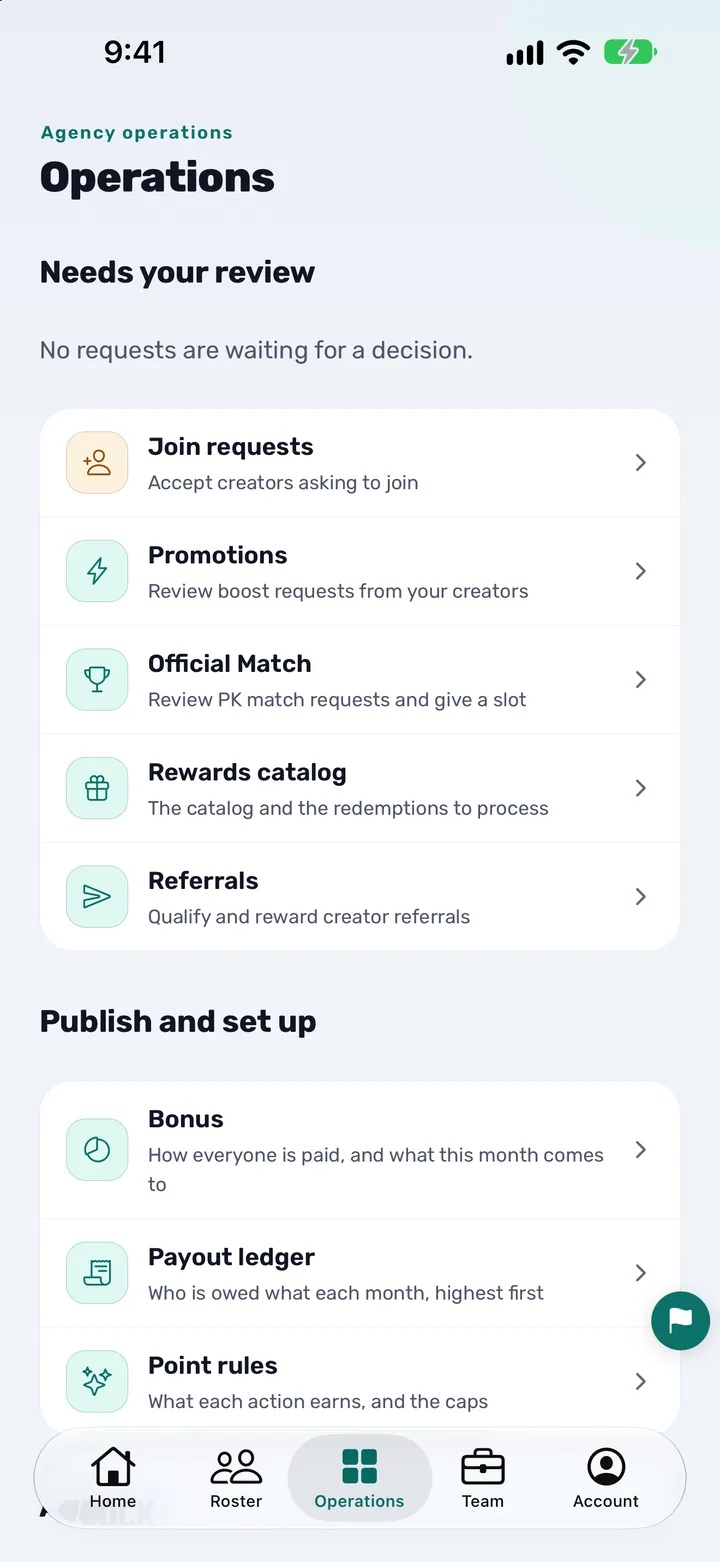
Open Operations, then Referrals
When a creator refers someone you are notified, with the title New creator referral. Open the Operations tab and tap Referrals, under Needs your review. The row carries an amber count when referrals are waiting.
What you should see: The Creator referrals screen. The row on Operations says Qualify and reward creator referrals if your agency runs Points, and Qualify creator referrals if not.
-
Read the referral
Referrals that need a decision come first, under Needs a decision. Each card shows the person’s name or handle, who referred them (From and the creator’s name) and the day it was submitted. An agent sees the referrals of the creators on their own list.
What you should see: Cards in three groups: Needs a decision, Joined and Closed. A card may carry a small tag, From Backstage; handle it like any other.
-
Decide: Invite or Not eligible
Check the person against your own agency’s rules. If they fit, tap Invite. If not, tap Not eligible. You can type a note first in the field Note · optional: the referrer reads it, so write it for them.
What you should see: The status changes to Invited, or to Not eligible and the card moves to Closed. The referrer is notified at once.
Tip: A short reason in the note saves the referrer from asking you why.
-
Invite them, then tap Mark joined
Invite records your decision; it does not send anything to the person. Send them your join link or agency code (how to invite creators and staff), or use Invite a creator on the Roster. A creator who enters the agency code waits for you in Join requests until you accept. When the person is in your agency, open the referral and tap Mark joined. If it falls through, tap Reject.
What you should see: Status Joined, and the card moves to the group Joined. The referrer is notified that the person joined the agency.
-
Owners: set the money reward
At the top of Creator referrals, the Money reward card lets the owner type the Amount per joined referral and tap Save. It is paid once per join and is added to the month the person joined. Leave it empty to pay no money. Once saved, the card folds to one line with an Edit button.
What you should see: The amount in your agency’s currency, with “Paid once per join.” A referral that already joined keeps the amount it was paid at. Points, where your agency runs them, are set in Point rules.
Tip: The app records the reward and shows it to the creator; your agency pays it outside the app.
The screenshots use sample creators. The creator’s Home is shown in the English app.
You are done when
A creator is done when the referral shows Joined, or Closed with a note from the agency. An owner or agent is done when no referral is left under Needs a decision and every person who joined has been marked Joined.
What each status means
| Status | What it means | What staff can do |
|---|---|---|
| Pending review | The referral is sent and waits for the agency. | Invite, or Not eligible. |
| Invited | The agency has decided to invite the person. | Mark joined, or Reject. |
| Joined | The person is in the agency. Any reward is added. | Nothing more to do. |
| Not eligible | The agency decided the person cannot join. | Closed. |
| Rejected | The agency did not go ahead with the referral. | Closed. |
Tips
- Creators: refer one person per referral and use the handle exactly as it appears on TikTok. The same handle can only be referred once in an agency.
- Owners and agents: answer in the same day if you can. The referrer sees every change, and a quick answer keeps them referring.
- When you decline, write the reason in the note. It is shown to the referrer, so keep it polite and short.
- Only creators send referrals. If an owner or agent knows someone, the way in is Invite a creator on the Roster.
- Agents: if the buttons do not appear on a referral, ask the owner to switch on Handle requests for you.
- Owners: set a money reward only if your agency will pay it. The app shows it to the creator, but the payment happens outside the app.
- If your team uses the web console, the same list is under Referrals. There the buttons read Mark invited, Mark joined and Reject.
Questions creators, owners and agents ask
How do I refer a TikTok LIVE creator to my agency in CN Creator App?
Open Refer a creator on Home, tap Refer, type the person’s TikTok handle, add a name if you like and tap Send referral. Your agency gets the referral in one list and you can follow it from Pending review to Joined.
What do I need to enter to refer a creator?
Only the TikTok handle is required. You can type it with or without the @ or paste the profile link. A name is optional and only helps your agency recognise the person.
Can an agency owner or an agent refer a creator?
No. Referrals are sent by creators from their own app. An owner or agent who knows someone uses Invite a creator on the Roster instead, and can read the invite guide: how to invite creators and staff.
Where do owners and agents see referrals?
On the Operations tab, in the row Referrals under Needs your review, with a count of what is waiting. Each owner and agent can read the list; an agent sees the referrals of creators on their own list. The web console has the same list under Referrals.
What do Pending review, Invited, Joined, Not eligible and Rejected mean?
Pending review means the agency has not answered yet. Invited means the agency decided to invite the person. Joined means the person is in the agency. Not eligible and Rejected are closed referrals, with an optional note from the agency.
Who is allowed to invite, reject or mark a referral joined?
The owner always, and any agent the owner has given the Handle requests permission. The owner switches it on per agent: see how to set staff permissions.
Does tapping Invite send the person an invitation?
No. Invite records your decision and tells the referrer. You then invite the person yourself with your join link or agency code, or with Invite a creator on the Roster, and tap Mark joined when they are in.
Can the same creator be referred twice?
Not in the same agency. If a handle was already referred, the app says “This TikTok handle has already been referred in this agency.” and does not send a second referral.
Will the creator who referred someone see why it was declined?
Yes, if the owner or agent wrote a note. It is shown on the referral under Note from your agency, and the creator is notified of the decision. The note is optional.
Do creators earn something for a referral?
That is the agency’s choice. An owner can set a money reward per joined referral, and an agency that runs Points can award points. When a referral joins, the reward is added to the creator’s month in the app. The app never moves money, so the agency pays outside it.
Can a creator cancel a referral after sending it?
No, there is no cancel button on a referral. The creator tells the agency, and the agency can close it as Not eligible or Rejected.
Is a referral the same as a join request?
No. A referral is a creator telling the agency about someone else. A join request is a creator asking to join, which the owner or agent accepts under Operations, Join requests. See how to onboard TikTok LIVE creators.
Is there an Arabic and a Turkish version of the referral screens?
Yes. CN Creator App is available in English, Arabic and Turkish. In Arabic the screen is called إحالات المبدعين, and in Turkish Öneriler; the creator action reads Refer a creator, أحِل مبدعًا and Bir yayıncı öner.
More from CN Creator App
- How to invite creators and staff to your TikTok LIVE agency app
- How to set staff permissions
- How to see all your TikTok LIVE creators in one roster
- How to onboard TikTok LIVE creators
- How to set up a TikTok LIVE PK match
- How to request a LIVE or video boost
- How to run events and challenges for TikTok LIVE creators
- How to send announcements to your TikTok LIVE creators
- What CN Creator App does, feature by feature
- How a TikTok LIVE agency runs on CN Creator App, day by day
- TikTok LIVE agency glossary
- Step-by-step guides
- Support