
Step-by-step guide
How to run events and challenges for TikTok LIVE creators
To run an event or challenge for your TikTok LIVE creators, open Operations, tap Events, then New event: give it a title, choose who can take part, plan a reward, switch on Publish to creators and tap Create event. Creators then see it in the app, tell you whether they are coming and follow a diamond leaderboard that updates automatically and securely. When it ends you award the reward with one tap.
On this page
Written for agency owners who want their creators to have something to aim for: a weekend diamond ladder, a top 3 contest, or a race to a target. Each step below says what to open, what to tap, what you should see and one tip, so you can follow it with the app in your hand. Events sit beside announcements, the roster and your pay rules in the way an agency runs day to day (see how a TikTok LIVE agency runs on CN Creator App).
Key facts
| Who creates events | The agency owner. Agents and creators can open the Events board and any event’s standings, but only the owner creates, edits, cancels or awards. |
|---|---|
| Where to find them | Owner and agents: Operations, then Agency, then Events. Creators: the Tools tab, then Events. If your plan includes the web console, Events is also in its menu with the same functions. |
| What an event is | A title, optional dates, an audience, and a ranking of creators by diamonds, with an optional reward. A challenge to a target adds a number of diamonds the first creators must reach. |
| Who can take part | Everyone by default. You can limit an event to a range of diamond tiers and a minimum activeness level, or tick the exact creators who take part. |
| Rewards you can plan | Bonus money, LIVE or video boosts, or both, for the top spot, the top 3, everyone ranked, or the first creators to reach a target. Points too, where your agency runs them. |
| What creators do | Answer Going, Maybe or Cannot make it, and follow the standings: their rank, their diamonds and how many more they need to climb a place. |
| Names in the standings | Your choice per event: creators see names, or only their own rank, their diamonds and the top of the board. |
| What it is not | It never moves money. A Bonus reward is added to the creator’s Bonus for the month and payouts happen outside the app. It is not a TikTok product and TikTok has not endorsed it. |
The steps
Sixteen steps for the owner and two for your creators, in order. You do not have to use every option: the shortest event is a title, Publish to creators switched on, and Create event.
-
Open Events from Operations
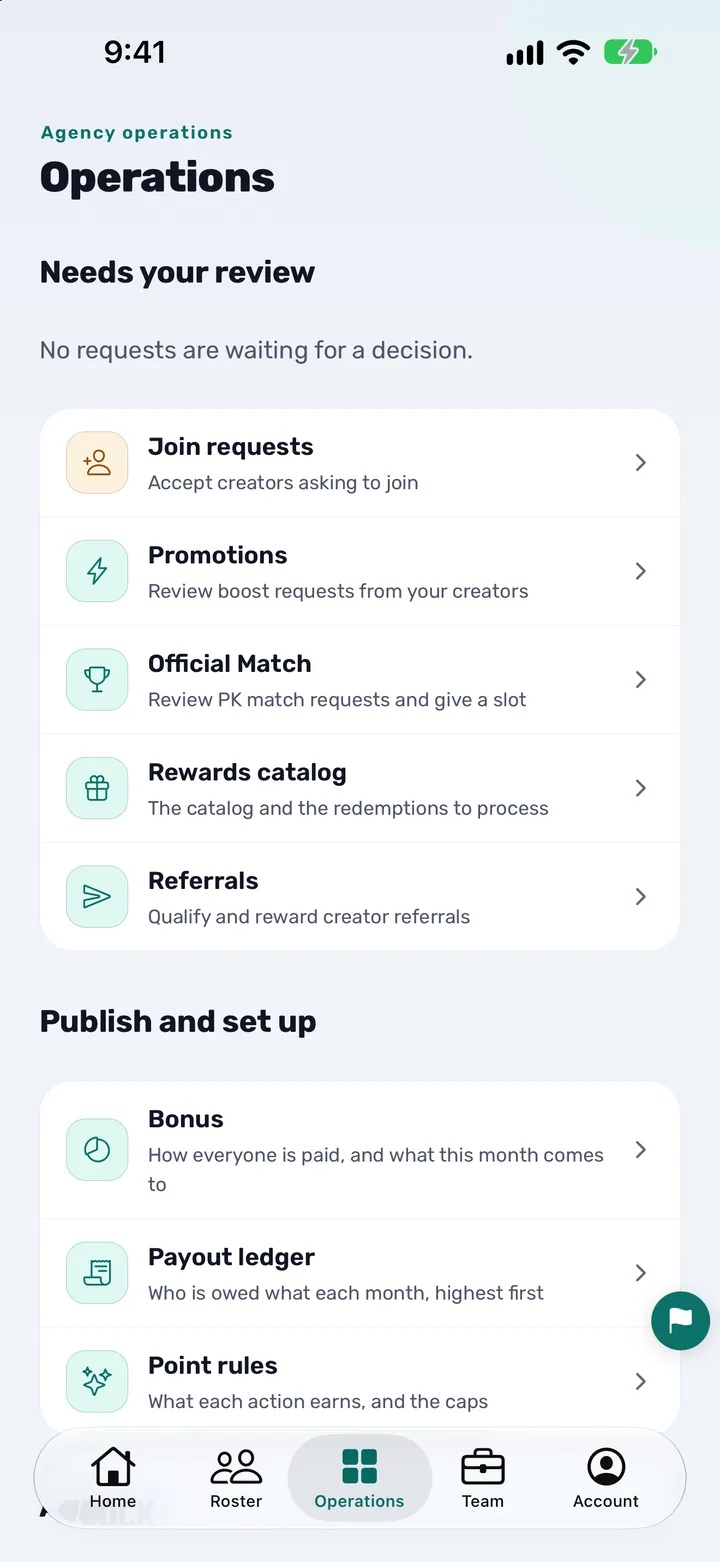
Open the Operations tab and scroll to the Agency section. Tap Events, whose line reads “Diamond challenges and who is leading”. Owners and agents can both open it. Creators find the same board elsewhere, in step 17.
What you should see: The Events board, with a Now section for events that are running and a Past section for finished ones. A new agency sees “No events yet”. The screenshot shows the Operations tab; the Agency section sits further down the same screen.
-
Tap New event
As the owner, tap the New event button at the bottom of the board. An agent who opens the form is told “Only the agency owner creates or changes events” and sees no fields.
What you should see: A screen headed New event, with a Title field at the top and a Create event button at the bottom.
-
Name the event and say what it is
Type the Title, up to 160 characters. It is the only required field; leave it empty and the app says “A title is needed.” Under it, the optional Description (up to 5,000 characters) is the place to explain what creators need to do to win.
What you should see: Your title and description in their fields. The Description hint reads “What is it, and what do creators need to reach?”
-
Add a one-line reward note
In Reward · optional, write one short line about the prize, up to 160 characters. It is shown on the event card so creators see it at a glance. It is only a line of text: the reward that is actually given is planned in step 11.
What you should see: The field with its hint “One short line, shown on the event card.”
-
Add the event in other languages
Tap the Other languages row (“Type this again for creators reading in another language”). Pick English, Arabic or Turkish and type the Title, Details and Reward again in that language. Anything you leave blank falls back to the original.
What you should see: The row shows None, or a count such as “1 added”. Inside, each field offers “Leave blank to use the original”. Creators read the version in their own app language.
-
Add a picture
Under PICTURE · OPTIONAL tap Add a picture and choose a PNG or JPEG from your phone. It is cropped to a wide 16:9 shape and shown across the top of the event card. Tap Choose another or Remove the picture to change your mind.
What you should see: A preview of the picture in the same wide shape the card will use. Most events have no picture, and that is fine.
-
Set the dates
Type Starts and Ends as year-month-day, for example 2026-11-14. Dates are optional for a plain leaderboard. An end date counts to the end of that day, and event days follow your agency’s calendar rather than the phone’s. A date that is not a real day, or an end before the start, is refused with a message under the field.
What you should see: The two fields side by side, each with the hint YYYY-MM-DD. After the end date passes, the event moves to Past by itself and creators see Ended on it.
-
Limit who can enter
Leave Limit who can enter off and everyone can take part. Switch it on to choose a range of diamond tiers (the ten tiers TikTok fixes, with presets such as Any tier, 4 only and 4 and up) and a Minimum activity from None to 5, which is the activeness level. See what diamonds are and how activeness levels work.
What you should see: A line that reads your choice back, such as “Tier 4 and up”, with From and To steppers and the Minimum activity chips. On the board the card then shows the group, for example Tiers 4–10 or Active L3+.
-
Or choose the exact creators
Switch on Choose who takes part to pick named creators for a private contest. Search by name or handle, tap each creator to select them, and use Clear to start again. If you leave this on with nobody chosen, the app says “Pick at least one creator, or turn this off.”
What you should see: A count such as “3 chosen” above the list. Creators who are not on the list never see that event on their board.
-
Decide whether names show in the standings
Creator names in the standings is Anonymous for a new event: creators see their own rank, their diamonds and the top of the board, but no names. Tap the row to switch to Named, and every ranked creator shows by name.
What you should see: The row’s line changes between “Creators see their own rank, their diamonds, and the top of the board, but no names” and “Creators see every ranked creator by name”.
-
Plan the reward
Switch on Pay a reward. Under Who gets it, choose Top spot, Top 3, Everyone or First to a target. Then switch on one or both parts. Bonus money asks for an Amount per top spot (a whole number; each winner receives it, it is not split). Boosts asks for the type, Either, LIVE or Video, and how many, from 1 to 20. Where your agency runs Points, a Paid in choice lets you pick Points or Bonus.
What you should see: The two cards, Bonus money and Boosts, each switching On or Off and unfolding its fields. With both off the app says “Choose Bonus, boosts, or both.” Nothing is given yet: the reward is only planned until you award it in step 15. See how boosts work.
-
Turn it into a challenge to a target
To run a race, choose First to a target under Who gets it. Enter Target diamonds, the Number of top spots (1 to 100) and what is counted under Diamonds counted: This month’s total, or Earned during the event. A race needs both dates, and they must fall in the same calendar month.
What you should see: Three extra fields appear. If a date is missing the app says “A challenge to a target needs a start date” (or end date), and “A challenge must start and end in the same month.” when the dates straddle two months.
-
Feature it, publish it and create it
Switch on Feature it to mark the event as featured at the top of the list. Switch on Publish to creators when you want them to see it; left off, the event stays a draft that only staff see. Then tap Create event.
What you should see: The app returns to the board and the event is there with a Live badge (or Draft if you did not publish). A featured event also wears a Featured badge.
-
Watch the replies and the standings
Tap an event card to open its standings. On the card you see how many creators answered, such as “N going, N maybe”. Inside, creators are ranked by diamonds this month, the first three with gold, silver and bronze medals. A draft shows “Draft, not visible to creators” so you can preview it.
What you should see: A ranked list with each creator’s diamonds. A line under the title says whether “Every creator in the agency is ranked” or the ranking is “within this event’s group”. For a race you also see a meter such as “First 3 to … diamonds” and how many spots are taken.
-
Award the reward when the event is over
On the standings screen, tap Award under “Award the reward”, then confirm “Award now?”. The reward you planned goes to the people it was planned for, once, and cannot be undone. A race can be awarded only when every spot is taken or the event has ended; until then you see “Spots still open”.
What you should see: The notice changes to “Reward awarded”, saying what went to whom. An event with no planned reward says “No reward set”: open it with Edit and add one first. See how Bonus and pay rules work.
-
Edit, cancel, archive or discard
On the card, tap Edit to change anything, then Save changes. The other link on the card depends on the event: Discard for a draft you never published, Cancel event while a published event is running, and Archive once it has ended. Each asks you to confirm.
What you should see: A confirmation such as “Cancel this event?” with “Leaves the creator board and shows as called off”. A cancelled or archived event sits under Past. Archive keeps the standings for you.
-
Creators: find the event and answer
A creator opens the Tools tab and taps Events (the Home screen shows an Events tile when they are in one). On a running event they tap Going, Maybe or Cannot make it. Tapping the answer they already gave takes it back.
What you should see: The chosen answer is highlighted, and the card shows the tally, such as “N going, N maybe”. A badge says “You are in” or “Not eligible” for the group you set. Creators also see “Events are run and paid for by your agency.”
-
Creators: follow the standings
The creator taps the event card to open the standings. At the top they see where they stand and what is needed to climb. On a race they see how close they are to the target and whether they won a spot.
What you should see: A card such as “You’re #N · ↑N today” with their diamonds this month and “N more diamonds to climb one place”. A creator outside the group sees “You’re not in this event”.
The screenshot uses a sample agency.
You are done when
You are done when the event shows on the Events board with a Live badge, the creators it is for can see it and answer, and, once it has ended, the standings show “Reward awarded” (or the event sits under Past with nothing left to give).
Which kind of event to run
There is one form, and the choices you make in it decide the kind of event. This table is the quick way to pick.
| You choose | What creators do | Who gets the reward |
|---|---|---|
| A leaderboard with Top spot | Collect diamonds during the month and climb the standings. | The creator in the top spot. |
| A leaderboard with Top 3 | The same, with three places to aim for. | The first three on the board. |
| A leaderboard with Everyone | The same, with everyone ranked taking part in the reward. | Every creator ranked, each receiving the amount you set. |
| First to a target | Race to the target diamonds inside the event’s dates. | The first creators to reach it, up to the number of top spots you set. |
| No reward planned | Take part for the ranking alone, or for the reward note you wrote. | Nobody receives anything through the app. |
What your creators see
An event is only worth running if creators can find it and understand it. This is what they get.
- The board: only published events that are still running, and never a hand-picked event they are not on. A finished event moves to Past; a cancelled one is marked Cancelled.
- The card: the title, picture, group (for example Tiers 4–10), dates, reward note and the Going, Maybe and Cannot make it buttons.
- The standings: their rank, their diamonds this month, how many more diamonds it takes to climb one place, and “You are first, with nobody above you.” when they lead. With names hidden, the rest of the board shows no names.
- A race: a meter towards the target, the number of top spots taken and, once they get there, which spot they reached.
The standings follow the figures already in the app, so nobody enters results by hand. Creators who have not signed in yet can start with how a creator signs in, and how creators check diamonds, hours and level explains the numbers behind the board.
Who can do what
| Task | Owner | Agent | Creator |
|---|---|---|---|
| Open the Events board and standings | Yes | Yes | Yes, for events they are in |
| Create or edit an event | Yes | No | No |
| Cancel, archive or discard an event | Yes | No | No |
| Award the reward | Yes | No | No |
| Answer Going, Maybe or Cannot make it | No | No | Yes |
| See drafts | Yes | Yes | No |
What each agent may see and do is set in Team: see how to set staff permissions. Your events belong to your agency alone, and access follows these roles.
Tips
- Start as a draft. Leave Publish to creators off, open the card and check the standings preview, then edit and switch it on.
- Say what the reward is in words. The reward note is what creators read; the planned reward is what you award. Keep the two matching.
- Keep races short. A target challenge has to start and end in one calendar month, which suits a week or a weekend.
- Announce it. Post a line in announcements so creators look for the event.
- Choose names deliberately. Anonymous keeps the board friendly for newer creators; Named adds some pride for the top spots.
- Pair it with a boost. A LIVE boost as a prize gives winners something to use straight away. See how to request a LIVE or video boost.
- Award once, after the end. The reward can be given only once, so check the standings first.
Questions owners ask
How do I create an event for my TikTok LIVE creators?
Open Operations, then Events, and tap New event. Give it a title, choose who can take part, plan a reward if you want one, switch on Publish to creators and tap Create event. Creators see it on their Events board straight away.
What is the difference between an event and a challenge to a target?
An ordinary event ranks creators by diamonds and rewards the top spot, the top 3 or everyone ranked. A challenge to a target (First to a target) sets a number of diamonds, and the first creators to reach it inside the event’s dates take the spots.
Who can create and run events?
Only the agency owner creates, edits, cancels or awards an event. Agents can open the Events board and the standings, and creators can answer and follow the standings. See how to set staff permissions for what agents may do.
How do I limit an event to some creators?
Switch on Limit who can enter to choose a range of diamond tiers and a minimum activeness level, or switch on Choose who takes part and tick the exact creators. Creators who are not on a hand-picked list do not see the event at all.
Can creators see each other’s names in the standings?
Only if you want them to. A new event is Anonymous: creators see their own rank, their diamonds and the top of the board without names. Switch the row Creator names in the standings to Named to show every ranked creator by name.
How does a creator join an event?
The creator opens Tools, then Events, and taps Going, Maybe or Cannot make it on the card. Anyone in the event’s group is ranked by their diamonds either way. Tapping the same answer again takes it back, and you see the tally on the card.
What rewards can I give?
Bonus money, LIVE or video boosts, or both, for the top spot, the top 3, everyone ranked, or the first to reach a target. Where your agency runs Points, you can choose Points instead of Bonus. Each winner receives the amount you set; it is not divided between them.
Does the app pay the reward out?
No. The app never moves money. Awarding adds a Bonus reward to each winner’s Bonus for the month and adds boosts to their boosts, and any payout happens outside the app, as set in your pay rules.
When can I award the reward, and can I undo it?
Tap Award on the standings after the event has finished, then confirm. It is given once and cannot be undone. A challenge to a target can be awarded only once every spot is taken or the event has ended.
How do I stop or remove an event?
On the event card choose Discard for a draft you never published, Cancel event for a published event that is running, or Archive for one that has ended. Cancelled and archived events move to Past and leave the creators’ board.
Can I prepare an event without creators seeing it?
Yes. Leave Publish to creators off and the event stays a draft that only staff see. Open it to preview the standings, edit it, then switch Publish to creators on when you are ready.
Can I run an event in Arabic and Turkish as well as English?
Yes. In the form, tap Other languages and type the Title, Details and Reward again in English, Arabic or Turkish. Creators read the version in their own app language, and any blank field falls back to the original. The app itself works in English, Arabic and Turkish.
More from CN Creator App
- How to send announcements to your TikTok LIVE creators
- How to see all your TikTok LIVE creators in one roster
- How to request a LIVE or video boost
- How to set up a TikTok LIVE PK match
- How creators check diamonds, hours and level
- How to use weekly and monthly creator reports
- How to refer a TikTok LIVE creator to your agency
- How to invite creators and staff
- How to brand your agency app
- How to set staff permissions
- How to set pay rules, step by step
- How to onboard TikTok LIVE creators
- How to design a TikTok LIVE agency bonus structure
- What are diamonds on TikTok LIVE?
- TikTok LIVE activeness levels explained
- What CN Creator App does, feature by feature
- Step-by-step guides
- Support