
Step-by-step guide
How to request a LIVE or video boost on TikTok LIVE
To request a LIVE or video boost, a creator opens Promotions on Home, taps Request a boost, picks LIVE boost or Video boost, adds a few words about it and taps Send request. The agency owner, or an agent allowed to handle requests, approves or declines it under Operations, Boost requests, and marks it Complete once the boost has been delivered.
On this page
This guide is for TikTok LIVE creators who want their agency to boost a LIVE or a video, and for the owners and agents who answer those requests. The app calls the creator’s tile Promotions and uses Boosts on the request screens and in Operations: it is one feature, and this guide uses each word where the app does. Every screen name below is the one the app shows (see also what the app does, feature by feature), and everything on this page about the app was checked against the app itself on 2026-11-05.
Key facts
| Who can request | A creator on your agency, from their own app, who holds at least one boost. Owners and agents answer requests; they do not send them. |
|---|---|
| What a request holds | The type, LIVE boost or Video boost, a preferred time (optional) and a few words of details (required). |
| What it uses | One boost per request. The creator’s balance shows how many are ready and how many are in use on requests. |
| Where boosts come from | The owner gives them, one creator, several or everyone. They can also come from a monthly target, an event prize or, where the agency runs Points, a redemption. |
| Where the creator starts | Home, tile Promotions. If your app shows a Tools tab, the door Request a boost is there under Ask your agency. |
| Where the agency answers | Operations, row Boost requests, under Needs your review. The web console shows the same list under Boosts. |
| Who can decide | The owner always, and an agent who has been given the Handle requests permission. An agent sees the requests of creators on their own list. Only the owner gives boosts and sets targets. |
| The statuses | Pending, then Approved, then Completed. A request can also be Declined, or Cancelled by the creator while it is still Pending. A declined or cancelled request gives the boost back. |
For creators: request a boost
Seven steps. The first five take about a minute; the last two cover following the request and what to do when you have no boost.
-
Open Promotions on Home
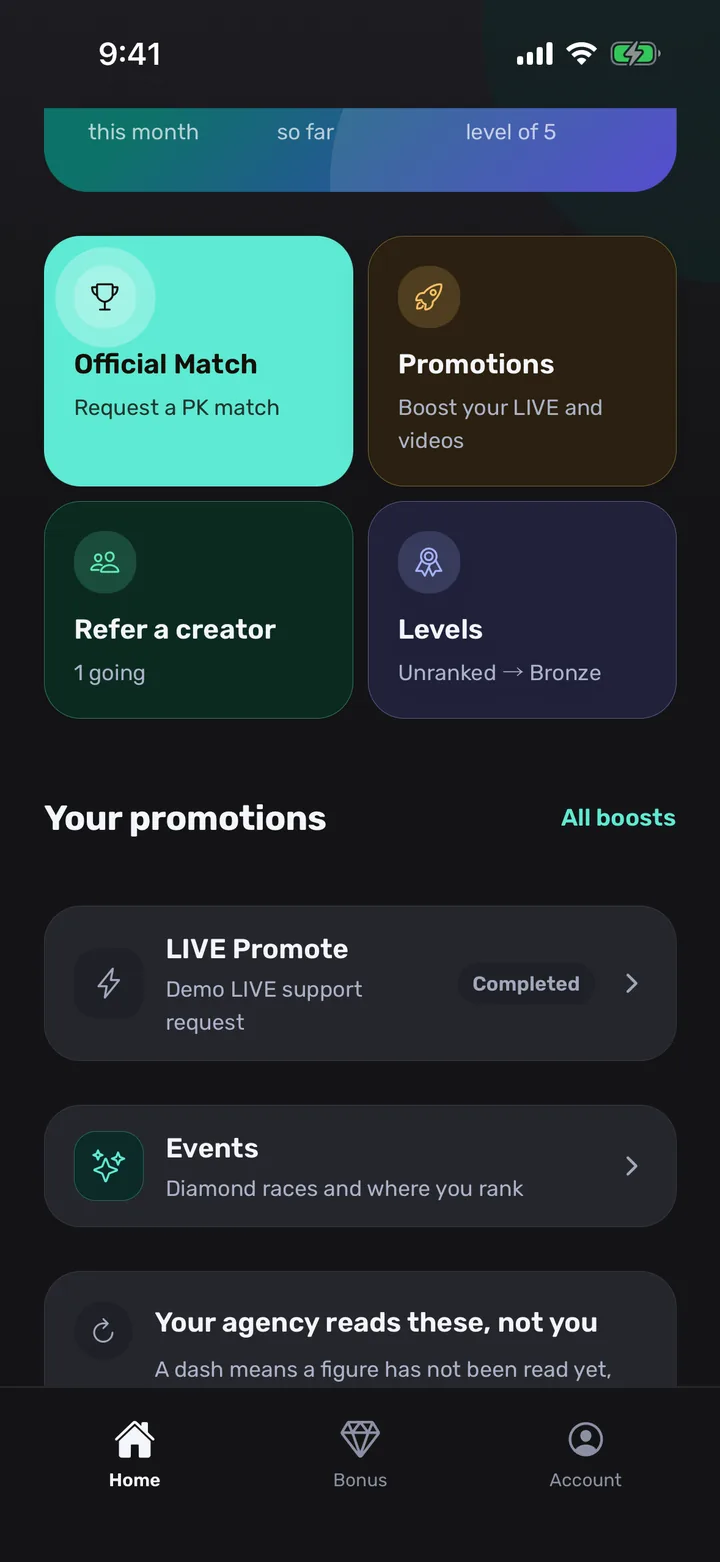
On your Home screen, among the tiles, tap Promotions. Its line reads Boost your LIVE and videos. Once you hold boosts, a wide tile showing how many are ready leads the screen, with the button Use one, and tapping it opens the same place. If your agency’s app has a Tools tab, you find Request a boost there, under Ask your agency.
What you should see: The Boost requests screen, headed with the count of boosts ready and your earlier requests below it.
Tip: The screenshot shows a creator’s Home in the English app: Promotions is the second tile in the top row, and Your promotions lists recent requests.
-
Check your boosts
At the top you see a number and the words boosts ready, with one mark per boost. Under it the line One boost per request tells you what a request costs, and how many are In use on requests. If your boosts are only for LIVE or only for video, the line says so, for example 2 LIVE only.
What you should see: Your count, such as 3 boosts ready. If your agency has switched on a monthly target for your region, a card Your boost target shows your valid days and LIVE hours towards it.
-
Tap Request a boost
At the bottom of the screen tap Request a boost, which also shows how many are ready. The form opens over the list.
What you should see: A form headed Request a boost, with the line “Your agency confirms availability before a boost is arranged.”
-
Choose LIVE boost or Video boost
Under Boost type tap LIVE boost for a LIVE you will stream, or Video boost for a video. If your boosts are meant for the other kind, a notice tells you, and you can choose the other type or ask your agency for the right one.
What you should see: The chosen type is highlighted. A notice such as “Your boosts are for videos. Choose Video boost, or ask your agency for a LIVE one.” appears only when the type does not match your boosts.
-
Pick a time and add details, then send
Tap Preferred time to choose when you want the boost, or leave it empty if your timing is flexible. In Details write what your agency should know about this LIVE or video. Then tap the button at the bottom, which reads Send request and tells you it uses 1 of your boosts.
What you should see: Until you type something in Details, the button reads Add a few words to send and stays off. After you send, you are back on the list with the message “Request sent. Your agency answers here.” and one boost less ready.
Tip: Say what the LIVE or video is about and when it goes out. A request with a time and a clear line is the easiest to approve.
-
Follow the request, or cancel it
Open Boost requests whenever you like. Each card shows its type, its time (or Flexible timing) and a status: Pending, Approved, Declined, Completed or Cancelled. You get a notification when your agency answers, such as that your LIVE boost was approved. While a card is still Pending, tap Cancel request to withdraw it.
What you should see: The status changes from Pending to Approved or Declined, and to Completed once the boost is done. A declined or cancelled request gives your boost back, and the count goes up again.
-
No boost left? Ask your agency
With no boost in hand the request button is replaced by Ask my agency for a boost. Tap it and your owner gets a message that you have none left. Where your agency runs Points, a second button, Redeem a boost with Points, lets you get one yourself.
What you should see: The button changes to Your agency has been asked and switches off. This is a message, not a request, so nothing is added to your list until the agency gives you a boost.
The screenshot uses a sample creator and the English app.
For owners and agents: answer boost requests and give boosts
Six steps. The first two are for every owner and agent; answering needs the Handle requests permission, which the owner always has, and giving boosts is the owner’s alone. How to set staff permissions shows where an owner gives the permission to an agent.
-
Open Operations, then Boost requests
When a creator requests a boost you are notified, with the title New boost request. Open the Operations tab and tap Boost requests, under Needs your review. The row carries an amber count when requests are waiting.
What you should see: The Boost requests screen, with the line From your creators on the Operations row. The owner also sees the button Gift boosts.
-
Read the request
Requests that need an answer come first, under Waiting for you. Each card shows the creator, the type (LIVE boost or Video boost), the preferred time or Flexible timing, and the creator’s details. Earlier requests sit under Earlier.
What you should see: When nothing is waiting, the screen says All caught up. Nothing is waiting.
-
Approve or decline
At the bottom of the screen a bar names the next request, with the buttons Decline and Approve. You can also use the buttons on each card. Check the type and the time, then answer.
What you should see: A short message such as Approved. The creator will see it. A decline says Declined. The boost goes back to them. The card moves to Earlier with its new status and the creator is notified at once.
Tip: A decline returns the boost, so the creator can use it for another LIVE or video.
-
Deliver the boost, then tap Complete
Approving records your answer; the boost itself is delivered by your agency. After it has been delivered, open the approved card and tap Complete. The app asks Mark this boost complete? and says to confirm only after the boost was delivered, because it closes the request.
What you should see: The card shows Completed and the creator is notified that the boost is done. If the boost falls through, tap Decline on the approved card instead and the boost goes back.
-
Owners: gift boosts
Tap Gift boosts. Under Who choose Pick creators and tick the creators, or choose Everyone. Under Kind choose Either, LIVE or Video, set How many each, and confirm. The same gift is on each creator’s own page, with a Take back button for boosts they have not spent.
What you should see: A confirmation such as 2 boosts each to 4 creators. Creators who left, or have no app account yet, are skipped and counted. “Everyone” means every active creator, so the app asks you to confirm first.
Tip: Choose a kind when a gift is for one purpose: a boost marked LIVE only cannot be spent on a video.
-
Owners: set monthly boost targets
If the row Monthly boost targets appears on Boost requests, open it. For each region switch on Give boosts automatically, set the Valid days in a month and the LIVE hours in a month, and choose how many video boosts are given, then tap Save. A creator needs both the days and the hours to earn the boost.
What you should see: The row says Off until you switch a region on, then On in a number of regions. A switched-on target starts from the current month; past months are not given.
Tip: Leave a target off until you have decided what your creators must reach: while it is off, creators see no target at all.
You are done when
A creator is done when the request shows Approved and the boost has been delivered, and later Completed. An owner or agent is done when nothing is left under Waiting for you and every delivered boost has been marked Complete.
What each status means
| Status | What it means | What can happen next |
|---|---|---|
| Pending | The request is sent and waits for the agency. One boost is held for it. | Staff: Approve or Decline. The creator: Cancel request. |
| Approved | The agency agreed to the boost. | Staff: Complete once it is delivered, or Decline. |
| Completed | The boost was delivered and the request is closed. | Nothing more to do. |
| Declined | The agency answered no, or the boost fell through. The boost goes back to the creator. | Closed. The creator can send a new request. |
| Cancelled | The creator withdrew the request while it was Pending. The boost goes back to them. | Closed. |
Tips
- Creators: ask early and add a preferred time. A boost for tonight with no time is the hardest one to arrange.
- Say in Details what the LIVE or video is and when it starts. It is what your agency reads.
- Creators: use Ask my agency for a boost only when you have none left. With a boost in hand, send a real request.
- Owners and agents: answer the request in the bottom bar first; the bar always shows the next one.
- Tap Complete only after the boost was delivered. It closes the request, and the app asks you to confirm for that reason.
- Owners: when you gift boosts to everyone, check the kind and the amount in the confirmation. “Everyone” reaches every active creator at once.
- Agents: if the buttons do not appear on a request, ask the owner to switch on Handle requests for you.
- If your team uses the web console, the same list is under Boosts, with the buttons Approve, Decline and Mark completed, and the page Boost tools gives, takes back and sets targets.
Questions creators, owners and agents ask
How do I request a LIVE boost in CN Creator App?
Open Promotions on Home, tap Request a boost, choose LIVE boost, pick a preferred time if you want one, write a few words of details and tap Send request. Your agency gets it in one list and you can follow it from Pending to Completed.
How do I request a video boost?
The same way, and on the form you choose Video boost under Boost type instead of LIVE boost. A video boost is for a video, a LIVE boost for a LIVE you will stream.
Is Promotions the same as Boosts?
Yes. Promotions is the name of the tile on a creator’s Home. The request screens, the owner’s Operations tab and the web console say boosts: Request a boost, Boost requests, Boosts. In Arabic the tile is الترويج and the screens use التعزيز; in Turkish both are Tanıtımlar and tanıtım.
Where do my boosts come from?
Your agency gives them: the owner can gift boosts to you, to chosen creators or to everyone. They can also come from a monthly target your agency has switched on, from an event prize, and, where your agency runs Points, from redeeming a boost reward.
What if I have no boost left?
The request button is replaced by Ask my agency for a boost, which sends your owner a message that you have none. Where your agency runs Points you also see Redeem a boost with Points. You can request again as soon as you hold a boost.
Do I have to choose a time for the boost?
No. Leave Preferred time empty if your timing is flexible, and the request reads Flexible timing. A time that has already passed is not accepted, and the form asks you to pick a later one.
Why does the Send button say “Add a few words to send”?
Details is required for a boost request. Write what your agency should know about the LIVE or video, and the button becomes Send request and shows that it uses 1 of your boosts.
What happens when my agency approves the request?
You get a notification that your boost was approved and the card shows Approved. Your agency then delivers the boost and marks the request Complete, and you are notified that it is done. The app records the request and the answers.
What happens to my boost if the request is declined or I cancel it?
It goes back to you. A declined request gives the boost back, and so does cancelling a request while it is still Pending, so the number of boosts ready goes up again.
Who is allowed to approve or decline a boost request?
The owner always, and any agent the owner has given the Handle requests permission. An agent sees the requests of creators on their own list. The owner switches the permission on per agent: see how to set staff permissions.
How does an owner gift boosts to creators?
On Boost requests tap Gift boosts, choose Pick creators or Everyone, choose the kind (Either, LIVE or Video) and how many each, and confirm. The gift is also on each creator’s page, and in the web console under Boost tools. Only the owner can give boosts.
What are monthly boost targets?
An optional way for the owner to give a video boost automatically to each creator in a region who reaches both the valid days and the LIVE hours the owner sets for the month. A creator whose region has a target on sees a card Your boost target with their progress. See also how TikTok LIVE creators check diamonds, hours and level.
Is there an Arabic and a Turkish version of the boost screens?
Yes. CN Creator App is available in English, Arabic and Turkish. The creator action reads Request a boost, اطلب تعزيزًا and Tanıtım iste, and the owner’s queue Boost requests, طلبات التعزيز and Tanıtım istekleri.
More from CN Creator App
- How to set up a TikTok LIVE PK match
- How to refer a TikTok LIVE creator to your agency
- How to set staff permissions
- How to run events and challenges for TikTok LIVE creators
- How TikTok LIVE creators check diamonds, hours and level
- How to see all your TikTok LIVE creators in one roster
- How to send announcements to your TikTok LIVE creators
- How to onboard TikTok LIVE creators
- How to design a TikTok LIVE agency bonus structure
- What CN Creator App does, feature by feature
- How a TikTok LIVE agency runs on CN Creator App, day by day
- Step-by-step guides
- Support